|
TL;DR: An Android backup extractor is a crucial tool for recovering specific photos, messages, or app data from unreadable, encrypted backup files (.ab, .tar, .bin) during emergencies like phone damage, accidental deletion, or cross-platform migration.
|
While we often praise the convenience of automated cloud and local backups, we rarely think about the format these backups are saved in. Quite often, they are locked away in compressed, encrypted, or proprietary file types that standard computers and phones cannot read. This is where an Android backup extractor becomes an essential tool in your digital toolkit.
Read through this guide to get six of the best backup extractors for Android available today, and answers to the most frequently asked questions.

Android users frequently utilize built-in backup features, custom recoveries, or third-party backup tools to secure their data. However, when an emergency strikes, you cannot simply double-click a raw backup file (like .ab, .tar, or .bin) to view its contents. In general, you need a dedicated extractor in the following scenarios:
To help you navigate through the process of data retrieval, here are six reliable Android backup file extractor tools, ranging from beginner-friendly desktop applications to advanced open-source command-line utilities.
Samsung Backup and Restore is a premium, user-friendly desktop utility designed for seamless data management. Unlike complex command-line tools, it provides a clean graphical user interface (GUI) that allows users to back up and restore Android data with simple clicks.
It excels at extracting contacts, SMS, call logs, music, videos, photos, documents, and apps from your backups directly to a computer. It is highly secure, read-only, and compatible with almost all modern Android devices.
+ Features a clean, graphical user interface (GUI) that requires no coding or technical expertise.
+ Offers a highly streamlined process allowing users to back up or restore data with a single click.
+ Capable of extracting a wide range of file types, including media files, contacts, SMS, call logs, apps, etc.
+ Provides a secure, read-only process that guarantees your existing phone data won't be modified or lost.
+ Enables you to select data types before starting the backup or restoration.
+ Supports Android 6.0 or later (including the latest version) and most Android devices, such as Samsung, TECNO, Google, Honor, Vivo, OPPO, OnePlus, Motorola, Xiaomi, realme, etc.
- The full feature set requires a paid license, making it less ideal for users looking for a free solution.
- Connecting the device requires enabling Developer Options and USB Debugging.
- It is strictly a local desktop tool and cannot extract backups directly from Google Drive or other cloud storage services.
- Cannot read or restore raw backup files generated by other third-party software or custom ROMs.
Download this Android backup extractor.


Step 1: Install the Android backup and restore software on your computer and launch it. Then connect your Android device to the PC with USB.
Step 2: Enable USB debugging mode on Android. Then the program will quickly recognize your device. Once connected, tap "Backup".
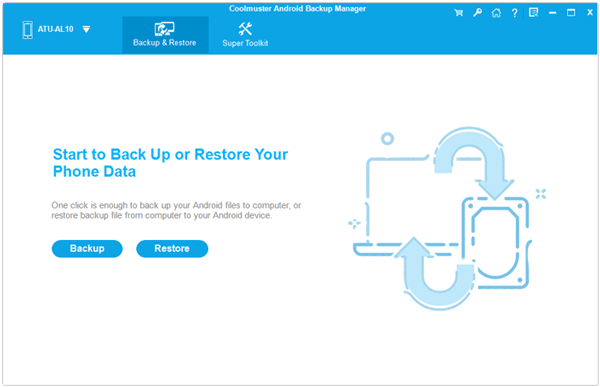
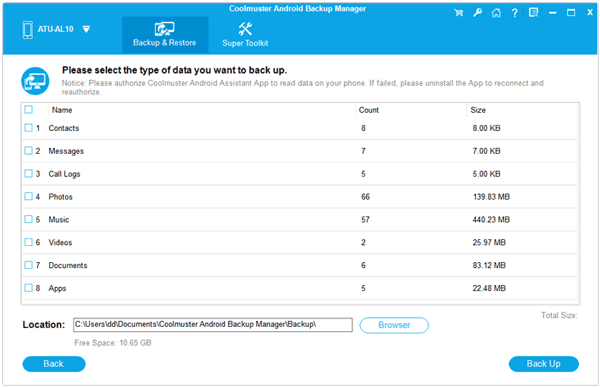
Step 3: Select the file types you want to back up, and click "Back Up" at the bottom to start the backup process. Then your Android files will be saved to your computer.
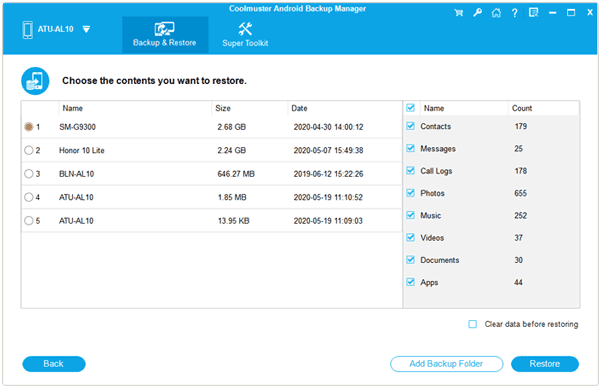
Step 4: To extract your backup Android file, you can click the "Restore" icon, and choose the target file. Then opt for what you want to restore. Finally, click "Restore" to import the data to your Android device. By the way, you can restore the data to another Android device as well.
Tips: How do I view my Android backup files on my PC? And how do I access the Android internal storage easily? Get the answer directly.
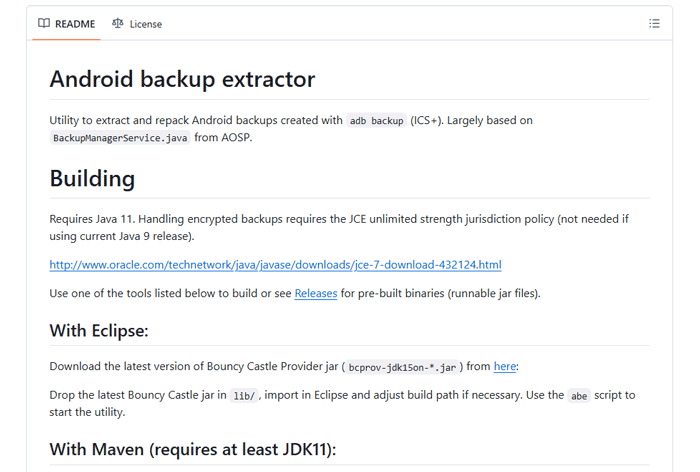
For tech-savvy users and developers, the open-source Android Backup Extractor (abe) hosted on GitHub is the gold standard. It is a Java-based command-line utility specifically designed to extract and pack Android .ab (Android Backup) files - the standard format generated by the Android SDK via adb backup. It can decrypt password-protected backups and convert them into standard .tar files, which can then be easily opened with software like WinRAR or 7-Zip.
+ Completely free to use with publicly accessible source code, ensuring total transparency.
+ The gold standard utility explicitly designed to handle the native Android SDK backup format.
+ Fully supports the decryption of password-protected and encrypted Android backup archives.
+ Written in Java, meaning it runs smoothly on Windows, macOS, and Linux systems alike.
- Operates strictly via a command-line interface (CLI), which carries a steep learning curve for average users.
- Requires users to manually install and configure the Java Runtime Environment (JRE) on their computer beforehand.
- Only converts .ab files into .tar archives; you still need additional software (like 7-Zip) to extract the final files.
- As a community-driven project, it lacks dedicated customer support or troubleshooting assistance if an error occurs.
See also: If you want to restore your Android data from your Google Backup, don't miss the solution here.
If you have rooted your phone or installed a custom ROM, you are likely familiar with Team Win Recovery Project (TWRP). TWRP creates "Nandroid" backups, which are full-system images saved as complex .win or .tar files. A TWRP Backup Extractor (often built into advanced file managers or specialized PC tools like Nandroid Browser) allows you to extract individual apps, databases, or media files from these massive system images without flashing the entire backup back onto your device.
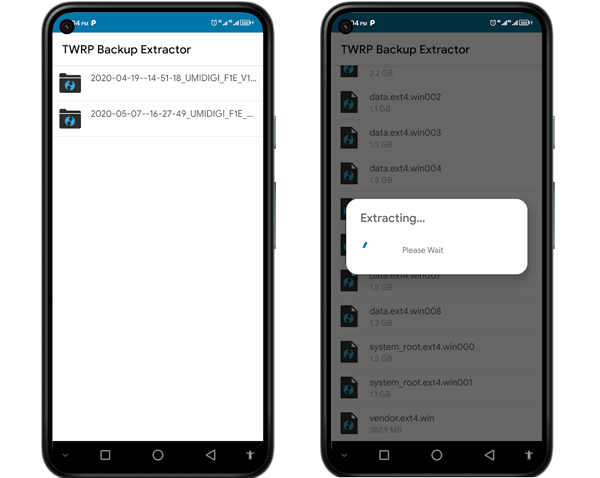
+ Allows users to peer inside comprehensive Nandroid full-system image backups.
+ Enables selective file extraction so you can rescue a single app database without restoring the entire OS.
+ Unlocks access to protected system directories and app-specific private data that normal tools cannot reach.
+ Extracts files directly onto a PC, bypassing the need to clear gigabytes of space on your phone for a full restore.
- Only works if you have previously unlocked your bootloader, installed a custom TWRP recovery, and created a Nandroid backup.
- Nandroid backups split data into multiple .win or compressed chunks, making manual navigation very chaotic.
- Interfacing improperly with raw partition images can break database structures if files are modified incorrectly.
- Aimed almost exclusively at advanced users, custom ROM enthusiasts, and Android developers.
Available on the Google Play Store, Backup Apk - Extract Apk by HD-Team is a lightweight, mobile-centric tool. Instead of extracting system-wide data from a PC backup, this tool focuses on extracting the installer files (.apk) of the applications currently installed on your device. It allows you to back up your favorite apps, share them with friends offline, or archive older versions of apps before they get updated with unwanted features.
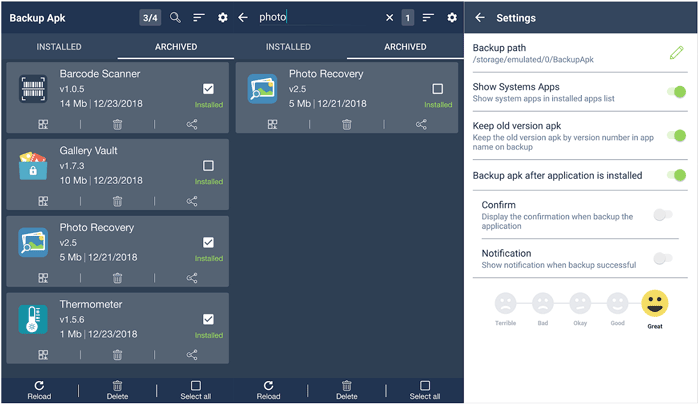
+ Runs directly on your Android device as a mobile app, eliminating the need for a computer connection.
+ Ideal for archiving specific application versions before they receive unwanted updates.
+ Installs within seconds and scans the entire device's app registry almost instantly.
+ Allows users to extract and share .apk files directly via Bluetooth, email, or local sharing networks.
- Only extracts application installation files (.apk); it cannot extract personal data like messages, photos, or contacts.
- The free version contains ads, which can disrupt the user experience during mass extractions.
- Certain system-protected apps or encrypted paid applications cannot be extracted due to OS security policies.
- Cannot be used to unpack data from an external backup file stored on a hard drive.
Android Backup Processor is another powerful, open-source utility hosted on SourceForge. Similar to the GitHub extractor, it focuses on handling standard Android ADB backup files. It acts as a processing engine that unpacks the dense, encrypted structural layers of Android backup files, converting them into a readable directory tree on your desktop. It is ideal for users looking for a free, community-driven tool to handle raw system backups.
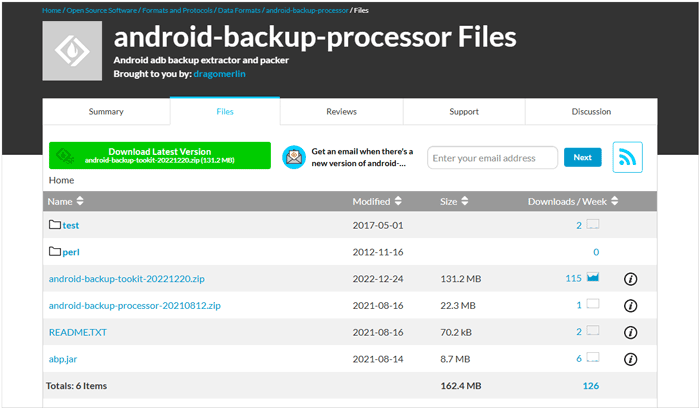
+ Available to the public at zero cost without any hidden paywalls, subscriptions, or advertisements.
+ Unpacks dense Android backup structural layers and automatically builds a readable file tree on your PC.
+ Capable of handling massive storage directories efficiently without crashing over large files.
+ Does not bundle unnecessary background processes, requiring minimal desktop CPU and RAM resources.
- The development cycle is relatively slow, meaning it may lack optimization for the newest Android system updates.
- Although powerful, it relies heavily on script executions that require basic command prompt familiarity.
- The setup guides and error code indexes on SourceForge can be sparse and difficult for beginners to follow.
- Designed strictly as a one-way processing engine to extract data to a PC, not to push data back onto a mobile device.
As the name suggests, ABToTar is a dedicated command-line script designed for one specific job: converting .ab files into .tar archives. It strips away the Android-specific backup headers, making the file instantly readable by standard archiving software on Windows, Mac, or Linux. It is incredibly lightweight and fast, making it a favorite for users who want to bypass heavy software suites and get straight to their files via the terminal.
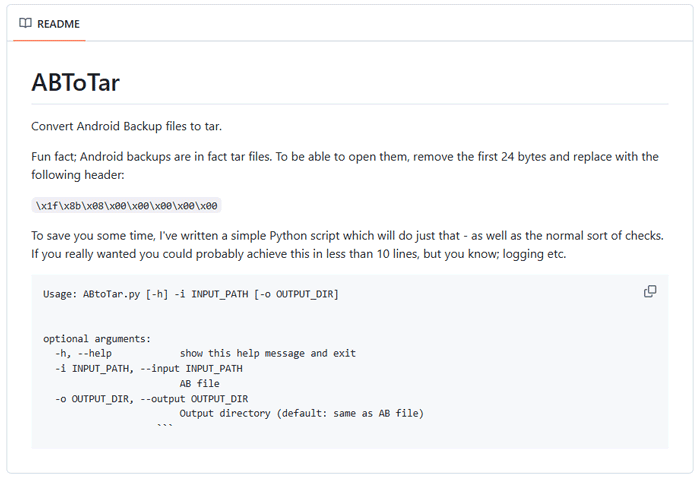
+ Lightweight script optimized to do exactly one job perfectly—converting .ab files to .tar format.
+ Strips away Android backup headers at a binary level, resulting in faster processing than bloated suites.
+ Requires no heavy software installations, running smoothly as a standalone script or terminal command.
+ Converts backups into a standard .tar layout compatible with any default extraction tool like WinZip or WinRAR.
- Offers no extra features like data previewing, selective sorting, or cloud-backup handling.
- Features zero graphical elements, making it highly unappealing to casual smartphone users.
- If a file conversion fails due to a corrupted backup block, the script terminates with cryptic terminal logs.
- Requires users to understand path routing and syntax properties to feed the files into the terminal properly.
Q1: Can I extract Android backup data and restore to another Android device?
Yes, but it depends on the data type. Media files like photos, videos, and music can easily be extracted to a PC and dropped onto any new Android phone. However, system settings and specific application data (like game saves) may cause compatibility issues or app crashes if you attempt to force-restore them onto a different phone model or a different version of the Android operating system.
Q2: Will the backup data replace my existing files after restoring?
It depends on the tool and method you choose.
If you use a desktop manager like Samsung Backup and Restore to restore your backup, it will not overwrite any files on your target Android device.
If you use a full system restore via ADB or custom recovery, it will typically overwrite and replace the corresponding existing files and application states currently on that device. Always verify the software's settings before hitting "Restore".
Q3: Is a backup extractor safe?
Yes, provided you download it from an official, trusted source. Open-source tools on GitHub/SourceForge or verified software from recognized developers are completely safe. However, because backup files contain your most sensitive personal information (passwords, messages, personal photos), you should strictly avoid shady, unverified third-party websites claiming to extract your files online, as they could compromise your privacy.
An Android backup is your safety net, but an Android backup extractor is the key that unlocks it when things go wrong. Whether you prefer a straightforward, one-click desktop application like Samsung Backup and Restore, a mobile APK extractor, or advanced open-source command-line tools like Android Backup Extractor on GitHub, there is a solution tailored to your technical comfort level.
By understanding when and how to use these tools, you can ensure that your personal data remains accessible, manageable, and secure under any circumstance.
Related Articles
Samsung Backup and Restore Guide: 5 Effective Approaches
Titanium Backup Alternative - 10 Helpful Options to Back Up Android Files
How to Transfer Music from Computer to Android Smoothly [New Tutorial]
How to Back Up Android to Mac with Ease? 6 Ideal Answers

Sophie Green, Chief Editor of Samsung-messages-backup website, has been focusing on the realm of Android Recovery, Android Transfer (Backup), Android Device Tips, Phone Clean, and Phone Transfer technologies. Recognized contributions on leading platforms attest to her esteemed expertise and reliability.
Copyright © samsung-messages-backup.com All Rights Reserved.



