"Hi, everyone. I use iPhone without icloud and an old version 15.5. My problem is I can't transfer my pictures and videos to my Windows computer. I tried iTunes and cables, but a lot of pictures transfer with other extension."
- From a Reddit Post
Are there many photos on your iPhone and you want to transfer the photos from your iPhone to your Windows 11/10 PC? Don't worry about that as you can get 5 effective solutions from this article. Read through the guide, and you can import your iOS photos with original formats and quality.
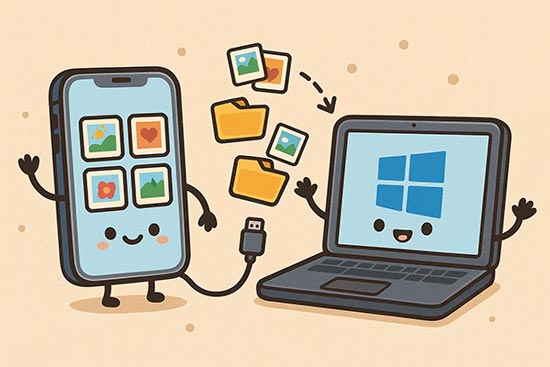
If you want a tool that can transfer photos efficiently with lossless quality and original file formats, iPhone Data Manager will be suitable for you. This software enables you to preview all your iPhone pictures and selectively transfer them to a Windows 11/10/8/7 PC or Mac. By the way, you can use it to transfer other iPhone data as well.
- Copy photos from an iOS device to a Windows 10/11 PC with ease.
- Save your photos with the same format and quality.
- Back up various iPhone data to your computer at once.
- Support transferring contacts, SMS, videos, music, notes, calendar events, bookmarks, etc.
- Compatible with a wide range of iOS devices, including iPhone 17 Pro Max/17 Pro/17/Air, iPhone 16/15/14/13/12/11/X/8/7, iPad Pro, iPad Air, iPad mini, iPad, etc.
Download the iPhone Data Manager software.


Step 1: Download, install, and launch the iPhone Data Manager software on your Windows PC.
Step 2: Connect your iPhone to the PC using a USB cable. Tap "Trust" on your iPhone when prompted. The software will detect your iPhone and display its basic information.
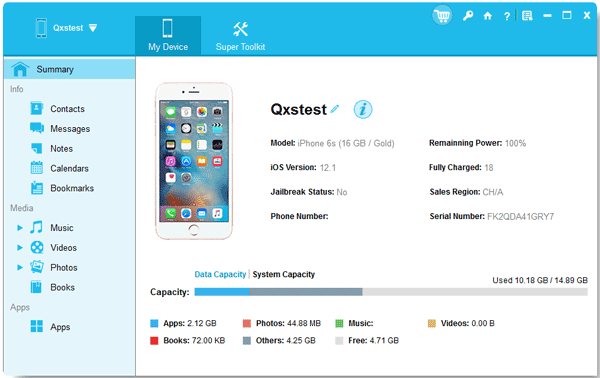
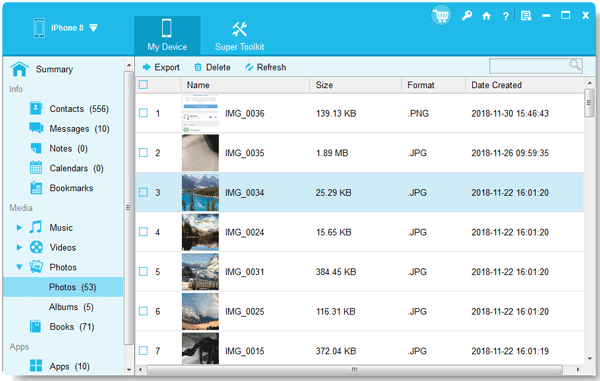
Step 3: Navigate to the "Photos" option, and select the photos you want to transfer. Then click "Export" to save them to your Windows computer.
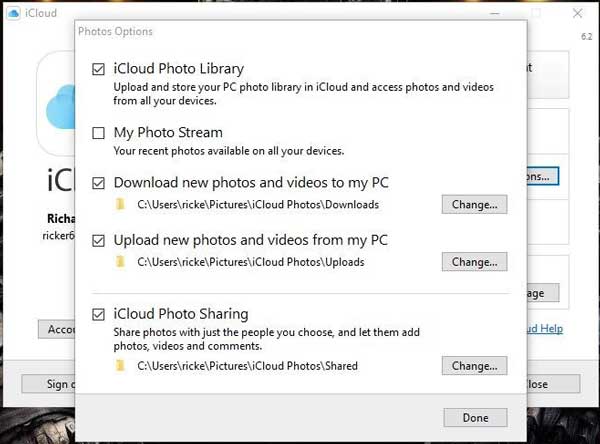
iCloud Photos is Apple's cloud-based storage solution that automatically syncs your videos and photos across all your Apple devices and your PC, provided you have the iCloud for Windows app installed. And it requires you to have sufficient cloud storage space.
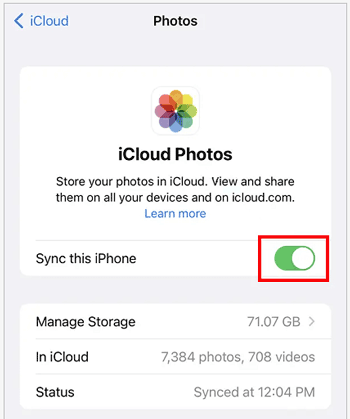
Step 1: On your iPhone, go to Settings > "[Your Name]" > "iCloud" > "Photos", and make sure "Sync this iPhone" or "iCloud Photos" is toggled "ON".
Step 2: Download and install the iCloud for Windows application on your PC from the Microsoft Store or Apple's website. Next, launch the application and sign in with the same Apple ID you use on your iPhone.
Step 3: Click the "Options" button next to "Photos". Then ensure "iCloud Photos" is checked, and check "Download new photos and videos to my PC".
Step 4: Note the destination path. Click "Done" and then "Apply". Your photos will automatically start downloading to the specified folder on your PC.
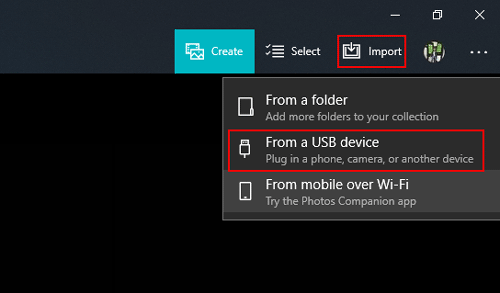
The built-in Windows Photos app provides a simple, direct method for importing photos and videos from any connected device, including your iPhone, without needing any extra software. This app is available on Windows 11 and Windows 10 computers.
Step 1: Connect your iPhone to your PC using a USB cable. Unlock your iPhone and tap "Trust" when the "Trust This Computer?" prompt appears.
Step 2: Open the Photos app on your Windows 10 or 11 PC (search for "Photos" in the Start menu).
Step 3: Click the "Import" button, usually located in the top-right corner, and select "From a connected device" or "From a USB device".
Step 4: Wait for the app to scan your iPhone's contents. You will see all your photos and videos. Uncheck any items you don't want to import.
Step 5: Check the suggested destination folder or click "Change destination" to choose a different location. Click "Import" to start the transfer.
Microsoft's OneDrive cloud service allows you to automatically or manually upload photos from your iPhone and then access and download them easily on your Windows PC. However, it offers 5GB of free cloud storage only.
Step 1: Download and install the Microsoft OneDrive app on your iPhone from the App Store.
Step 2: Open the OneDrive app and sign in with your Microsoft account. Go to the settings and enable "Camera Upload" to automatically back up your iPhone photos to the cloud.
Step 3: On your Windows PC, open File Explorer. OneDrive is typically integrated into the system.
Step 4: Navigate to the "Pictures" folder inside OneDrive, and then to the "Camera Roll" folder. Your uploaded photos will be there. You can view them directly, or right-click and select "Always keep on this device" to download physical copies to your PC.

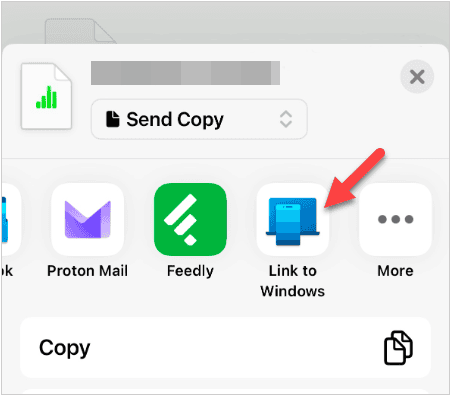
The Phone Link app on Windows 11/10 is primarily designed for syncing messages and notifications, but it can also facilitate photo access through its companion app, Link to Windows, on the iPhone. You can use it to share your photos wirelessly.
Step 1: On your iPhone, download the "Link to Windows" app. On your Windows 11/10 PC, ensure you have the "Phone Link" app (pre-installed).
Step 2: Open Phone Link on your PC and select "iPhone". Follow the instructions to pair the two devices using a QR code.
Step 3: Once successfully linked, in the Phone Link app on your PC, you will be able to see a selection of the most recent photos from your iPhone.
Step 4: Click on the photo you wish to transfer to view it, then right-click the image and select "Save as" to save it to any folder on your Windows PC.
Q1: Why can't I transfer iPhone photos to PC?
If you're unable to transfer iPhone photos to your PC, there could be several reasons behind this issue.
Q2: Why isn't my iPhone showing up in File Explorer?
If your iPhone isn't showing up, try these steps:
Q3: How do I avoid transferring duplicate photos to my PC?
When importing photos using the Photos app, it usually avoids duplicates automatically. You can also use iPhone Data Manager to transfer your photos selectively.
You now have five different, reliable methods for transferring photos from your iPhone to your Windows 10 or 11 PC. For the quickest direct transfer of a large volume of photos, the Windows Photos App or a dedicated tool like iPhone Data Manager is recommended. Choose the method that best fits your workflow and keep your photo library safe and organized.
Related Articles
Top 5 Ways on How to Transfer Contacts from iPhone to iPhone without iCloud
Transfer Music from iPhone to iPad in 7 Amazing Ways? (New Data)
Sell Your Broken iPhone Easily with Step-by-Step Guide (Latest)
Google Pixel 10 vs iPhone 17: Full Lineup Comparison (Latest)

Charlotte Smith, an accomplished editor in the dynamic landscape of mobile technology, has distinguished herself with her abundant experience and skills for iPhone, OnePlus, Sony, Vivo, Motorola, ZTE, Huawei, etc. Help readers and users solve the problems in iPhone Transfer and Mobile Data Management. Her proficiency extends beyond mere functionality, delving into the nuances of each brand with precision and clarity.
Copyright © samsung-messages-backup.com All Rights Reserved.



