Contacts are the most important data on our mobile phones. If you are using an iPhone and want to back up contacts on the iPhone, this guide will give you a hand. It has explained 4 viable methods, so you can follow the given steps below to back up your iPhone contacts without trouble. Then you won't lose your data due to accidental deletion, device loss, system failure, etc.
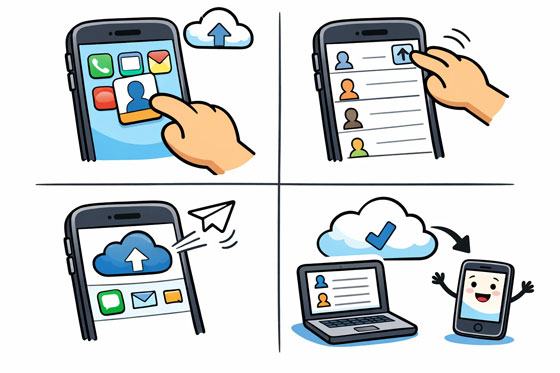
iCloud is the most convenient method for most users because it works automatically in the background. As long as your iPhone is connected to a stable network and there is cloud storage space available on your account, you can back up your iPhone contacts with iCloud.
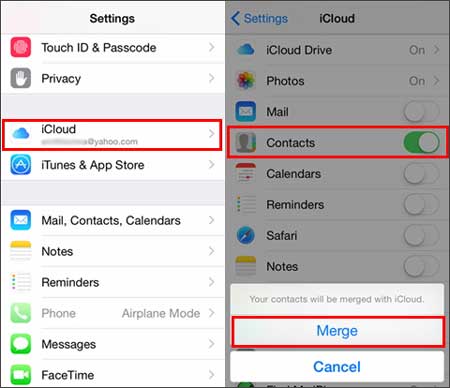
Step 1: Connect your iPhone to a Wi-Fi network. Then open the Settings app.
Step 2: Click your name at the top, and select "iCloud". Under the "Apps Using iCloud" section, tap "Show All".
Step 3: Locate "Contacts" and toggle the switch to the "On" position. If prompted, select "Merge" to combine your local contacts with the iCloud database.
Step 4: Once enabled, your contacts will be backed up to your iCloud account, and stay synced across all your Apple devices signed in with the same Apple ID.
Advantages:
Limitations:
If you prefer a professional desktop solution that allows for selective backup and easy management, iPhone Data Manager is an excellent choice. It can help you back up your contacts from your iPhone or iPad to your computer (Windows or Mac). You can also edit and remove your contacts on the desktop with a large screen.
- Display all your iPhone contacts on the interface one by one.
- Support preview and selective transfer of iOS data like contacts.
- Save iPhone contacts to a computer in CSV, VCF, and XML formats.
- Allow you to access your backup contacts on your computer.
- Transfer text messages, notes, photos, videos, music, and more with ease.
- Support the iOS devices running iOS 5.0 or later, including iOS 26.
Download iPhone Data Manager.


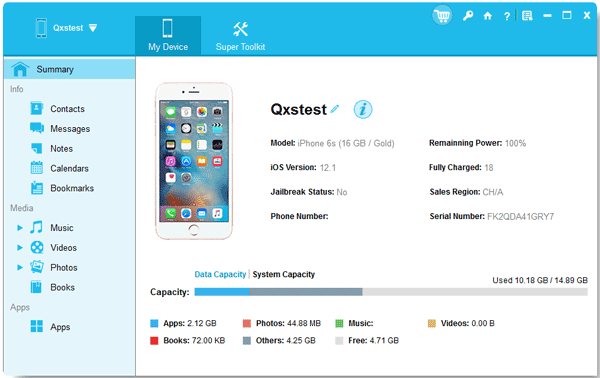
Step 1: Install and launch the software on a computer, and connect your iPhone to the computer with USB.
Step 2: The software will immediately detect your iPhone. Then click "Trust" on your iPhone, and the connection will be completed.
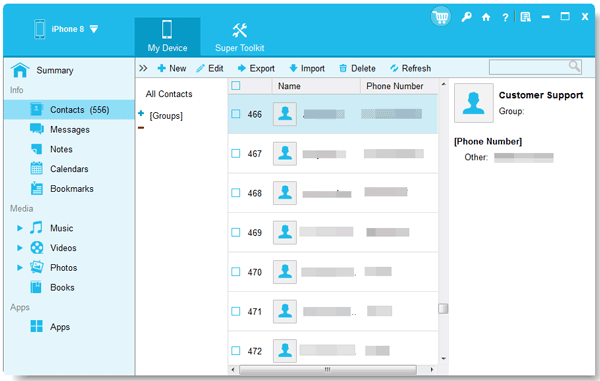
Step 3: Go to the "Contacts" section on the left sidebar. Preview and select the contacts you wish to save. Finally, click "Export" and choose your preferred format to back them up to your PC.
Advantages:
Limitations:
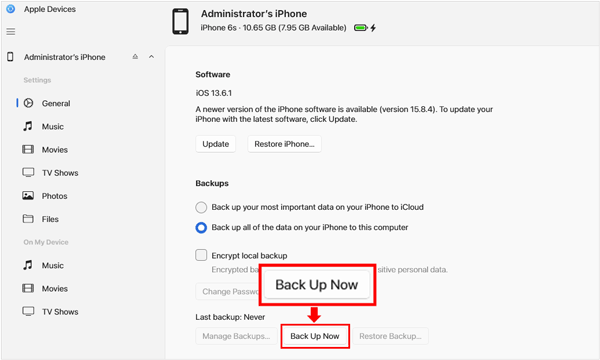
How do I back up my iPhone contacts without iCloud? Luckily, for Windows 10 and later users, the Apple Devices app has replaced iTunes for managing iOS data. You can use this app to back up your iPhone contacts to your Windows PC.
Step 1: Install the Apple Devices app from the Microsoft Store. Then open the app.
Step 2: Connect your iPhone to your computer, open the app, and select your iPhone in the sidebar.
Step 3: Click on "General" in the main window. Under the "Backups" section, select "Back up all of the data on your iPhone to this computer".
Step 4: Click "Back Up Now". Note that this creates a full backup of your phone, including your contacts.
Advantages:
Limitations:
If you use Gmail or want to move your contacts to an Android device later, backing them up to a Google Account is a smart move. Every Google Account has 15 GB of free cloud storage space.
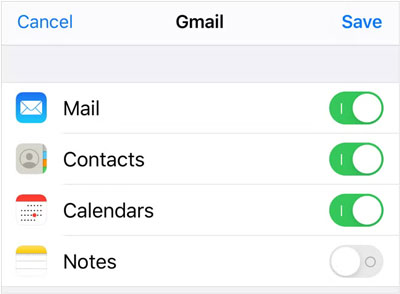
Step 1: Open the Settings app on your iPhone, scroll down, and then choose "Contacts" > "Accounts".
Step 2: Select "Accounts" > "Add Account" > "Google". Then log in to your Google Account.
Step 3: Once the account is added, ensure the "Contacts" toggle is turned "On". Then your iPhone contacts will now automatically back up to your Google Contacts cloud.
Advantages:
Limitations:
Q1: Can I export all my iPhone contacts and save them as a VCF file?
Yes. You can export contacts as a VCF file using third-party tools like iPhone Data Manager in Part 2, or by syncing contacts to iCloud or Google and exporting them from their web interfaces.
Q2: Can I share all the contacts on my iPhone with email?
You can share individual contacts easily via the "Share Contact" option. However, to share all contacts via email, you should first export them as a VCF file (as mentioned in Q1) and then attach that file to an email.
Q3: Can I restore my contacts from the backup to my iPhone?
Yes, you can restore your contacts from the backup to your iOS device.
Securing your contact list is simple once you know which tool fits your workflow. If you prefer the "set it and forget it" nature, you can choose iCloud, but it has storage limit. If you want to back up your iPhone contacts to your computer, you can use iPhone Data Manager. This software enables you to view your contacts, and access your backup contacts on your computer, which is more granular than using other tools.
Related Articles
Full Explanation: How to Transfer Photos from iPhone to Android
Compare iPhones in Several Aspects: iPhone 17 Series Lineup Products
Guide: How to Transfer Videos from iPhone to Mac Effectively
How to Sync Contacts from iPhone to Mac with 4 Proven Approaches

Charlotte Smith, an accomplished editor in the dynamic landscape of mobile technology, has distinguished herself with her abundant experience and skills for iPhone, OnePlus, Sony, Vivo, Motorola, ZTE, Huawei, etc. Help readers and users solve the problems in iPhone Transfer and Mobile Data Management. Her proficiency extends beyond mere functionality, delving into the nuances of each brand with precision and clarity.
Copyright © samsung-messages-backup.com All Rights Reserved.



