If you want to export Outlook contacts to Excel, you just need to operate it with simple clicks. This guide provides a comprehensive walkthrough for exporting your Outlook contacts, and then you can open the data with Excel without trouble. It also answer some frequently asked questions to ensure a smooth export process. Now, let's begin.
The classic Outlook desktop application (for Windows) provides a robust "Import/Export" wizard that allows for precise data mapping. If you have installed Outlook on your PC, you can export the contact list from the Outlook app to Excel directly.
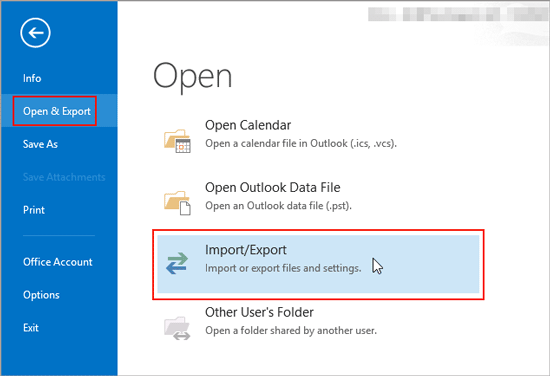
Step 1: Open Outlook on your PC and click "File" in the top-left corner. Then select "Open & Export" > "Import/Export".
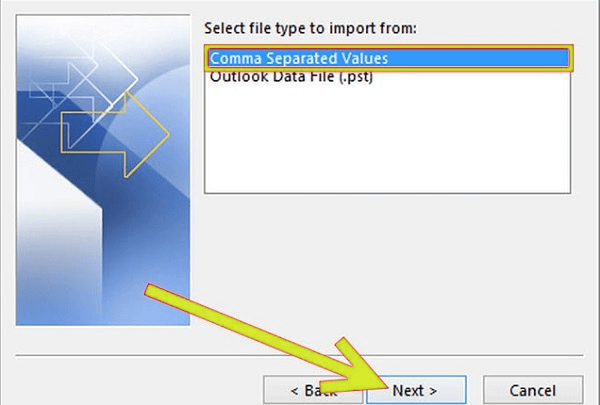
Step 2: Choose "Export to a file" and click "Next". Then select "Comma Separated Values (CSV)" and click "Next".
Step 3: Under the "Select folder to export from" list, scroll to find and select "Contacts". Click "Browse" to choose a save location and name your file.
Step 4: Click "Finish". You can now open this CSV file directly in Excel.
If you are using the web-based version of Outlook, the process of exporting contacts from Outlook is even more streamlined.
Step 1: Sign in to Outlook.com with your account information. Then choose the "People" icon in the left-hand sidebar.
Step 2: On the top toolbar, click "Manage" and then select "Export contacts".
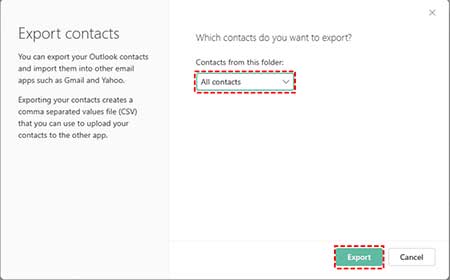
Step 3: Choose to export "All contacts" or select a specific folder. Finally, click "Export". Your browser will download a .csv file, which can be opened and saved as an Excel workbook.
If you want to export Outlook contacts from an Android device to Excel, you can use Samsung Messages Backup, a comprehensive Android data management program. With it, you can directly import your Outlook contacts to your Android device, and export your contacts as a CSV file on your computer. Then directly open it with the Excel app. Of course, you can back up all your contacts to your computer at once.
- Export Outlook contacts from an Android device to a computer in CSV file format.
- Import contacts from a computer to an Android device directly.
- Support multiple file formats, including VCF, BAK, CSV, HTML, XML, JSON, etc.
- Edit your contacts on a computer, like adding, deleting, etc.
- Back up and restore Android contacts on a computer with ease.
- Transfer Android text messages, call logs, documents, photos, videos, music, and more, to PC or Mac.
- Compatible with Android 6.0 or later, including Android 16.
Download the contact management software.


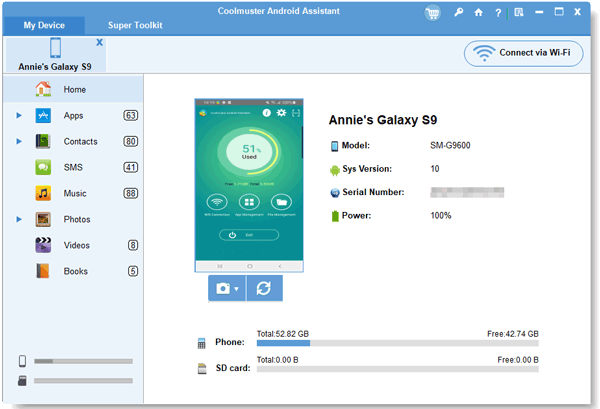
Step 1: Download and install the software on your computer, and connect your Android device to the PC or Mac via USB.
Step 2: Open the program, and enable USB debugging on Android. It will quickly recognize your mobile device. Then choose the "Contacts" option.
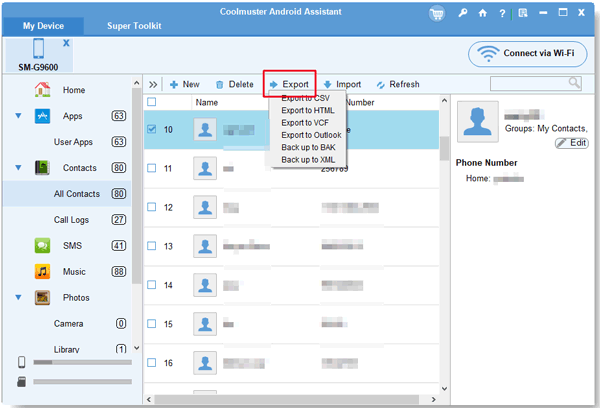
Step 3: If you have imported your Outlook contacts to the Android device, please directly select the contacts you want, and click "Export". Then choose the "Export to CSV" option to save them on your computer.
By the way, if you haven't imported your Outlook contacts, please click "Import" > "Import from Outlook" to choose your Outlook contact file. Then the contacts will be added to your Android device.
Outlook for Mac has a slightly different interface but remains straightforward. You can effortlessly export your contact group from Outlook on Mac, and then open the file with Excel.
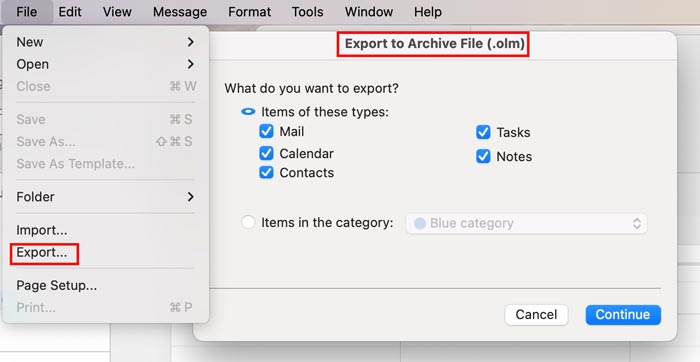
Step 1: Open Outlook on your Mac. Then click "Tools" in the top menu bar and select "Export".
Step 2: In the "Export to Archive File (.olm)" window, ensure "Contacts" is checked and click "Continue".
Step 3: Click "Save" to export your contacts in an .olm file. Then you need to install SysInfo OLM Converter Tool from Microsoft Store to your PC, and convert the OLM file to a CSV file.
Q1: Can I export only certain contacts or contact lists from Outlook?
Yes. In the Desktop version, you can move specific contacts into a new sub-folder and select only that folder during the export process. On Outlook.com, you can select specific contacts using the checkboxes before clicking "Export".
Q2: Will my contact details remain formatted correctly in Excel?
Generally, yes. However, phone numbers starting with "0" or "+" may sometimes be altered by Excel's "General" cell formatting. It is best to highlight those columns in Excel and change the format to Text to preserve the exact digits.
Q3: What should I do if the export file doesn't open properly in Excel?
If the data looks like a single jumbled line, it is likely a delimiter issue. Open a blank Excel sheet, go to the Data tab, select From Text/CSV, and import your file. Ensure the delimiter is set to "Comma" so the columns align correctly.
Whether you are using the desktop suite, the web interface, or a mobile management tool, exporting Outlook contacts to Excel is a simple process. Once your data is in Excel, you can easily filter, sort, and update your contact information for any professional or personal project. If you want to manage your contacts on your computer, Samsung Messages Backup will be a good option. It supports not only contacts but also other Android data types.
Related Articles
How to Transfer Contacts from iPhone to Computer Without iTunes (5 Ways)
Restore Google Contacts Effortlessly in 3 Ways [Practical Guide]
Answered: How to Transfer Contacts from iPhone to Android via Bluetooth
Ultimate Guide: Android Backup Contacts to SD Card [Hassle Free]

Sophie Green, Chief Editor of Samsung-messages-backup website, has been focusing on the realm of Android Recovery, Android Transfer (Backup), Android Device Tips, Phone Clean, and Phone Transfer technologies. Recognized contributions on leading platforms attest to her esteemed expertise and reliability.
Copyright © samsung-messages-backup.com All Rights Reserved.



