"Want to transfer contacts from an old iPhone to a Windows laptop. I have an old phone that I want to transfer data from, as I want to reset this phone completely. I did videos and photos, but there are some contacts that i want to transfer, but I am having a lot of difficulties."
- A Reddit Post
Many people wonder how to transfer contacts from an iPhone to a computer without iTunes, especially Windows users. To answer this question, we have tried several methods, and selected five. You can now go through the guide to get the solutions without any trouble.
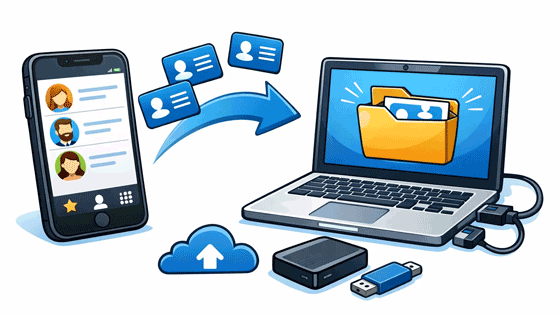
If your iPhone is running iOS 16 or upper, you can export all your contacts as a file, and save it to the Files app. Then use LocalSend to transfer the file to your computer without effort.
Step 1: Open the Contacts app on your iPhone, and tap the "Lists" icon on the top left.
Step 2: Long-press a list, and tap "Export". Then select the contact fields you want to include, and tap "Done".
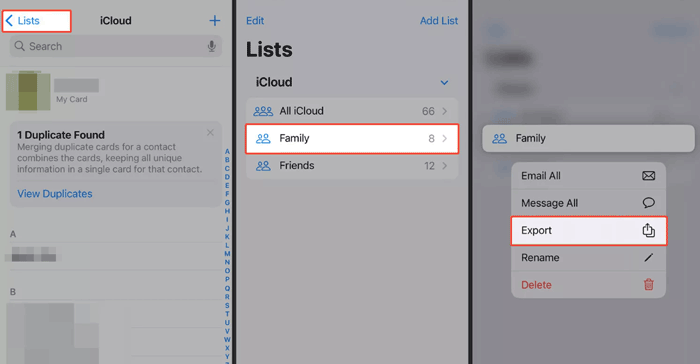
Step 3: Tap "Save to Files" from the share sheet, and choose a location. Now, install and open the LocalSend app on your iPhone and computer.
Step 4: Click "Send" on the iPhone, and select the contact file. Next, select your PC device under "Nearby Devices".
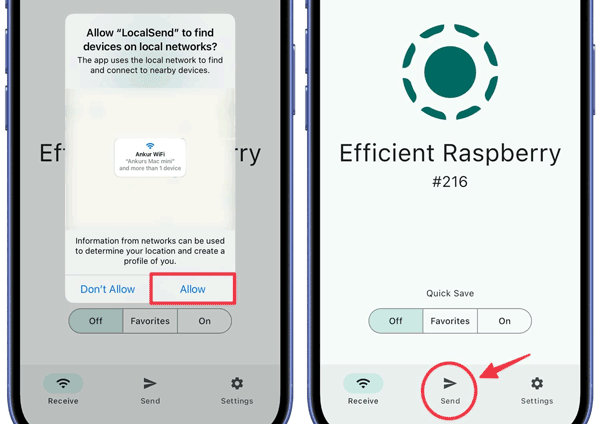
Step 5: When a prompt appears on your computer, click "Accept" to receive the file.
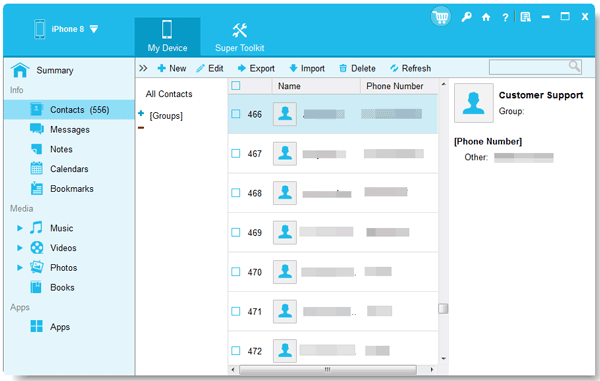
For those who want total control, such as selecting specific contacts or choosing formats like CSV, VCF (vCard), or HTML, iPhone Data Manager is one of the most robust options. It enables you to preview your iPhone contacts on your computer, and supports selecting and exporting the contacts you want. Furthermore, it can help you transfer other iPhone data to your computer as well.
- Preview, select, and transfer contacts from an iOS device to a computer via USB.
- Import contacts from a computer to an iOS device.
- Back up iPhone data to your computer at once, and restore backups to iOS devices with ease.
- Transfer text messages, photos, videos, music notes, and more, from an iPhone to a PC or Mac.
- Help you edit your iPhone contacts on the large screen of your computer.
- Manage iPhone data on your computer without effort.
- Transfer your data without losing data.
- Support iOS 5.0 or later, including iOS 26.
Download iPhone Data Manager.


Step 1: Install and launch your chosen iOS data manager on your computer, and connect your iPhone to the PC or Mac via a USB cable.
Step 2: Make your iPhone trust your computer. Then the connection will be successful. Now, choose the "Contacts" option on the left panel.
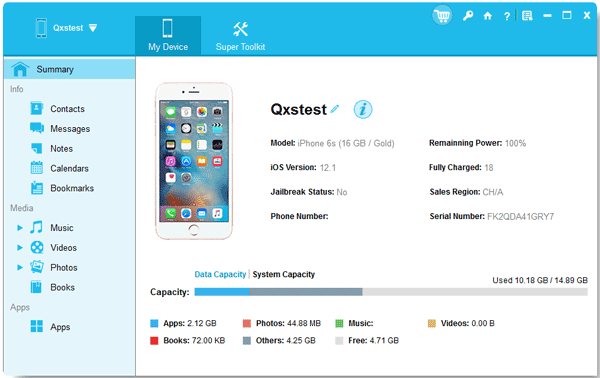
Step 3: Select the contacts you want to transfer, and click "Export" to choose a file format. Then opt for a folder to save your contacts to your computer.
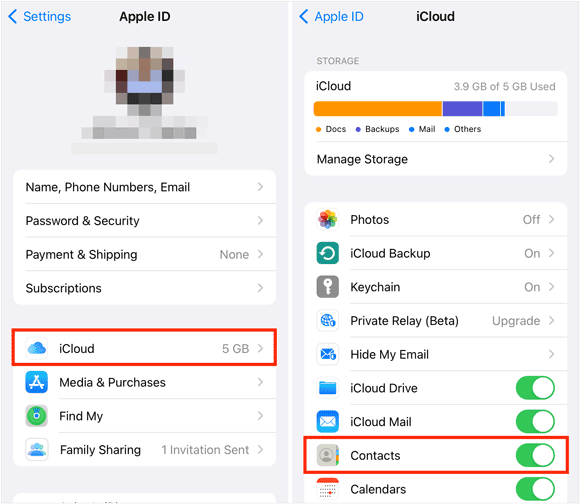
iCloud is perhaps the most seamless method because it works wirelessly. This method syncs your contacts to the cloud, allowing you to download them from any browser. If your cloud storage space is used up, please delete useless files or upgrade the storage first.
Step 1: On your iPhone, navigate to Settings > "[Your Name]" > "iCloud" and toggle "Contacts" to "ON".
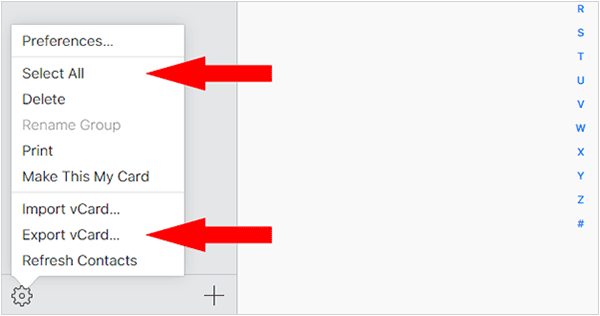
Step 2: On your PC, go to iCloud.com and log in with your Apple ID. Then click on the "Contacts" icon.
Step 3: Select the contacts you want, or click the gear icon > "Select All". Finally, click the gear icon again and choose "Export vCard". This saves a file directly to your computer.
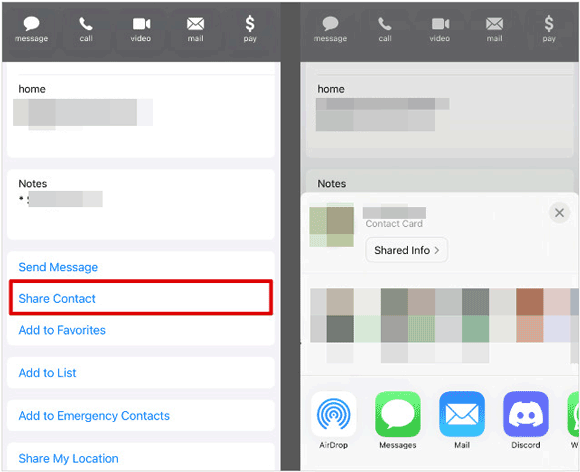
If you only need to send a handful of contacts to yourself, email is the quickest "no-setup" solution to share your iPhone contacts. As long as your iPhone is connected to the Internet.
Step 1: Open the Contacts app on your iPhone, and tap the specific contact you want to move.
Step 2: Scroll down and select "Share Contact". Then choose "Mail", enter your own email address, and hit "Send".
Step 3: Log in to the same email account on your computer, and open the email on your PC and download the attached .vcf file.
If you use Google services, you can bypass iCloud entirely by syncing directly with Google Contacts. Then you can view your contacts on your computer by signing in with your Google Account.
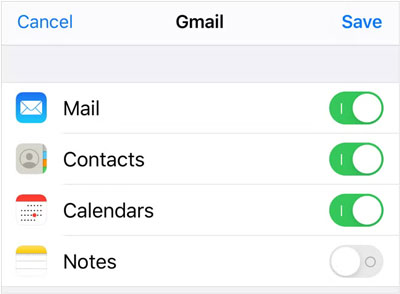
Step 1: Go to Settings > "Contacts" > "Accounts" on your iPhone. Then tap "Add Account" and select "Google" to sign in with your Google Account. Make sure there is available storage space on your account.
Step 2: Ensure the "Contacts" toggle is switched "ON". Once synced, go to contacts.google.com on your PC, and log in to the same account.
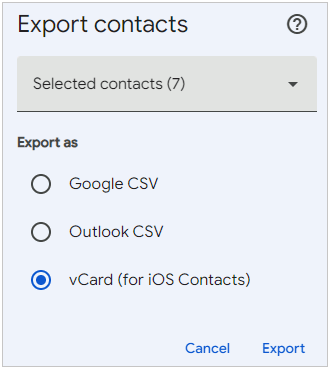
Step 3: Your iPhone contacts will appear there, where you can click "Export" to save them to the hard drive of your computer.
Q1: Can I AirDrop my entire contact list from my iPhone to my computer?
No. AirDrop is designed for sharing individual contacts or small selections. While you can AirDrop a contact to a Mac, you cannot "AirDrop All" to a PC. For a full list transfer, iCloud or iPhone Data Manager is recommended.
Q2: How do I access my iPhone contacts on my PC?
The easiest way is via iCloud.com. As long as your iPhone is syncing to iCloud, any changes you make on your phone appear instantly on the website, which you can access via any web browser on Windows or Linux. If you don't want to access the contacts online, you can use iPhone Data Manager. It allows you to access your contacts via a USB connection.
Q3: Can I directly sync my iPhone contacts to my computer?
Yes, but the method depends on your OS. On a Mac, you sync via Finder. On Windows, you can use the iCloud for Windows app, which integrates your iPhone contacts directly into Microsoft Outlook.
If you prefer wireless convenience, you can use iCloud to sync your iPhone contacts to your computer. If you want a USB transfer, iPhone Data Manager can help. With this program, you can manage and export your iOS contacts on your computer. Anyway, choose the method you want, and then export your contacts without any hurdle.
Related Articles
How to Sync Messages from iPhone to Mac Without Hurdles (4 Ways)
Transfer Contacts from Android to iPhone Without SIM (5 Solutions)
How to Transfer eSIM from iPhone to Android (Stepwise Guide)
Sell Your Broken iPhone Easily with Step-by-Step Guide (Latest)

Charlotte Smith, an accomplished editor in the dynamic landscape of mobile technology, has distinguished herself with her abundant experience and skills for iPhone, OnePlus, Sony, Vivo, Motorola, ZTE, Huawei, etc. Help readers and users solve the problems in iPhone Transfer and Mobile Data Management. Her proficiency extends beyond mere functionality, delving into the nuances of each brand with precision and clarity.
Copyright © samsung-messages-backup.com All Rights Reserved.



