TL;DR:
To restore WhatsApp on OPPO via official cloud services, log into the same Google Account and phone number on your OPPO phone, open WhatsApp, and tap Restore when prompted. If the WhatsApp restore hangs at 99% or fails due to ColorOS power management, using WhatsApp Transfer bypasses system restrictions to execute a direct 1-click backup, restore, or cross-platform transfer.
|
Backing up and restoring WhatsApp chats on an OPPO smartphone can sometimes be tricky due to ColorOS's unique background process controls, strict permission settings, and storage directory structures in Android OS.
Whether you are switching to a new OPPO phone, upgrading to an iPhone, or recovering lost messages, this guide covers every working method for OPPO WhatsApp backup and restore, complete with troubleshooting fixes for common ColorOS errors.
Comparison: Which is the best way to back up and restore OPPO WhatsApp?
| Method |
Target Scenario |
Cross-Platform (OPPO to iPhone)? |
Overwrites Current Data? |
Success Rate |
| WhatsApp Transfer |
Full backup, restore, & cross-platform transfer |
Yes |
No (Selective option) |
99.9% |
| Google Drive |
Basic backup & cloud restore |
No (Android only) |
Yes |
~85% (Fails on background kill) |
| Local Storage (msgstore) |
Offline backup recovery |
No |
Yes |
~80% (Requires manual file edits) |
| WhatsApp Chat Transfer |
Phone-to-phone direct Wi-Fi scan |
No (Requires same OS or official setup) |
Yes |
~88% |
Method 1: WhatsApp Backup & Restore on OPPO with Google Drive
Google Drive is the standard cloud backup method integrated into WhatsApp for Android.
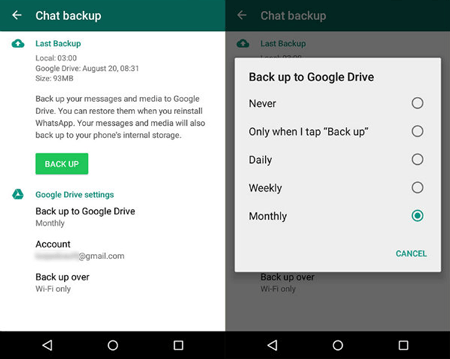
How to Backup WhatsApp to Google Drive on OPPO:
- Open WhatsApp on your OPPO phone.
- Tap the three vertical dots (top-right) > Settings > Chats > Chat backup.
- Tap Google Account and select your primary Gmail.
- Set Back up to Google Drive frequency (Daily/Weekly).
- Tap BACK UP to initiate an immediate cloud backup.
Quick Summary: WhatsApp Settings - Chats - Chat backup - Back up to Google Drive - Tap "BACK UP".
How to Restore WhatsApp from Google Drive to OPPO:
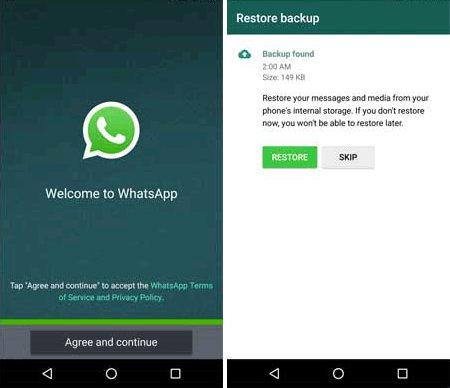
- Reinstall WhatsApp on your OPPO phone.
- Verify your phone number and OTP code.
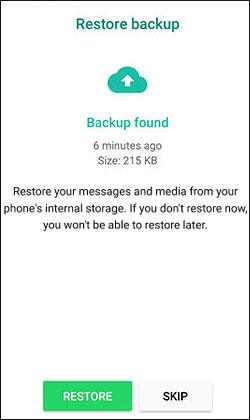
- When WhatsApp detects the cloud backup, tap Restore.
- Wait for the chat history restoration to complete, then tap Next.
Note: Google Drive backups require the exact same phone number and Google Account. They will overwrite existing messages on the target phone during restoration.
Method 2: Restore OPPO WhatsApp from Local Storage
If you don't have internet access or Google Drive fails, WhatsApp automatically creates a daily local backup on your OPPO internal storage.
OPPO WhatsApp Local Backup File Path:
On ColorOS (from Android 11 to Android 17+), local backups are stored at:
/Internal Storage/Android/media/com.whatsapp/WhatsApp/Databases/
Steps to Restore Local Backup on OPPO:
- Open the OPPO My Files (File Manager) app.
- Navigate to: Android/media/com.whatsapp/WhatsApp/Databases.
- Locate the latest backup file (e.g., msgstore-YYYY-MM-DD.1.db.crypt14).
- Rename it to msgstore.db.crypt14 (remove the date string).
- Uninstall and reinstall WhatsApp.
- Open WhatsApp, complete verification, and tap Restore when prompted to load the local file.
Method 3: Backup & Restore OPPO WhatsApp with WhatsApp Direct Transfer (QR Code)
WhatsApp offers an in-app wireless transfer feature for moving chats between Android devices without using Google Drive.
- On your old device, open WhatsApp > Settings > Chats > Transfer chats > Start.
- On your new OPPO phone, install WhatsApp, enter the same number, and select Transfer chat history from old phone.
- Scan the QR code displayed on the new OPPO phone using your old device's camera.
- Keep both phones unlocked and connected to the same Wi-Fi network until complete.
Method 4: OPPO WhatsApp Backup & Restore Without Losing Data – WhatsApp Transfer (Proven)
While official methods work under ideal conditions, OPPO's ColorOS aggressive battery optimization often terminates background cloud restores, and standard backups cannot restore WhatsApp from OPPO to iPhone.
This is where WhatsApp Transfer serves as the definitive tool for full backup, selective restore, and seamless cross-platform transfer. It's a ideal solution for OPPO WhatsApp backup restore without losing data.
Key Advantages of WhatsApp Transfer over Official Methods:
- Direct Cross-Platform Transfer: Effortlessly move WhatsApp messages and media from OPPO to iPhone, iPhone to OPPO, or OPPO to OPPO without factory resets.
- 100% Data Integrity & High Success Rate: Bypasses ColorOS background process kills and Google Drive connection timeouts.
- Selective Backup & Preview: Choose specific chat threads, photos, videos, or voice notes to restore without overwriting existing data.
- Dual/Cloned App Support: Fully compatible with ColorOS App Cloner (Dual WhatsApp).
- Export Options: Export WhatsApp chat histories to HTML, PDF, CSV, or TXT for printing or legal compliance.
- Universal Compatibility: Supports all OPPO series (Find X, Reno, A-series, F-series) running ColorOS 5 through ColorOS 15, as well as iOS 9.0 to iOS 27.


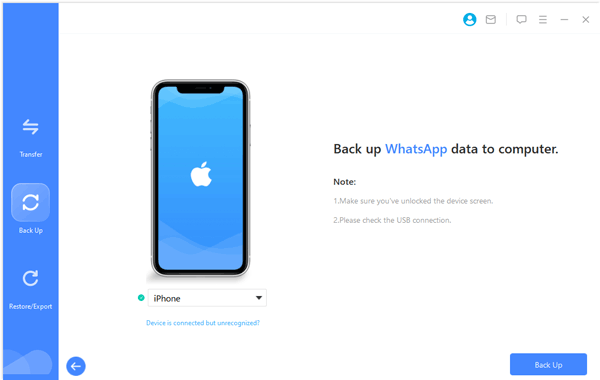
How to Back up OPPO WhatsApp to PC using WhatsApp Transfer:
- Download and install WhatsApp Transfer on your PC/Mac.
- Connect your OPPO phone via USB cable and enable USB Debugging in ColorOS Developer Options.
- Select WhatsApp > Back Up from the main interface.
- Click Back Up and wait for the software to complete the process safely.
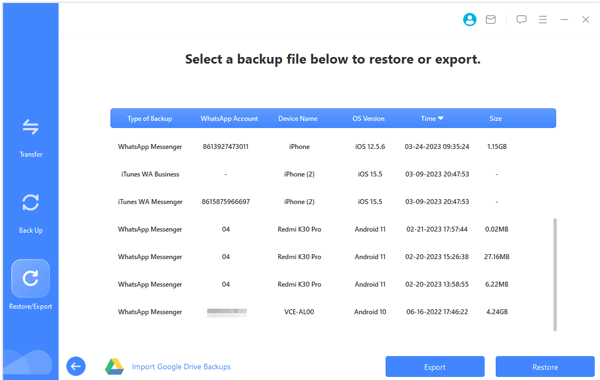
How to Restore WhatsApp Backup to OPPO or iPhone via WhatsApp Transfer:
- Launch WhatsApp Transfer and select Restore.
- Pick your desired backup entry from the saved backup list.
- Connect your target device (OPPO or iPhone).
- Preview the chats, click Restore to Device, and wait for completion.
Troubleshooting Common OPPO WhatsApp Backup & Restore Errors
Error 1: WhatsApp Restore Stuck at 99% on ColorOS
- Cause: ColorOS's aggressive background power management puts WhatsApp or Google Play Services to sleep during large downloads.
- Fix: Go to Settings > Battery > App battery management > WhatsApp > Enable Allow background activity and Allow auto-launch.
Error 2: "No Local Backup Found" on OPPO File Manager
- Cause: Android 11+ shifted storage paths to the scoped Android/media folder.
- Fix: Ensure your msgstore.db.crypt14 file is inside Internal Storage/Android/media/com.whatsapp/WhatsApp/Databases/ and not in the deprecated root /WhatsApp/Databases/ folder.
Error 3: Cannot Backup/Restore Dual WhatsApp (App Cloner)
- Cause: ColorOS creates a cloned profile directory (/storage/emulated/999/) that standard backup utilities cannot index properly.
- Fix: Use WhatsApp Transfer, which automatically indexes and extracts WhatsApp data from multi-user and cloned instance directories on Android.
Frequently Asked Questions (FAQs)
Q1. Does OPPO Clone Phone app transfer WhatsApp messages?
The OPPO Clone Phone app migrates the WhatsApp application file and basic settings, but it frequently fails to transfer media databases or chat histories due to WhatsApp encryption locks. Using WhatsApp Transfer ensures full data migration without missing messages.
Q2. Can I restore an OPPO WhatsApp backup to an iPhone using Google Drive?
No. Google Drive uses a decryption protocol incompatible with iOS iCloud storage formats. To restore OPPO WhatsApp data directly to an iPhone, you need a dedicated cross-platform tool like WhatsApp Transfer.
Q3. Where is WhatsApp data stored on OPPO phones?
On ColorOS devices running modern Android versions, local WhatsApp databases are located at:
Internal Storage/Android/media/com.whatsapp/WhatsApp/Databases/
Final Verdict
For basic same-OS chat recovery, official Google Drive or Local Backup methods on OPPO phones will suffice. However, if you face system freezing errors, need to transfer WhatsApp between OPPO and iPhone, or want to create secure computer backups without overwriting current device data, WhatsApp Transfer provides the fastest, most reliable, and comprehensive solution.
Related Articles
Effectively Transfer WhatsApp from Android to iPhone | 3 Solutions
Restore WhatsApp Backup from Google Drive to Android Device Step by Step
Deftly Back Up WhatsApp from Samsung to iPhone with 3 Solutions [Effective]
SMS Backup and Restore for iPhone Guide: 5 Ways to Keep Messages Safe

Charlotte Smith
Senior Editor
Charlotte Smith, an accomplished editor in the dynamic landscape of mobile technology, has distinguished herself with her abundant experience and skills for iPhone, OnePlus, Sony, Vivo, Motorola, ZTE, Huawei, etc. Help readers and users solve the problems in iPhone Transfer and Mobile Data Management. Her proficiency extends beyond mere functionality, delving into the nuances of each brand with precision and clarity.