|
TL;DR: Managing iPhone SMS backups relies on two main approaches depending on whether you prefer official automation or flexible data control:
|
A reliable SMS backup and restore for iPhone process is something every user should have in place. Text messages often hold more than just conversations - they carry important information, cherished memories, and even critical records that you simply cannot afford to lose. Whether you are switching to a new device, clearing up storage space, or just staying prepared, knowing how to protect and recover your messages makes all the difference.
This guide covers five distinct methods to back up and restore your iPhone text messages, followed by answers to some frequently asked questions.
Apple's cloud ecosystem offers two primary ways to handle messages: syncing them via Messages in iCloud or including them in a full iCloud Backup. You can follow Method A or B below according to your requirements.
This method uploads your messages to iCloud, so they appear on all your Apple devices in real-time. If you delete a message on one device, it deletes everywhere.
Step 1: Open Settings on your iPhone. Tap your Apple ID name at the top.
Step 2: Select "iCloud" > "Show All" (under "Apps Using iCloud"). Then tap "Messages" and turn on the switch for "Sync this iPhone".
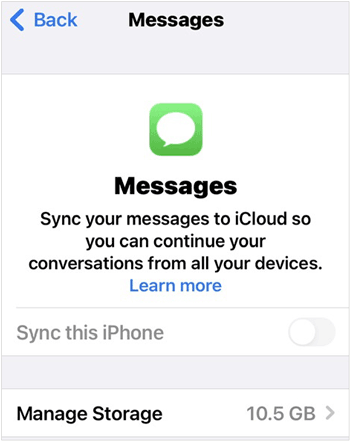
Simply log in with the same Apple ID on a new or wiped iPhone and enable the same toggle. Your messages will automatically download from the cloud.
If you do not use the real-time sync option, your messages are included in your standard daily iCloud backup.
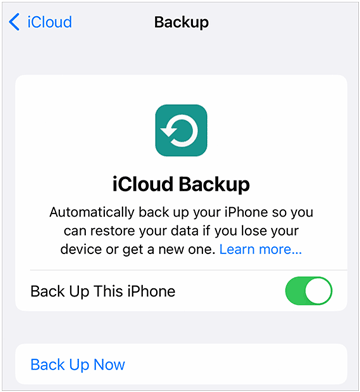
Step 1: Go to Settings > "[Your Name]" > "iCloud" > "iCloud Backup".
Step 2: Turn on "Back Up This iPhone" and tap "Back Up Now". Then all the iPhone data will be backed up to your iCloud account, including messages.
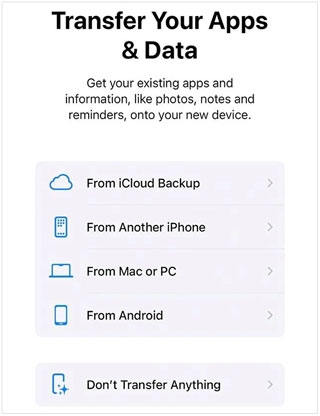
You can only restore this data during the initial setup of an iPhone. If your phone is already set up, you must go to Settings > "General" > "Transfer or Reset iPhone" > "Erase All Content and Settings". During setup, choose "From iCloud Backup" when getting to the "Transfer Your Apps & Data".
Tips: Want an iTunes alternative for Android? Then you can try these tools.
For users who prefer local desktop backups without paying for iCloud storage, Apple provides desktop utilities. On Windows and older macOS versions, you will use iTunes. On modern macOS versions, this functionality is built directly into Finder, while Windows users can also use the modern Apple Devices app.
Step 1: Connect your iPhone to your computer using a USB cable. Then open Apple Devices on the PC. For Mac, go to Finder.
Step 2: Click on "General". In the "Backups" section, select "Back up all of the data on your iPhone to this computer".
Step 3: Finally, click "Back Up Now". It will back up your text messages and other data to your computer.
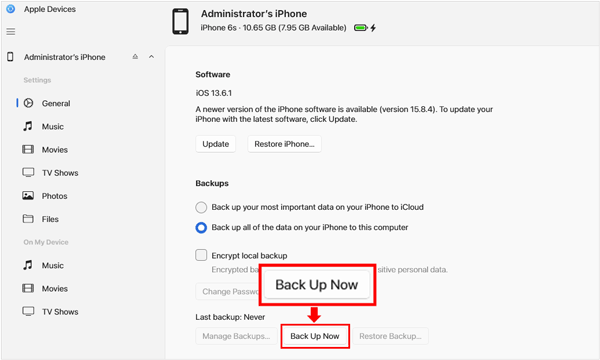
Step 1: If you want to restore your SMS from the backup file, you cannot get the messages only. iTunes/Apple Devices/Finder will restore the whole backup file. Please connect your iPhone to the same computer.
Step 2: Open the respective Apple app and select your device, and click "Restore Backup..."
Step 3: Choose the most relevant backup from the list and click "Restore".
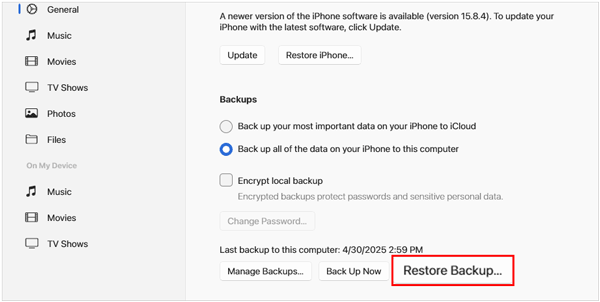
Note: Restoring via this method will overwrite all current data on your iPhone with the data from the backup file.
If you want more flexibility than Apple's "all-or-nothing" backup approaches, dedicated software like iPhone Data Manager allows you to selectively export and preview your messages. Furthermore, it will save your messages in an accessible file format, like HTML, TXT, and CSV. It also supports the one-click backup and restore feature.
- Back up all iPhone text messages and iMessages to your computer in a single click.
- Allow you to selectively export specific messages to your computer.
- Access your iPhone data like photos, songs, bookmarks, and more on your computer without hassle.
- Back up most iPhone data to a computer at once, including call history, contacts, notes, calendar, photos, camera rolls, etc.
- Restore backup data from the computer to any other iOS device with ease.
- Work entirely over USB without requiring an iCloud account or using up cloud storage.
- Support iOS 5.0 or later, including iOS 26.
Download iPhone Data Manager.


Step 1: Download and install iPhone Data Manager on your PC or Mac. Then launch the software and connect your iPhone via USB.
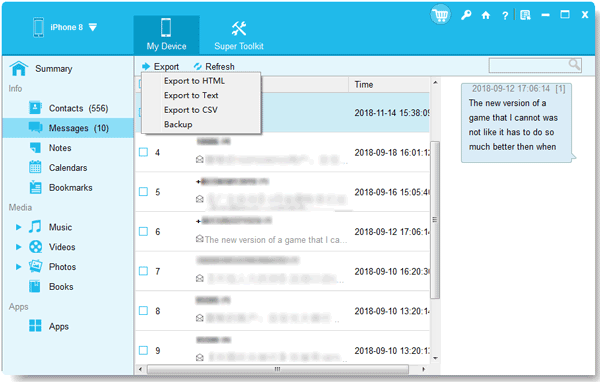
Step 2: Once connected, you have two backup methods.
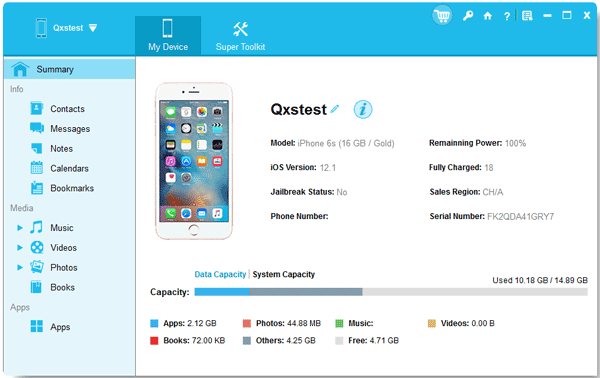
- You can click "Messages" and select the SMS you want. Then click "Export" to save them to your computer.
- Select the "Super Toolkit" menu, and hit "iTunes Backup & Restore" > "Backup". Then select your device for backup, choose a location to save the data, and tap "OK" to start the backup process.
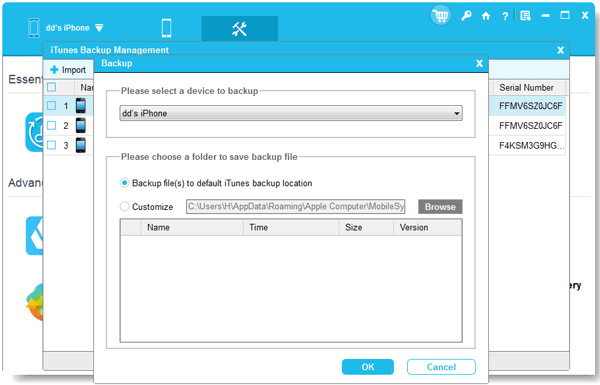
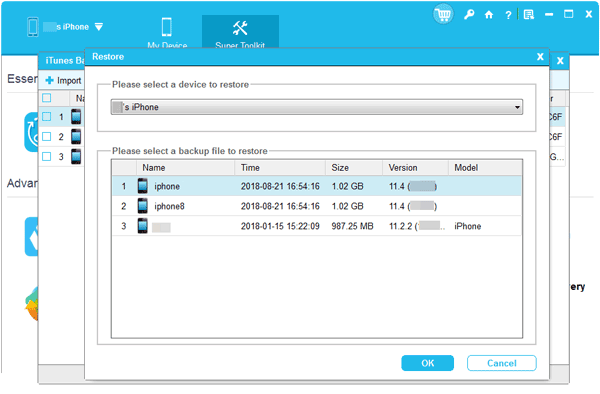
Launch the program, and keep your device connected to the same computer. Go to "Super Toolkit" > "iTunes Backup & Restore", and hit the "Restore" option. Then select the backup file, and tap "OK" to restore your SMS and other data to your iPhone.
3uTools is a popular, free all-in-one management tool for iOS devices that offers advanced data migration and backup options. At present, it has a Windows version only, and the interface is less polished than other designated iOS backup apps.
Step 1: Download and open 3uTools on your Windows PC, then connect your iPhone.
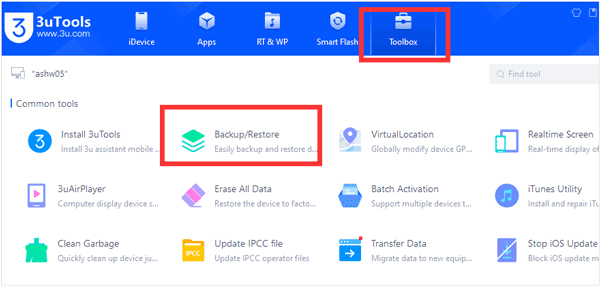
Step 2: Go to the "Toolbox" tab at the top menu, and click on "Backup/Restore".
Step 3: If you want a full backup, click "Back Up Now". If you want a customized backup, you can use the "Data Management" feature under the "Device" tab to specifically select and view "Messages", then export them to your PC.
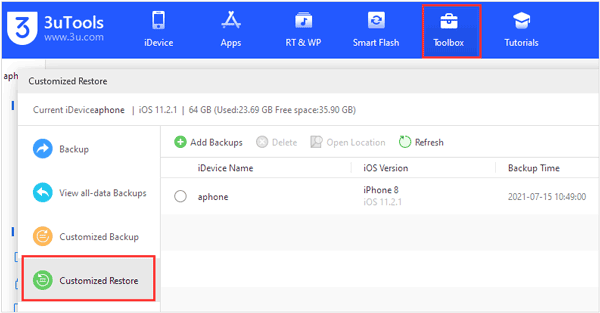
From the "Backup/Restore" menu in the "Toolbox", click "View all-data Backups" or "Customized Restore". Select the backup file generated by 3uTools. Next, click "Restore all data" or "Start Recovery" to put the messages back onto your iPhone. By the way, ensure Find My iPhone is temporarily turned off during this process if prompted.
If you own a Mac, you can use the native Messages app to effectively view, log, and preserve a permanent record of your SMS and iMessages. You can save your messages as a PDF file. However, you cannot restore the messages from the PDF file to your iPhone.
Step 1: On your iPhone, go to Settings > "Messages" > "Text Message Forwarding" and enable your Mac.
Step 2: Open the Messages app on your Mac. Then click "Messages" in the top menu bar, select "Settings" (or Preferences), and go to the "iCloud" tab.
Step 3: Check the box for "Enable Messages in iCloud" and click "Sync Now".
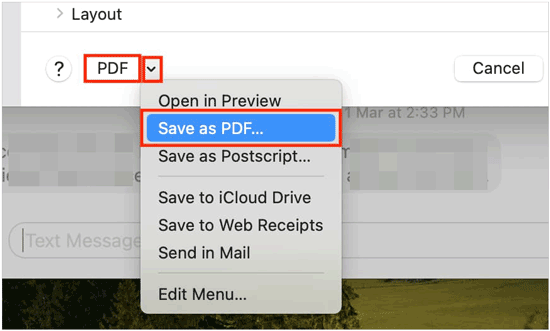
Step 4: After that, click on the conversation you want to back up in the Mac Messages app. Go to "File" > "Print" in the top menu bar.
Step 5: Click the PDF dropdown menu in the bottom-left of the print window and select "Save as PDF". This creates a permanent, readable backup of your text history.
Q1: Does SMS Backup and Restore work for iPhone?
The official, highly rated app named "SMS Backup & Restore" that many users are familiar with on Android is not available for iOS due to Apple's security protocols. However, "SMS backup and restore" as a general concept works perfectly on iPhone using the built-in Apple methods (iCloud/iTunes) or the specialized third-party software applications detailed above.
Q2: Can I restore my iPhone to see old texts?
Yes. If you have an older iCloud or iTunes backup that was created before the text messages were deleted, you can perform a factory reset on your iPhone and restore that specific historical backup. Keep in mind that doing this will revert your phone entirely to that past date, meaning any new photos, texts, or data created after that backup date will be lost.
Q3: Why can't I export iPhone messages and save them as a file, as I do on Android?
Apple prioritizes user privacy and data security through a system called sandboxing. This architecture prevents third-party apps from freely digging into your core system database where sensitive data - like text messages, call logs, and passwords - is stored.
While Android allows apps to easily request permission to read and export the SMS database into XML or CSV files directly on the phone, Apple requires you to route through official backups or use desktop companion apps to extract that information safely.
With the methods above, you can complete the SMS backup and restore for your iPhone without any hurdles. If you only need basic recovery, Apple's built-in tools are sufficient. If you need exportable records or selective message management, iPhone Data Manager provides significantly more flexibility. You can preview your messages, and access the backup messages on your computer.
Related Articles
How to Send iPhone Photos to Android Without Losing Quality (5 Ways)
How to Back Up iPhone to Mac via 4 Methods (Support Various File Types)
Fix Android Not Receiving Texts from iPhone with 14 Solutions
Solved: How to Transfer Contacts from iPhone to PC in 6 Ways (Latest)

Charlotte Smith, an accomplished editor in the dynamic landscape of mobile technology, has distinguished herself with her abundant experience and skills for iPhone, OnePlus, Sony, Vivo, Motorola, ZTE, Huawei, etc. Help readers and users solve the problems in iPhone Transfer and Mobile Data Management. Her proficiency extends beyond mere functionality, delving into the nuances of each brand with precision and clarity.
Copyright © samsung-messages-backup.com All Rights Reserved.



