|
TL;DR: Switching from iPhone to Xiaomi is simple with these 5 contact transfer methods:
|
Looking to transfer contacts from iPhone to Xiaomi? You're not alone. Switching from iOS to Android can feel overwhelming, especially when you don't want to lose your important contacts. The good news is that there are multiple ways to get it done - quickly, safely, and without any technical expertise. In this guide, we'll walk you through 5 proven methods to move all your contacts seamlessly, so you can get your new Xiaomi phone up and running in no time.
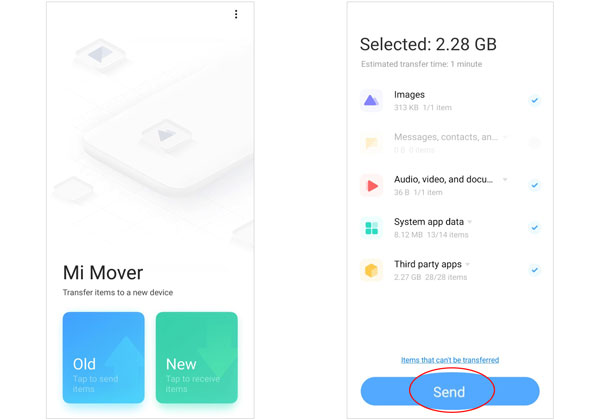
Mi Mover is Xiaomi's official data migration app designed to help users transfer data from an old phone to a Xiaomi device. It supports contacts, photos, videos, messages, and more. Thus, you can use this tool to transfer your iPhone contacts to your Mi phone.
Step 1: Download and install Mi Mover from the Apple App Store on your iPhone. On your Xiaomi device, open Mi Mover (usually found in Settings > System & Device > Mi Mover, or downloaded from the Google Play Store).
Step 2: On your Xiaomi phone, select "New". On your iPhone, select "Old".
Step 3: A QR code will appear on the Xiaomi screen. Use your iPhone's camera to scan this QR code to connect the two devices via a secure local Wi-Fi hotspot.
Step 4: Once connected, a list of transferable data types will appear on your iPhone. Uncheck everything except "Contacts" (unless you want to move other data too), and tap "Transfer" or "Send".
Note: Keep both phones close to each other and ensure neither device loses power until the progress bar reaches 100%.
If your Xiaomi phone is brand new or has just been factory reset, you can leverage Android's native setup wizard to copy contacts directly via a physical cable. This method is incredibly fast and reliable.
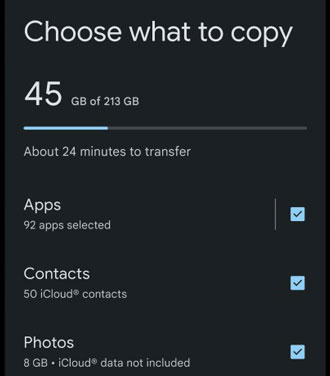
Step 1: Follow the initial on-screen prompts until you reach the "Copy apps & data" screen. Tap "Next" and grab a compatible cable (usually a Lightning-to-USB-C cable or an appropriate adapter). Plug one end into your iPhone and the other into your Xiaomi phone.
Step 2: A prompt will appear on your iPhone asking to allow the device to access your iPhone data. Tap "Allow" and enter your iPhone passcode.
Step 3: Your Xiaomi phone will scan the iPhone for transferable data. Select "Contacts" from the checklist and tap "Copy". The transfer will run in the background while you finish configuring the rest of your Xiaomi settings.
For users looking for a one-click desktop solution that guarantees zero data loss and handles large address books smoothly, this contact transfer tool - Samsung Data Transfer - is an excellent utility. It enables you to copy all your contacts and other data types even after completing the setup. You thus won't lose any data on your Xiaomi phone.
* Copy contacts from iPhone to Xiaomi directly without overwriting existing data.
* Also transfer text messages, photos, videos, music, and more.
* Support USB transfer on a computer to ensure the process is stable and safe.
* Can move data from Android to Android, iOS to iOS, and Android to iOS as well.
* Work for most iOS and Android devices, including iPhone 17/Air/16/15/14/13/12/11/X/8/7, iPad Pro, iPad Air, iPad mini, Xiaomi 17/15/14/13/12/11/10/9, OnePlus, Motorola, Samsung, TECNO, Vivo, OPPO, Honor, Infinix, etc.
Download the data transfer software.


Step 1: Download, install, and launch the data transfer program on your Windows or Mac computer. Then use USB cables to connect both your iPhone and Xiaomi phone to the computer.
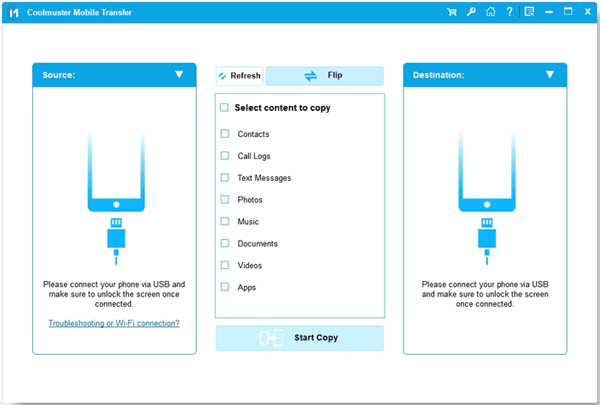
Step 2: Enable USB debugging on your Xiaomi phone and tap "Trust" on your iPhone. Make sure the iPhone is designated as the "Source" device and the Xiaomi is the "Destination" device. If they are reversed, click the "Flip" button.
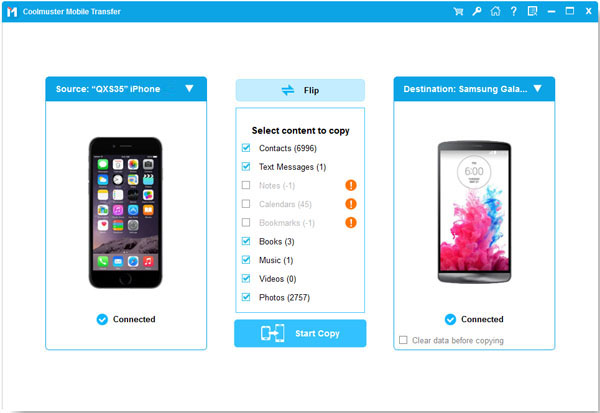
Step 3: Check the box next to "Contacts" in the central panel, then click the "Start Copy" button. The software will instantly duplicate your entire contact list onto your new phone.
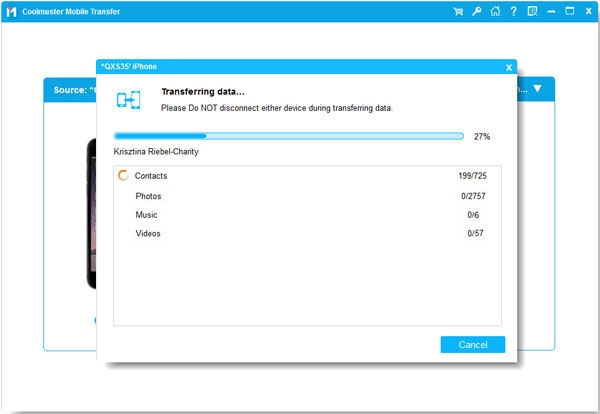
Since Xiaomi phones rely on Google Mobile Services, utilizing a Google Account is one of the cleanest, wireless ways to keep your contacts synced. You can use your account to sync your contacts between your mobile phones.
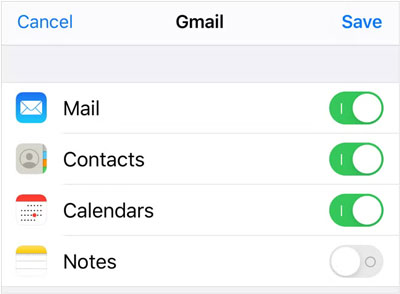
Step 1: On your iPhone, go to Settings > "Contacts" > "Accounts" > "Add Account" and log in with your Gmail credentials. Once added, make sure the toggle next to "Contacts" is turned "ON".
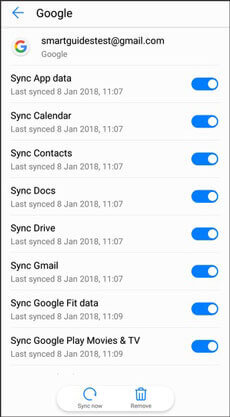
Step 2: On your Xiaomi device, go to Settings > "Accounts & Sync" > "Google". Log into the exact same Google Account.
Step 3: Ensure "Sync Contacts" is enabled, and your iPhone contacts will automatically populate your Xiaomi phone book within minutes.
If you are running iOS 16 or later, you can directly export all your contacts into a single VCF file with the native Contacts app. Then you can send the file to your Mi phone with an email.
Step 1: Open the native Contacts app on your iPhone. If you are inside the Phone app, tap the "Contacts" tab, then tap "Lists" in the top-left corner to go all the way back to your main contact lists.
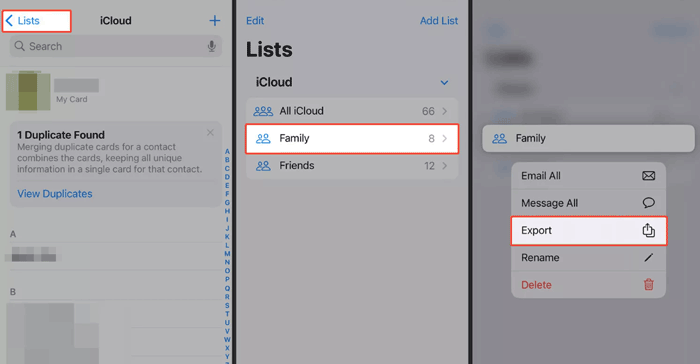
Step 2: Press and hold (long-press) the list you want to export, and click "Export". Then click "Select All Fields".
Step 3: Tap "Done" at the top right corner. Then choose the "Mail" app on the pop-up menu, and send the VCF file to yourself.
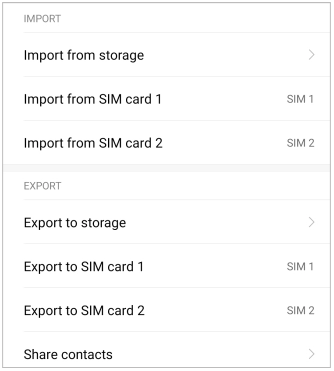
Step 4: Log in to the same email account on your Xiaomi phone, and navigate to the email you sent just now. Finally, download the VCF file, and then import the contacts to the Android device.
Q1: Will I lose some contact info like email addresses after transferring contacts from an iPhone to a Xiaomi phone?
No. Modern contact transfer methods (like Mi Mover, Google Sync, or cable transfers) use the standardized vCard format. This format securely carries all sub-fields, including multiple phone numbers, email addresses, job titles, physical addresses, and even contact notes.
Q2: Can I import contacts from a CSV file to a Xiaomi phone?
Yes, but indirectly. Android devices natively prefer .vcf files over .csv files. To import a CSV file to your Xiaomi phone, the easiest route is to log into your Google Account on a computer, go to Google Contacts, click Import, and upload your CSV file. Once uploaded, it will instantly sync to your Xiaomi device.
Q3: Can I directly send my contacts from my iPhone to a Xiaomi phone via Bluetooth or AirDrop?
No. AirDrop is an exclusive Apple ecosystem feature and will not work with Android devices. Furthermore, due to OS compatibility and security restrictions between iOS and Android, direct Bluetooth file sharing for contacts is not supported between iPhones and Xiaomi devices. You must use one of the Wi-Fi, cable, or cloud methods outlined above.
Transitioning from iOS to Xiaomi's MIUI or HyperOS doesn't mean leaving your data behind. Whether you choose the wired simplicity of a USB setup, the wireless ease of a Google account, or the dedicated capabilities of Mi Mover or Samsung Data Transfer, moving your contacts takes just a few minutes. Choose the method that best matches your current setup, and enjoy exploring your new Xiaomi smartphone.
Related Articles
Xiaomi File Transfer - How to Transfer Xiaomi Files Effectively? [6 Methods]
What to Do Before Getting a New iPhone 17/Air: Checklist for Smooth Transition
How to Transfer Data from Samsung to Xiaomi: 6 Methods and FAQs
Troubleshooting for Mi Phone Not Connecting to PC [Solve It Easily]

Sophie Green, Chief Editor of Samsung-messages-backup website, has been focusing on the realm of Android Recovery, Android Transfer (Backup), Android Device Tips, Phone Clean, and Phone Transfer technologies. Recognized contributions on leading platforms attest to her esteemed expertise and reliability.
Copyright © samsung-messages-backup.com All Rights Reserved.



