Whether you want to preserve sentimental conversations, keep a record of business transactions, or back up important data for legal reasons, knowing how to save text messages on your iPhone is an essential skill. While Apple doesn't provide a direct "Export" button in the Messages app, there are several effective ways to get the job done.
This guide will walk you through 5 reliable methods to save your texts on your iPhone, ranging from professional software to quick manual workarounds.
For users who want a readable, organized format (like TXT, HTML, or CSV) on their computer, using a professional tool like iPhone Data Manager is often the most reliable method. It enables you to preview and select your iPhone messages on your computer, and export the messages to your computer in those accessible formats. Then you can view your message content your computer directly.
- Selectively save text messages from an iPhone to a computer.
- Back up the text messages on your iPhone to your PC or Mac at once.
- Save your iPhone messages in CSV, TXT, and HTML file formats.
- Transfer your contacts, notes, calendar events, photos, videos, music, and more as well.
- Restore your backup messages and other data to any iOS device without data loss.
- Work for iOS 5.0 or later and most iOS devices, including iOS 26, iPhone 17 Pro Max/17 Pro/17/Air, iPhone 16/15/14/13/12/11/X, iPad Pro, iPad Air, iPad mini, iPad, and more.
Download iPhone Data Manager.


Step 1: Install the software on your computer and connect your iPhone via a USB cable.
Step 2: Make your iPhone trust your computer. Then the connection will be completed. Choose the "Messages" option from the left list.
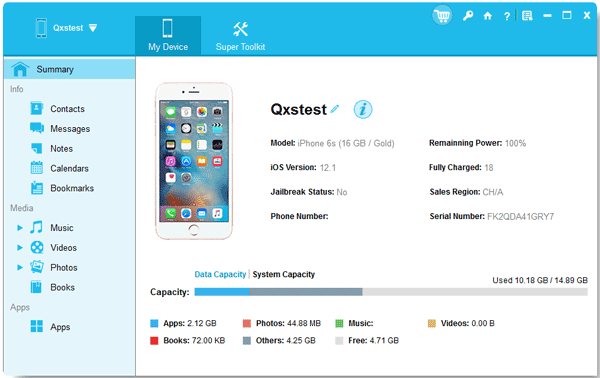
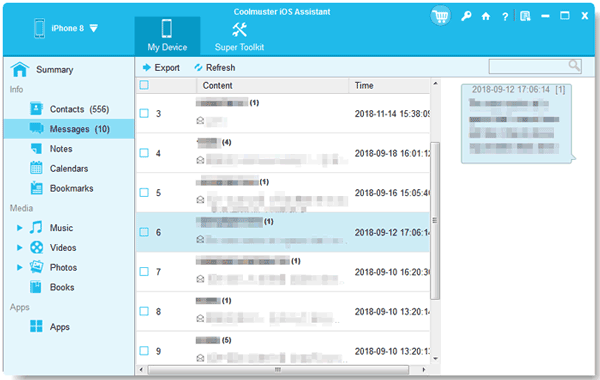
Step 3: Select the conversations that you want to save, click "Export" and choose your preferred format. Then the software will save your messages to your computer.
iCloud offers a cloud-based solution to save your iPhone data, including text messages. This method allows you to automatically back up your messages to iCloud, so they are accessible on any device connected to your Apple ID. However, you cannot view your backup messages on other devices unless the device is a Mac, iPhone, or iPad.
Step 1: Open the Settings app on your iPhone, and tap on your Apple ID at the top of the screen.
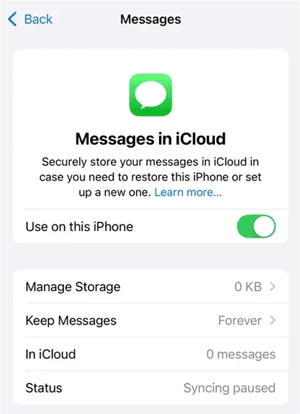
Step 2: Select "iCloud" > "Messages", and turn on "Use on this iPhone". Next, open the Messages app on your Mac, click "Settings" > "iMessage" > "Enable Messages in iCloud".
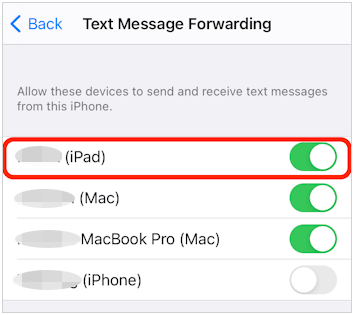
Step 3: Then go to Settings on your iPhone, choose "Apps" > "Messages" > "Text Message Forwarding", and toggle on the switch for your Mac or other Apple devices. Finally, the SMS sent to your phone number will appear in the Messages app on your Mac.
If you only need to save a small portion of a conversation or want to capture exactly how the bubbles look for visual proof, screenshots are the quickest way.
Step 1: Open the message thread you want to capture on your iPhone.
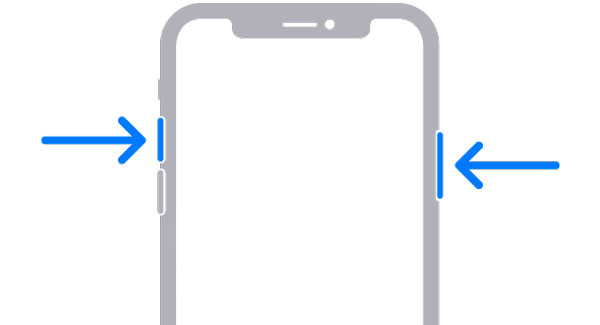
Step 2: On the iPhone, quickly press and release the "Side" button and the "Volume Up" button simultaneously.
Step 3: The image will be saved to your Photos app. You can then move these screenshots into a hidden album or upload them to a cloud service like Google Drive.
If you have a Mac, you can easily save your text messages using the Messages app on macOS. This allows you to sync your messages between your iPhone and Mac for easy backup.
Step 1: Ensure you have Messages in iCloud enabled on both your iPhone and Mac so they sync.
Step 2: Open the Messages app on your Mac, and select the conversation you want to save.
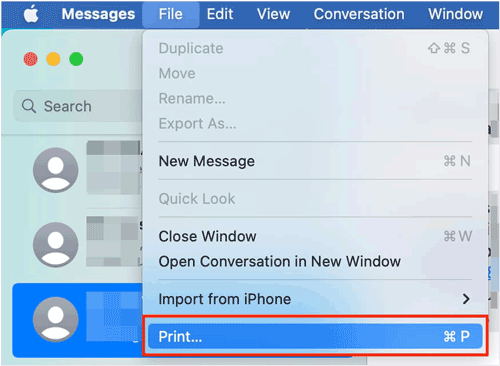
Step 3: Go to the top menu bar and click "File" > "Print". In the print dialogue, click the dropdown menu (usually says "PDF") and select "Save as PDF".
If you want to save a specific text or conversation and don't want to use a third-party app, you can manually copy and paste the messages into the Notes app on your iPhone.
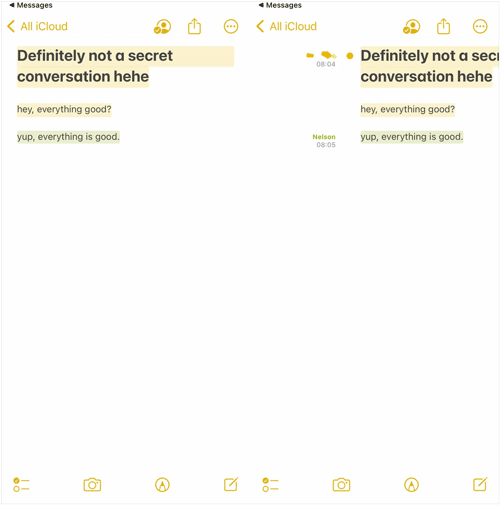
Step 1: Go to the conversation you want to save. Tap and hold on the message bubble until the "Copy" option appears. Select "Copy".
Step 2: Launch the "Notes" app and create a new note. Tap the blank area in the note and select "Paste" to paste the copied text into the note.
Q1: Is there a way to hide text messages on an iPhone without deleting them?
Yes. You can use the "Filter Unknown Senders" feature in Settings > "Messages" to move texts from people not in your contacts to a separate list. Alternatively, you can use the Hide Alerts feature to silence notifications for specific conversations, effectively hiding them without deleting the messages. To enable this: Open the conversation in the Messages app; tap the info "(i)" button in the top-right corner; Toggle on "Hide Alerts".
Q2: Can I transfer my text messages to my email?
There is no "one-click" way to email an entire thread. However, you can manually copy the text and paste it into an email body, or use the "Share" feature for individual messages to send them to an email address.
Q3: Can I archive text messages on my iPhone without deleting?
Unlike WhatsApp, the native Apple Messages app does not have a formal "Archive" button. The best way to "archive" them is to back them up via iCloud or export them to a computer using a tool like iPhone Data Manager, then delete them from the device to save space.
There are many ways to save text messages on your iPhone, each with its own advantages and limitations. If you want to selectively save your text messages on your iPhone with timestamps, and then easily view your messages on your Windows or Mac computer, iPhone Data Manager will be your best choice. It can help you seamlessly transfer your text messages, contacts, notes, and media files from your iOS device to your computer.
Related Articles
Transfer Text Messages from Android to iPhone Fast [iPhone 17 Is Supported]
How to Transfer Photos from iPhone to PC Windows 10/11 (Solved)
Print Text Messages from iPhone Easily in 4 Ways (Step by Step)
Fix Android Not Receiving Texts from iPhone with 14 Solutions

Charlotte Smith, an accomplished editor in the dynamic landscape of mobile technology, has distinguished herself with her abundant experience and skills for iPhone, OnePlus, Sony, Vivo, Motorola, ZTE, Huawei, etc. Help readers and users solve the problems in iPhone Transfer and Mobile Data Management. Her proficiency extends beyond mere functionality, delving into the nuances of each brand with precision and clarity.
Copyright © samsung-messages-backup.com All Rights Reserved.



