Even though group chats are developed, many Android users still prefer group texts. If you want to protect the privacy and avoid notification fatigue, sending a group text will be a better option. Today, we are going to share 4 ways to send a group text on Android. You can follow this article to do it with ease.
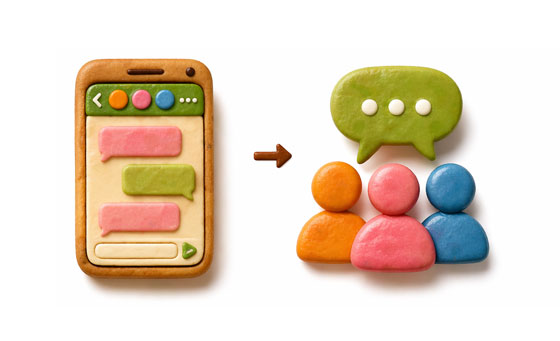
Google Messages is now the industry standard for Android. It uses RCS to provide a "chat-like" experience, similar to iMessage or WhatsApp. If you don't want to use its RCS feature, you can send a group text with it.
Step 1: Open the Google Messages app on your Android device, and tap your profile icon on the upper right corner.
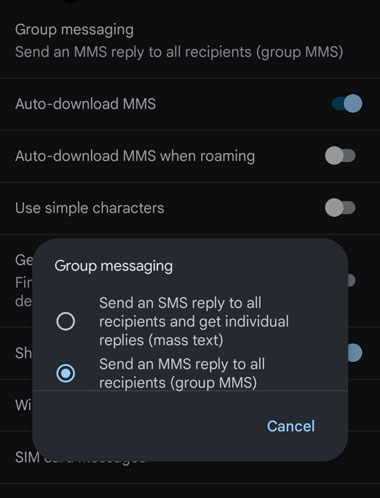
Step 2: Click "Messages settings" > "Advanced" > "Group messaging".
Step 3: You can choose between "mass text" (sends individual SMS to everyone) or "group MMS" (everyone sees everyone else's replies).
Step 4: Select the contacts you want to include, then type your message, and click "Send".
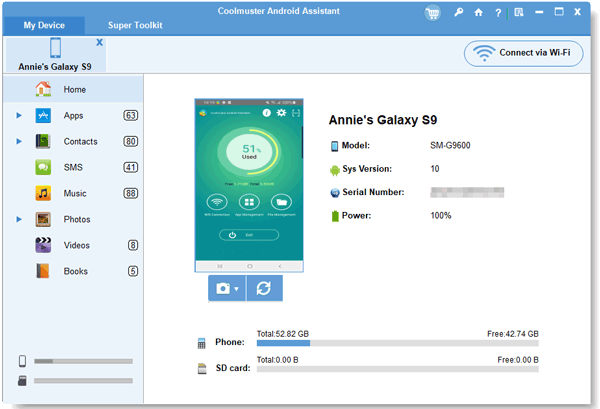
If you prefer managing your communications from a desktop environment, Samsung Messages Backup allows you to handle group texts via your PC or Mac. This Android management software enables you to view, receive, and send your Android messages on your computer.
- Send a text message to multiple contacts on a computer.
- Access and manage your Android messages on a computer.
- Export your text messages from Android to a PC or Mac for backup.
- Save your messages with accessible file formats, like HTML, TXT, XML, etc.
- Transfer Android contacts, call logs, and media files with ease.
- Support Android 6.0 or later.
Download the Android message manager.


Here's how to send a group text message on a computer with this software:
Step 1: Connect your Android device to your computer via USB or Wi-Fi. Then launch the message manager software on your computer.
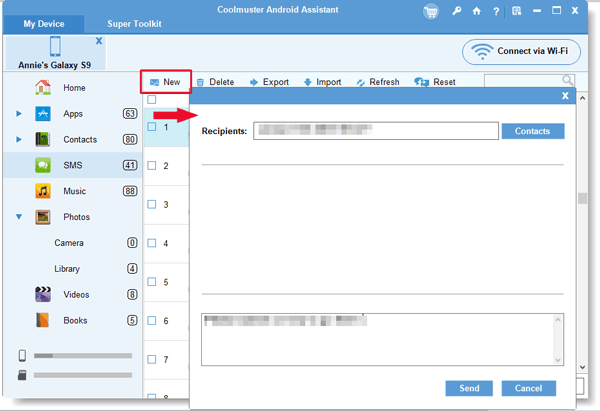
Step 2: Enable the USB debugging on your Android phone or tablet. Once connected, click the "SMS" category.
Step 3: Click "New", and click "Contacts" on the pop-up window to choose the recipient. Then enter your message content, and tap "Send".
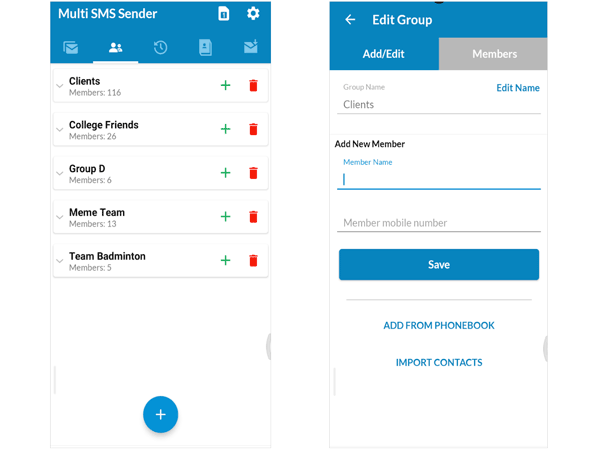
Multi SMS Sender (MSS) is a specialized app for "Mass Texting". Unlike a group chat where everyone sees each other's replies, MSS is often used to send one message to many people individually. However, this app contains ads.
Step 1: Download and set MSS as your default SMS app, which is required for core features.
Step 2: Go to the "Groups" tab and create a new recipient group (you can even import from an Excel file).
Step 3: Select the group you created. Next, type your message. You can use "Placeholders" (like {First Name}) to personalize each text.
Step 4: Tap "Send". MSS will cycle through the list and send individual messages to every member.
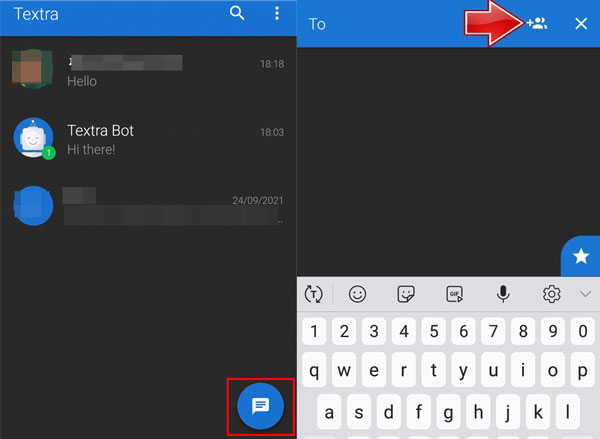
Textra remains a favorite for users who want high levels of customization and a lightweight alternative to Google. It allows you to select your theme color, bubble color, emoji style, bubble style, etc. Simply put, you can create your own messaging app.
Step 1: Install and open the Textra SMS app on your Android device. Then tap the "Floating New Message" icon or the "+" sign
Step 2: Tap the "Contacts" icon in the top right. Then select the "Groups" tab (Textra pulls these from your system's Contacts app) or manually check multiple contacts.
Step 3: Tap the "Checkmark" icon to confirm the selection. Next, type your message and send it. You can long-press the send arrow to schedule the text for later.
Q1: What's the difference between a group text and a group chat?
A group text typically uses MMS, where messages are sent to multiple recipients but may not support advanced features. Replies are shared with the group, but functionality is limited.
A group chat, usually powered by RCS or internet-based messaging, includes features like:
In short, group chats are more interactive and modern compared to traditional group texts.
Q2: What are the disadvantages of group texts?
The primary downsides of traditional group texting (MMS) include:
Q3: Are Samsung Messages being discontinued in 2026?
Yes. Samsung has officially announced that the Samsung Messages app will be discontinued in July 2026 for the US market. While older devices on Android 11 or lower may still have limited support, Samsung is actively transitioning all users to Google Messages to ensure full RCS compatibility and a more consistent experience across the Android ecosystem.
Whether you stick with the native Google Messages app or use a third-party tool like Textra, Android offers the flexibility to communicate exactly how you want. If you want to send and manage your Android messages on your computer, don't miss Samsung Messages Backup. This desktop app supports most Android devices, and provides multiple transfer and management features, such as backing up and restoring Android data, etc.
Related Articles
Fix Android Not Receiving Texts from iPhone with 14 Solutions
Read Text Messages Online for iPhone and Android [Hassle-free Guide]
How to Print Out Text Messages for Court from Your Android Phone and iPhone
Resolved: Where Are Texts Stored on Android Device? [6 Practical Tips]

Sophie Green, Chief Editor of Samsung-messages-backup website, has been focusing on the realm of Android Recovery, Android Transfer (Backup), Android Device Tips, Phone Clean, and Phone Transfer technologies. Recognized contributions on leading platforms attest to her esteemed expertise and reliability.
Copyright © samsung-messages-backup.com All Rights Reserved.



