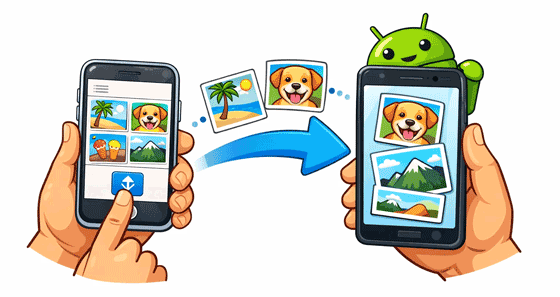
Though iOS and Android devices operate on different OSes, you can now send pictures from iPhone to Android without complicated steps, since there are reliable and user-friendly tools provided in the following. Go ahead, and share your iPhone photos to Android without effort.
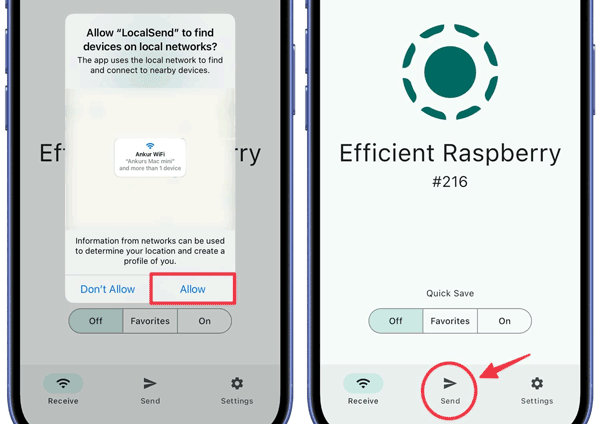
LocalSend is an excellent open-source, cross-platform tool that allows you to send files over your local network without needing an internet connection. Furthermore, it can send many photos at a high speed, and maintain your photo quality. However, please do not use it when you are using a public Wi-Fi network.
Step 1: Download and install the LocalSend app on both your iPhone and your Android phone. Ensure both devices are connected to the same local network.
Step 2: Open the app on both devices. Your Android device should appear on your iPhone's screen. On your iPhone, select the "Send" tab and choose the photos you wish to transfer.
Step 3: Tap the recipient device (your Android) and accept the incoming transfer on the Android phone.
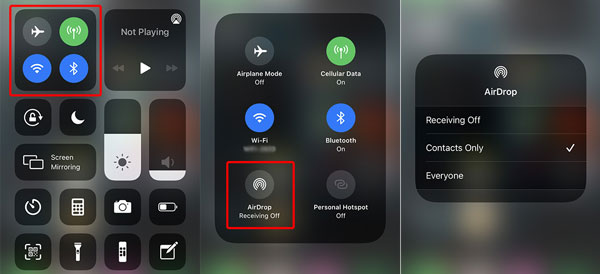
The incompatibility of AirDrop and Quick Share has been a history. Now you can use them to send your different files from iPhone to Android and vice versa. But you still need to note that this way is not available for all iOS and Android devices. Currently, Google Pixel 10/9 series, Samsung S26/S25/Z Fold7/Z Flip7, and other Samsung devices are updated to One UI 8.5, support this feature.
Step 1: Both devices must have Bluetooth and Wi-Fi enabled and be placed in close proximity. On your iPhone, ensure your AirDrop is set to "Everyone for 10 minutes" to be discoverable by the Android device.
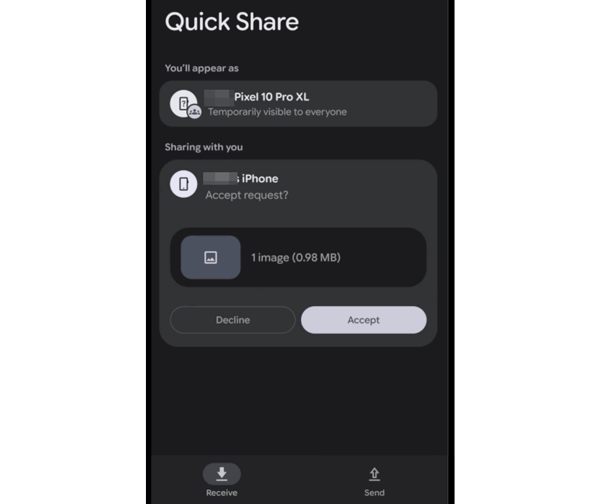
Step 2: Ensure the Android phone is in "Receiving" mode for Quick Share (often found by swiping down from the top of the screen and selecting "Quick Share").
Step 3: Open the Photos app, select the items you wish to share, and tap the "Share" icon. Then select AirDrop from the share sheet.
Step 4: Your Android phone should appear as a discoverable device. Tap it to initiate the transfer. A prompt will appear on the Android device; tap "Accept" to complete the transfer. The photos will typically be saved in your "Downloads" or "Pictures" folder.
If you want a stable USB transfer tool, Samsung Data Transfer can help. This software supports most iOS and Android devices, including iPhone 17/16/15/14, Samsung, Tecno, Google, OPPO, Vivo, Motorola, Xiaomi, TCL, etc, helping you transfer your photos from iOS to Android at once.
- Copy images from an iPhone to an Android phone or tablet without hassle.
- Transfer your files without losing quality.
- Support the transfer of videos, music, contacts, text messages, and more.
- Work for the data migration from Android to Android, iPhone to iPhone, and Android to iPhone as well.
- Compatible with Android 6.0 or later, iOS 5.0 or higher.
- No ads.
Download the data transfer software.


Step 1: Install the data transfer program on your computer. Then connect both your iPhone and Android device to the computer using USB cables.
Step 2: The software will detect both devices. Ensure the iPhone is set as the "Source" and the Android as the "Destination".
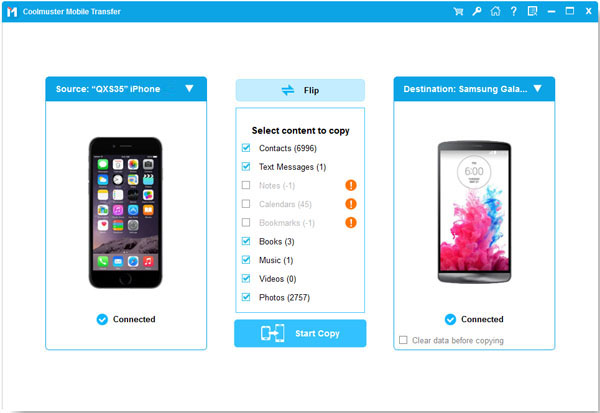
Step 3: Check the box labeled "Photos" from the content list in the middle. Next, click "Start Copy" to begin the transfer process.
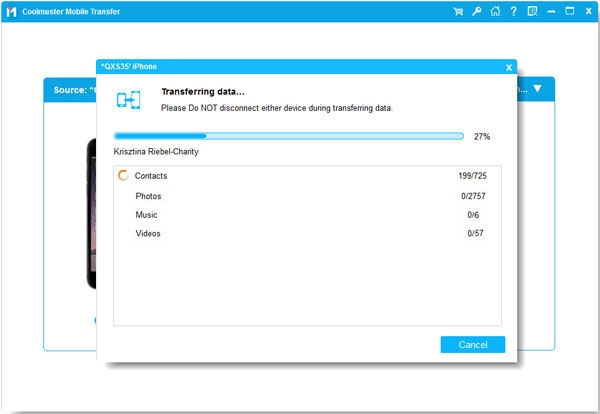
Using Google Photos is one of the most reliable ways to sync photos, especially if you have a large library. You can access your photos on multiple devices with your Google Account.
Step 1: Download the Google Photos app on your iPhone. Sign in with your Google Account and enable the "Backup & sync" feature. Wait for your photos to upload.
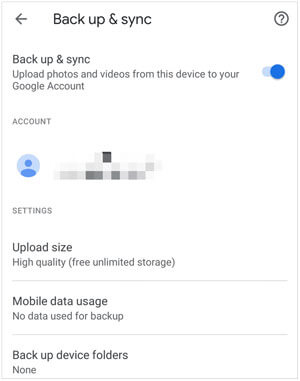
Step 2: Once the upload is complete, open the Google Photos app on your Android device and sign in with the same account.
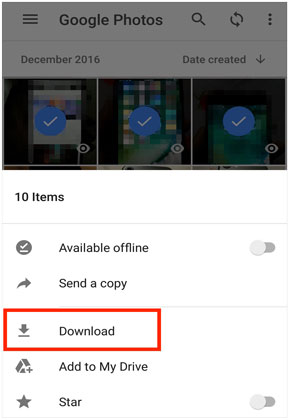
Step 3: Your photos will appear automatically in the app, and you can download them directly to your Android device's local storage.
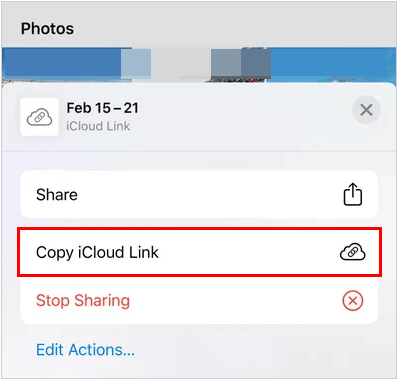
Sharing photos via an iCloud Link is a straightforward way to send files to Android users because it creates a temporary, web-based URL that anyone can open in a standard mobile browser - no Apple ID required.
Step 1: Open the Photos app on your iPhone. Then select the photos you want to share.
Step 2: Tap the "Share" icon (the square with an arrow pointing up). In the share menu, look for an option that says "Copy iCloud Link".
Step 3: Once the link is generated and copied, you can paste it into any messaging app (WhatsApp, email, etc.) and send it to your Android contact.
Step 4: On the Android device, tap the link. Then it will open in the web browser. You can view and download the original image files. By the way, the link will expire automatically after 30 days.
If you have a computer, manual transfer is often the most stable method. Your computer can serve as a secure medium for transferring your photos from your iPhone to your Android phone.
Step 1: Connect your iPhone to your computer via USB. Open File Explorer or the Photos app on your PC to locate your iPhone's camera roll and drag the photos to a folder on your computer.
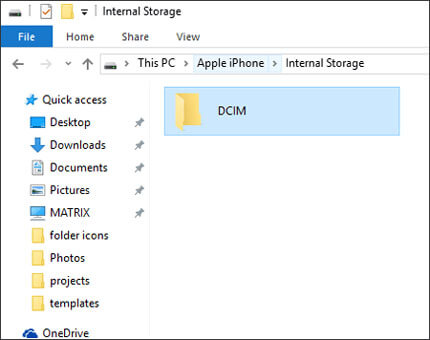
Step 2: Disconnect the iPhone and connect your Android device.
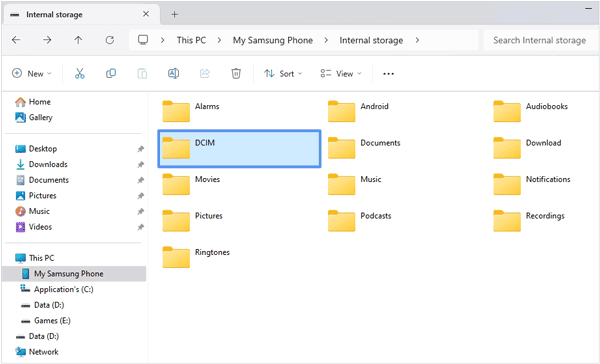
Step 3: Drag and drop the photos from the folder on your computer into the "DCIM" or "Pictures" folder on your Android device.
Q1: Can I MMS pictures from iPhone to Android?
Yes, you can send pictures via MMS using the Messages app. However, keep in mind that carriers significantly compress images sent via MMS, which often results in a noticeable drop in resolution and quality.
Q2: Why can't I send photos from iPhone to Android via texts?
If you are unable to send photos via text, check the following:
Q3: Which methods can send my pictures with the original quality?
To preserve the original quality (no compression), use methods that transfer the raw file data:
With the methods above, you can send pictures from an iPhone to an Android device with simple steps. Moreover, you won't lose your photo quality after the transmission. If you prefer wireless tools, LocalSend, Google Photos, and iCloud Link can help. If you want to share your photos offline, you can drag and drop them manually or use the one-stop tool - Samsung Data Transfer, which does well in bulk transfer. Hope you can choose the right way.
Related Articles
How to Transfer Contacts from iPhone to Android [6 Ways You'd Better Know]
How to Transfer eSIM from iPhone to Android (Stepwise Guide)
Why When I Delete A Photo It Comes Back on Android Phone, iPhone and Computer
iPhone Won't Send Pictures to Android Devices? Solve It with A Few Clicks

Sophie Green, Chief Editor of Samsung-messages-backup website, has been focusing on the realm of Android Recovery, Android Transfer (Backup), Android Device Tips, Phone Clean, and Phone Transfer technologies. Recognized contributions on leading platforms attest to her esteemed expertise and reliability.
Copyright © samsung-messages-backup.com All Rights Reserved.



