Text messages often contain important information such as business conversations, legal evidence, personal memories, verification codes, and work records. Many iPhone users want to export these messages as PDF files for backup, printing, sharing, or documentation purposes. If you also want this, you can follow this guide to export text messages from an iPhone to PDF with ease.
If you don't have a computer handy, you can use a combination of screenshots and the iOS "Print" trick to generate a PDF directly on your iOS device. However, if you need to process a large amount of messages, this method proves to be less efficient.
Step 1: Open the Messages app and navigate to the conversation you want to save.
Step 2: Take a screenshot of the messages. For long conversations, you may need to take multiple screenshots.
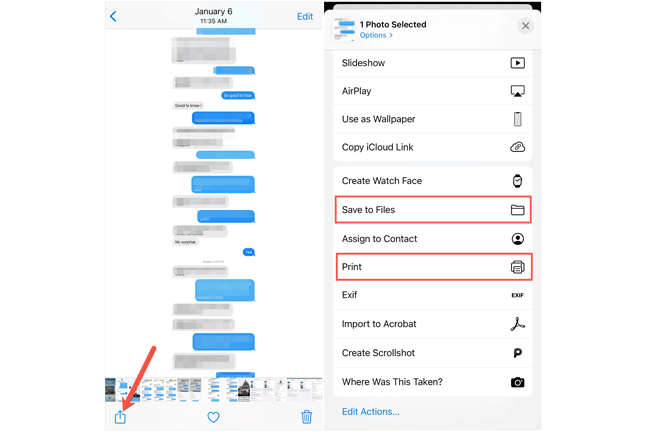
Step 3: Open the Photos app and select the screenshots you just took. Tap the "Share" button and select "Print".
Step 4: On the "Print Preview" screen, use two fingers to zoom in on the image thumbnail. This action converts the image into a PDF.
Step 5: Tap the "Share" icon again and choose "Save to Files". You can now access the PDF in your Files app.
See also: Then how can you export the messages on an Android phone to PDF? Find it out easily.
If you own a Mac, the synchronization between iOS and macOS makes exporting much cleaner and more professional-looking. You don't need to take screenshots of your iPhone messages.
Step 1: Ensure iCloud Messages is enabled on both your iPhone and Mac so your conversations are synced.
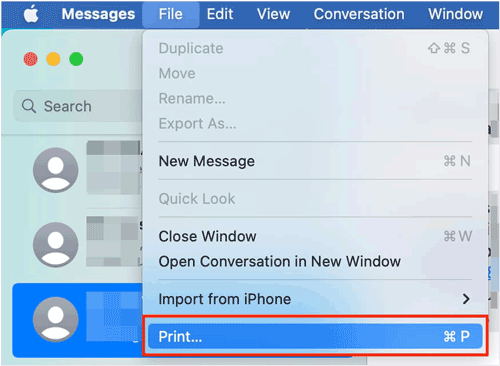
Step 2: Open the Messages app on your Mac and select the conversation you wish to export. Go to the top menu bar and click "File" > "Print".
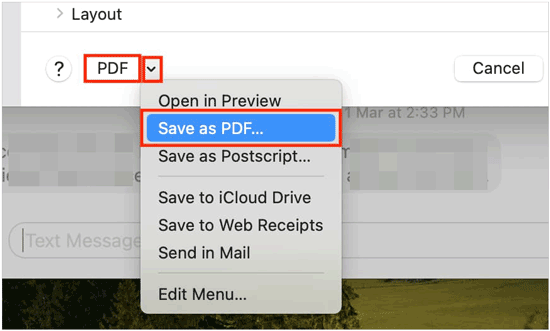
Step 3: In the print dialog box, click the dropdown menu (usually labeled "PDF") in the bottom left corner. Select "Save as PDF". Next, choose your destination and filename, then click "Save".
For users who need to export massive amounts of data or prefer an organized interface, iPhone Data Manager offers a more streamlined experience, which allows you to export messages directly from an iPhone to a computer. Then you can easily save the messages as a PDF file.
- Export SMS and iMessages selectively or in bulk on a computer.
- Save messages as TXT, CSV, or HTML, which can easily be converted to PDF.
- Preserve timestamps and contact information.
- Manage and transfer other iPhone data types like contacts, notes, calendar events, photos, videos, etc.
- Back up your iPhone data to a computer at once, and restore data without losing.
- Support iOS 5.0 or later, including iOS 26.
Download this software on your computer.


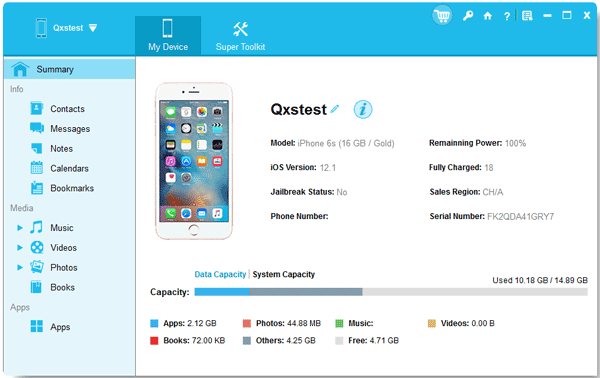
Step 1: Install and launch the iPhone data manager software on your computer, and connect your iPhone to the computer with USB. The program will detect your iPhone immediately.
Step 2: Click "Trust" on your iPhone if prompted, and the connection will be completed. Then choose the "Messages" category.
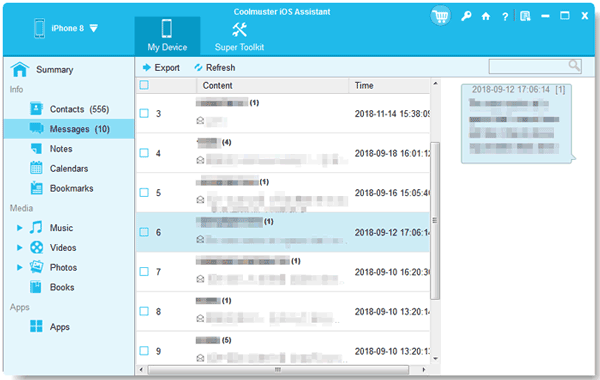
Step 3: The software will scan and display all your iOS message threads. Select the conversations you want, and click "Export". Then choose a file type to save the messages.
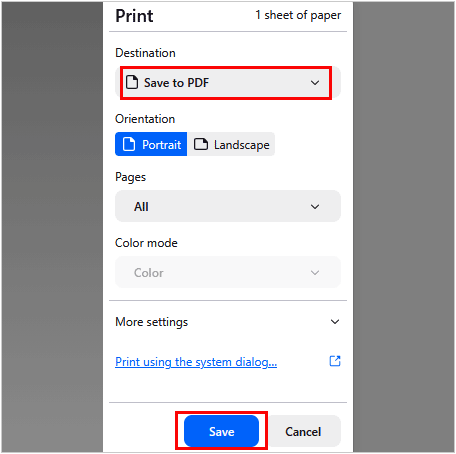
Step 4: Open the file with Chrome or another browser, and click the "Menu" icon. Then opt for "Print" > "Save to PDF" > "Save", and your messages will be saved as a PDF file.
For tech-savvy users who prefer open-source solutions, iMessage Exporter is a powerful command-line tool that can extract your message database. But it is not suitable for beginners.
Step 1: Create a backup of your iPhone on your PC (unencrypted or with a known password) with the Apple Devices app or iTunes.
Step 2: Download iMessage Exporter from Github, and extract the .exe file to a folder. Then press "Win + R", type "cmd", and hit "Enter".
Step 3: Navigate to the folder where you store the tool by typing: cd C:\YOUR_FOLDER_NAME.
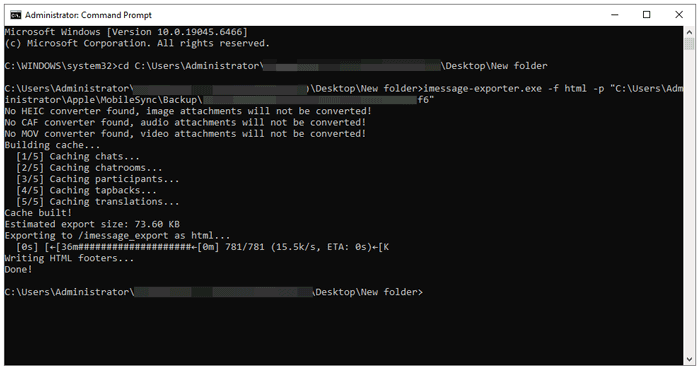
Step 4: Run the command using the -p (path) flag: imessage-exporter.exe -f html -p "C:\Users\YourName\Apple\MobileSync\Backup\YOUR_DEVICE_ID".
Step 5: The tool will begin processing. Once finished, it will create an output folder containing your messages. If you cannot find the folder, search for "imessage_export" on your PC. Then all the messages will be saved as HTML files.
Step 6: After that, you can use your browser to save the HTML files to PDF on your computer.
Q1: Is there a way to get a transcript of all text messages on my iPhone at once?
Apple does not offer a native "Export All" feature. To get a full transcript at once, the most efficient method is using desktop software (like Part 3) or Mac syncing (Part 2). These methods allow you to scroll through the entire history and "Print" the whole thread as one continuous document.
Q2: Can I save the iPhone messages as a PDF with timestamps?
Yes. When using the Mac Messages app or iPhone Data Manager, timestamps are usually included by default. If you are taking screenshots on your iPhone, ensure you drag the screen slightly to the left to reveal the hidden timestamps before capturing.
Q3: Is the text message TXT content, and can I convert TXT to PDF?
Text messages are essentially data stored in a database, but they can be exported as .txt files. To convert a .txt file to PDF, simply open the text file on any computer, select "Print", and choose "Save as PDF".
It's achievable to export your text messages on your iPhone to PDF. For a few messages, screenshots suffice; however, for legal or professional documentation, using a Mac or the specialized iPhone Data Manager software is the best way to ensure clarity, timestamps, and formatting are preserved. This program also helps you transfer and manage other iOS data on your computer.
Related Articles
Sell Your Broken iPhone Easily with Step-by-Step Guide (Latest)
How to Transfer Files from iPad to PC in 7 Hassle-Free Ways
Print Text Messages from iPhone Easily in 4 Ways (Step by Step)
Fix Android Not Receiving Texts from iPhone with 14 Solutions

Charlotte Smith, an accomplished editor in the dynamic landscape of mobile technology, has distinguished herself with her abundant experience and skills for iPhone, OnePlus, Sony, Vivo, Motorola, ZTE, Huawei, etc. Help readers and users solve the problems in iPhone Transfer and Mobile Data Management. Her proficiency extends beyond mere functionality, delving into the nuances of each brand with precision and clarity.
Copyright © samsung-messages-backup.com All Rights Reserved.



