"How do I sync my Android files to my PC over Wi-Fi? My phone storage is nearly full and I need to transfer my videos and photos to PC for freeing up the space. I am Looking for the best way to move over 30GB of photos and videos from my Android to my Windows PC without a USB cable. I need to keep the original files and quality, and I want to do it directly over my home Wi-Fi."
- Microsoft Community
You don't need to dig through your drawer for a compatible USB cable to connect your Android device with a PC for syncing files. You can now sync Android with PC over Wi-Fi safely and conveniently. Get 5 reliable methods from this article to keep your devices in sync over Wi-Fi.
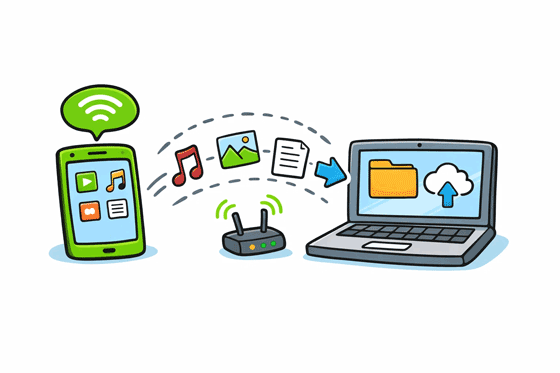
If you want to sync Android files to PC over Wi-Fi with ease, and then manage your files on your computer, you can use Samsung Messages Backup, a dedicated desktop app for Android data management and transmission. It also allows you to preview and select your Android data directly.
* Sync files between Android and PC over Wi-Fi with simple clicks.
* Allow you to connect your Android to Mac wirelessly as well.
* Can transfer your contacts, text messages, photos, videos, music, call logs, documents, and more.
* Back up and restore Android data on a computer.
* Support most Android devices, including Samsung Galaxy S26 Ultra/S26/S25 Ultra/S25/S24/S23/S22/S21/S20, Google Pixel 10 Pro/10/9/8/7/6, Xiaomi, Motorola, OnePlus, Tecno, realme, Vivo, Honor, TCL, etc.
* Compatible with Android 6.0 or later.
Download this Android file sync software.


Step 1: Install the software on your PC, and connect your Android device and PC to the same Wi-Fi network. Then launch the program, and click "Connect via Wi-Fi".
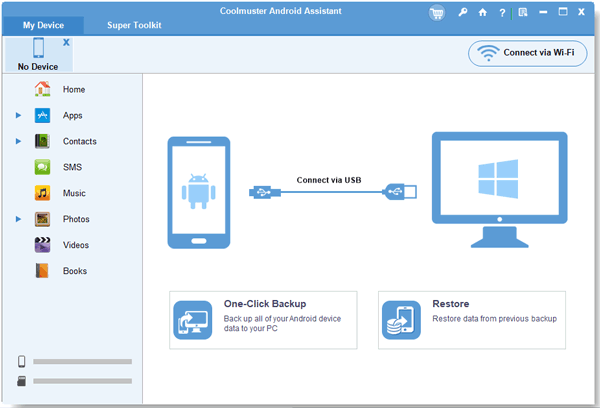
Step 2: Then follow the on-screen guide to download an app on your mobile phone, and then open the app to scan the QR code on your PC. The connection will be established.
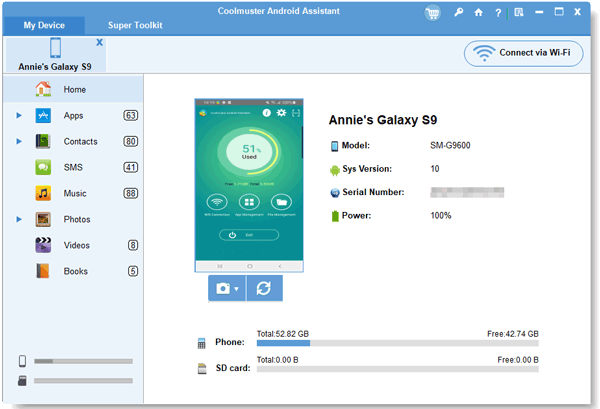
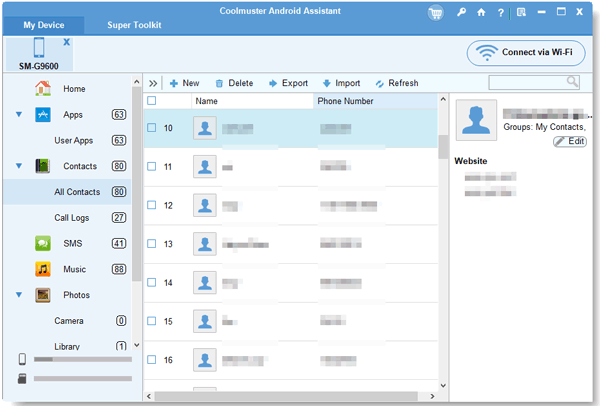
Step 3: After that, you can browse your Android data on the interface. To transfer files from Android to the PC, you can choose a file type, select your files, and click "Export" to save them to your PC. You can also click "Import" to sync files from the PC to Android.
Google Drive is a cloud-based solution that enables seamless syncing without requiring both devices to be connected simultaneously. When you log in to the same account on your device, you can access your uploaded files directly.
Step 1: Install and open Google Drive on your Android phone.
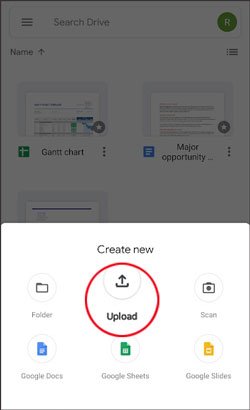
Step 2: Log in to your Google Account. Then click "+" > "Upload" to select and upload your Android files to your cloud storage space.
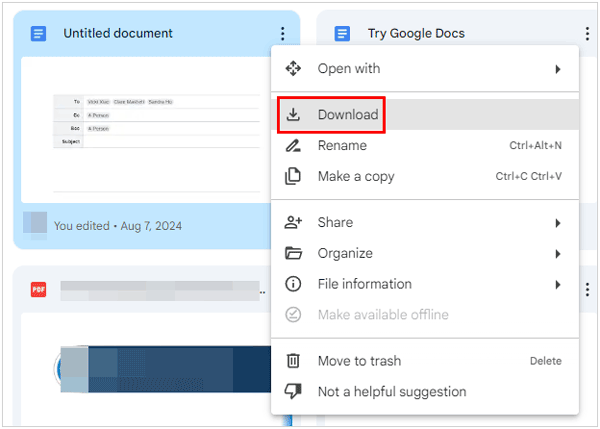
Step 3: Access the website of Google Drive on your PC, and sign in with the same account. Then you can see your uploaded files. Select the files, and click the "Download" icon to save them to your PC.
If you prioritize privacy and open-source software, Syncthing-Fork (the Android version of Syncthing) is a powerful tool. Unlike Google Drive, it does not store your files in the cloud; instead, it syncs them directly between devices (P2P).
Step 1: Install Syncthing-Fork on your Android device from Google Play, and Syncthing on your PC from the Syncthing website.
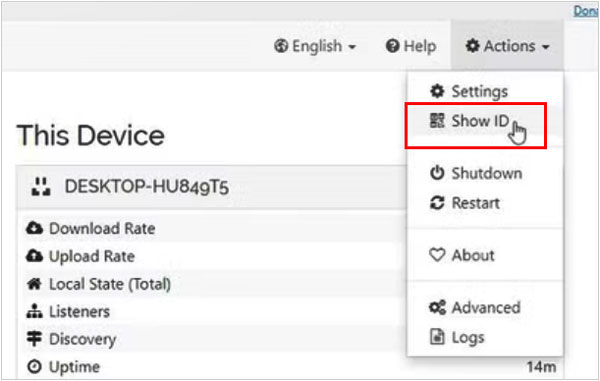
Step 2: On Android, go to "Devices" and click "+". On your PC, click "Actions" > "Show ID" to get a QR code. Then use your Android device to scan the QR code, and accept the pairing request on the PC.
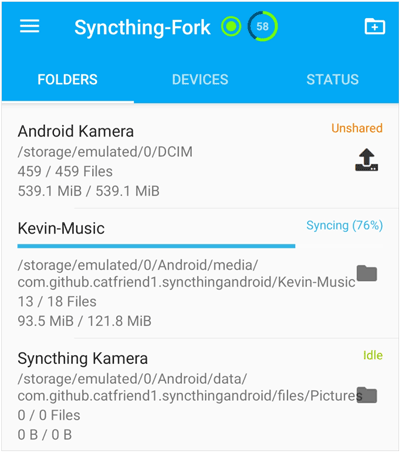
Step 3: On Android, choose the folders you want to sync, and choose your PC device under the "Sharing" tab.
Step 4: The devices will keep those folders identical in real-time whenever they are both online.
Formerly known as Nearby Share, Quick Share is Google's answer to AirDrop. It is now built into most modern Windows PCs and Android devices. Therefore, you can use it to sync specific files wirelessly between your Android and PC devices.
Step 1: Enable Quick Share on both your Android device and PC. Ensure both devices are discoverable and on the same network.
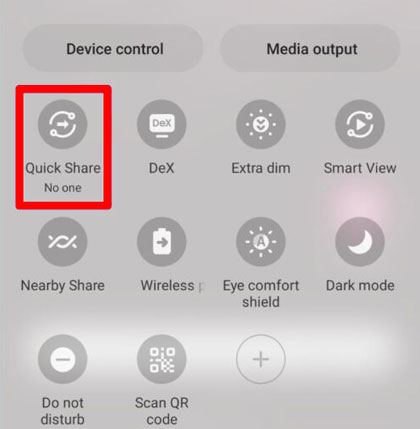
Step 2: Select files on your phone, choose "Share" > "Quick Share", and choose your PC as the destination.
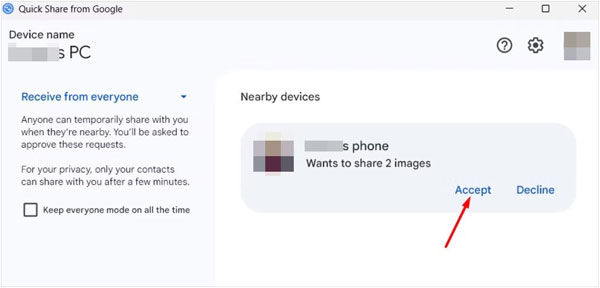
Step 3: Finally, choose "Accept" on your PC. Then you will receive the files. By the way, you can send files from the PC to the Android device.
Microsoft's Phone Link app provides the deepest integration between Android and Windows. Beyond just files, it syncs notifications, calls, and photos.
Step 1: Open the "Link to Windows" app on your phone and "Phone Link" on your PC.
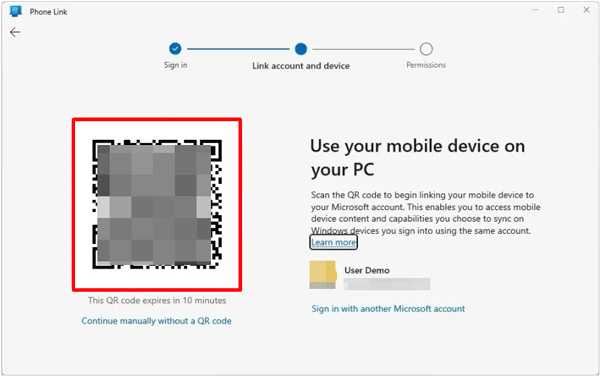
Step 2: Use your Android phone to scan the QR code on your PC to pair both devices.
Step 3: Once paired, you can drag and drop photos from the app directly to your desktop.
Q1: What's the difference between USB tethering and Wi-Fi?
USB tethering uses a physical cable to share a phone's data connection with a PC, offering lower latency and charging the phone simultaneously. Wi-Fi (via Hotspot or local sync) is wireless, allowing for greater mobility, though it consumes more battery and can be susceptible to interference.
Q2: What are the drawbacks of Wi-Fi tethering?
The primary drawbacks include significant battery drain on the mobile device and potential security risks if using an unsecured public network. Additionally, speeds may fluctuate based on the distance from the router or the presence of physical obstacles like walls.
Q3: Can I share mobile data to a laptop without hotspot?
Yes, there are alternatives:
Now, you have different options to sync your Android device with a PC over Wi-Fi, which makes the process much easier. Quick Share and Phone Link are suitable for syncing files, but if you want to manage your Android data on your PC at the same time, Samsung Messages Backup will be better. This tool can also back up and restore data at once.
Related Articles
Safely Transfer Files from Android SD Card to PC without Trouble [5 Ways]
Android PC Suite: 8 Best Software for Android File Transfer & Management
How to Fast Cast Android to Windows 10 PC? 5 Effective Approaches
12 File Sharing Apps for Android and iOS and Android to PC (Trustworthy)

Sophie Green, Chief Editor of Samsung-messages-backup website, has been focusing on the realm of Android Recovery, Android Transfer (Backup), Android Device Tips, Phone Clean, and Phone Transfer technologies. Recognized contributions on leading platforms attest to her esteemed expertise and reliability.
Copyright © samsung-messages-backup.com All Rights Reserved.



