Switching from an Android device to an iPhone is a common upgrade path, but if you want to transfer contacts without a SIM card, that will need some skills. Fortunately, modern tools and cloud-based solutions make it entirely possible to move your contact list securely and efficiently. Read this guide and gain 5 useful methods. You can quickly transfer your contacts to your iPhone.
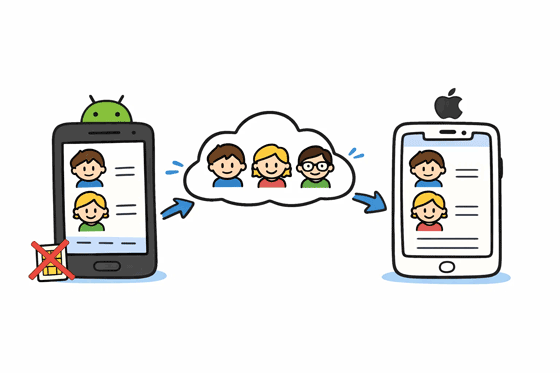
If you are looking for a "one-click" solution that handles the heavy lifting for you, professional software like Samsung Data Transfer is the most efficient choice. This tool is designed specifically for cross-platform data migration, allowing you to copy all your contacts from Android to iPhone at once without a SIM card.
- Transfer contacts directly from one Android device to an iPhone via USB.
- Support most Android devices like Samsung, OnePlus, TCL, Tecno, itel, Vivo, OPPO, realme, Xiaomi, Honor, iQOO, Motorola, Google, and more.
- Transfer documents smoothly from Android to iPhone as well.
- Copy photos, videos, music, and more files for the data migration from iOS to Android.
- Support Android 6.0 or later, and iOS 5.0 or higher, including the latest iOS 26.
- No ads, and move data device to device without cloud services.
Download the data transfer software.


Step 1: Install the transfer software on your computer after downloading it. Then open it and connect both your smartphones to the PC with USB cables.
Step 2: Enable Android USB debugging, and tap "Trust" on the iPhone. Once connected, check if your iPhone is the "Destination" device. If not, click "Flip".
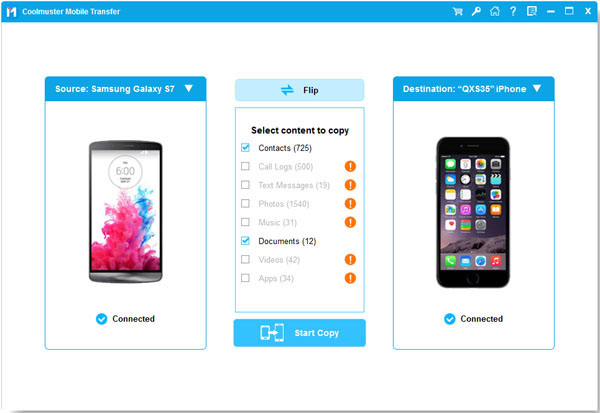
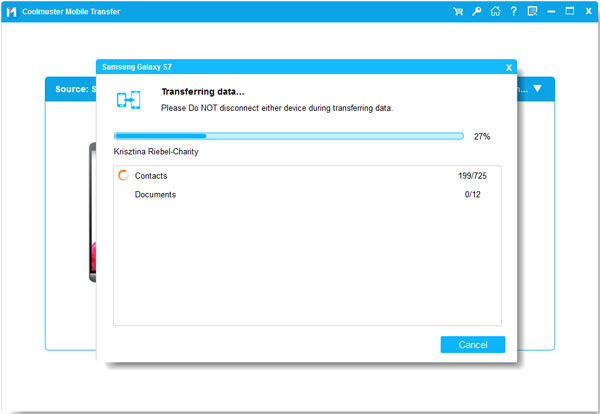
Step 3: Select the "Contacts" option, and click "Start Copy" to transfer all your Android contacts to the iOS device. Once finished, you can view your contacts on the iPhone's Contacts app.
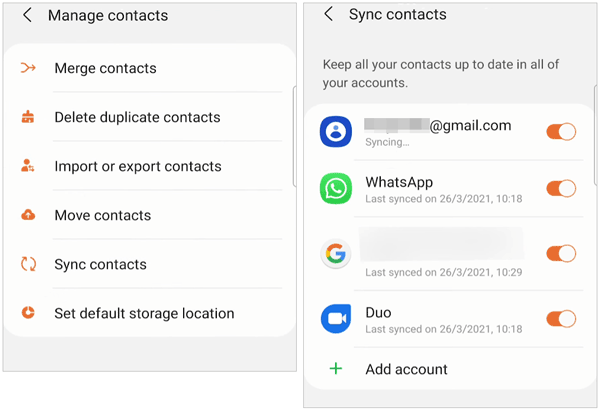
Since most Android users already have their contacts synced to a Google Account, this is often the fastest wireless method. It will sync your contacts to your iPhone over a network.
Step 1: On your Android phone, go to the Contacts app, tap the "Menu" icon, and choose "Manage contacts".
Step 2: Tap "Sync contacts" > "Add account" to input your Google Account. If you have added the account, turn it on directly, and tap "Sync" at the bottom.
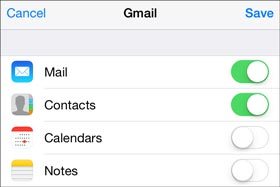
Step 3: On your iPhone, please go to Settings > "Mail" > "Accounts" > "Add Account" > "Google". Then sign in with the same Google Account. Finally, enable the contact syncing on the iPhone.
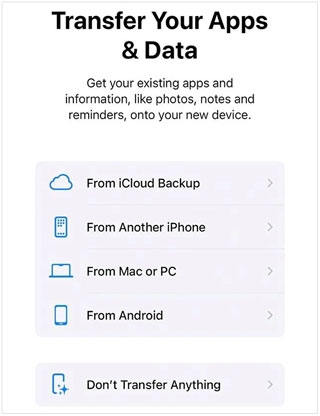
Apple's "Move to iOS" app is perfect to transfer your contacts if you are setting up a brand-new iPhone. Note that this method typically requires the iPhone to be in its initial setup phase.
Step 1: Download and install the Move to iOS app on your Android phone.
Step 2: Power on your new iPhone and follow the setup prompts until you reach the "Transfer Your Apps & Data" screen. Then select "From Android".
Step 3: Enter the code displayed on your iPhone into the Android app. Select "Contacts" and wait for the transfer to complete over Wi-Fi.
If you only need to move a few contacts or don't want to sync an entire account, using a VCF (vCard) file is a reliable manual method. Furthermore, you can do it after the setup.
Step 1: On the Android phone, open the Contacts app, and click "Manage contacts" > "Import/Export contacts" > "Export contacts".
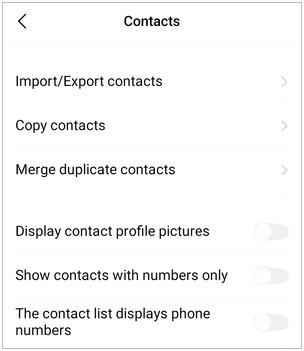
Step 2: Select the contacts you want to transfer, and tap "Export" > "Internal storage" to save the contacts as a VCF file.
Step 3: Locate the VCF file on the Android device, and send it with email to yourself.
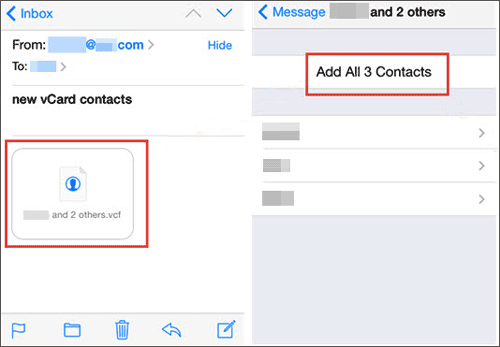
Step 4: Log in to the same email account on your iPhone. Go to the inbox, and open the email. Then click the VCF file to import the contacts to your iPhone.
Using iCloud provides a more centralized way to import contacts from a VCF file. Thus, you can import VCF to iCloud and then sync the contacts to your iPhone wirelessly.
Step 1: Export your Android contacts to a .vcf file (as described in Part 4). Then connect your Android phone to your PC with USB, and drag and drop the file to the PC.
Step 2: Go to iCloud.com on your computer and log in with your Apple ID. Then click on "Contacts".
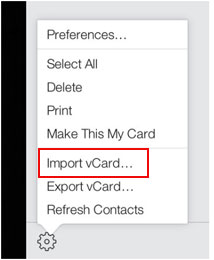
Step 3: Tap the gear icon (Settings) in the corner, choose "Import vCard", and select your file.
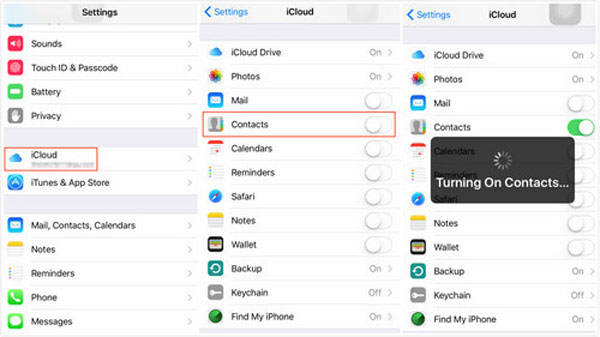
Step 4: Go to the Settings on your iPhone, and enable the "Contacts" option under iCloud sync. Then the contacts will appear on your iPhone.
Q1: Can I use Quick Share to send contacts from Android to iPhone?
No. Quick Share is a proprietary Google/Android protocol, while iPhone uses AirDrop. They are not natively compatible. You should use the VCF/Email method or a third-party app instead. However, if your Android phone is Google Pixel 10 series, you can send data to an iPhone with Quick Share and AirDrop.
Q2: Will all contact details transfer correctly?
Usually, yes. Most methods (Google Sync, VCF, and Move to iOS) carry over names, phone numbers, emails, and even profile photos. However, some custom labels or unique fields specific to Android manufacturers might occasionally be stripped.
Q3: Are my contacts duplicated after transfer?
If you use multiple methods (e.g., syncing Google and importing a VCF), you may see duplicates. You can easily fix this on your iPhone by going to Contacts > Duplicates Found (at the top) and selecting Merge.
Transferring contacts from Android to iPhone without a SIM card is not only possible but also straightforward when using the right method. You can utilize VCF, email, iCloud, and Move to iOS to transfer your contacts.
But if you want to directly copy contacts from Android to your iPhone after the setup, Samsung Data Transfer will be the best tool. It enables you to move all your contacts at once with several clicks. Once your contacts are settled, you can fully enjoy the features of your new iOS device.
Related Articles
Switching from Android to iPhone - Ease Your Mobile Data Migration
Samsung S25 Edge vs iPhone 17 Air: A Combat Between Slim Phones
iPhone 16 vs iPhone 17: Select Your Favorite iPhone with Ease
Effortlessly Transfer SIM Card Data to Computer without Data Loss

Sophie Green, Chief Editor of Samsung-messages-backup website, has been focusing on the realm of Android Recovery, Android Transfer (Backup), Android Device Tips, Phone Clean, and Phone Transfer technologies. Recognized contributions on leading platforms attest to her esteemed expertise and reliability.
Copyright © samsung-messages-backup.com All Rights Reserved.



