"I've decided to switch from iPhone to Samsung and I want to make the transfer as smooth as possible. I have many important files on my iPhone, my iBooks, PDFs, XLSXs, DOCs, and the like. I hope I can move them to my new Samsung Phone."
If you want to transfer documents from iPhone to Samsung after switching your phone or just for sharing with friends, you can get help from this guide, including 5 effective ways. As long as you follow the steps below, you can seamlessly transfer your documents, ensuring that no important data is left behind.
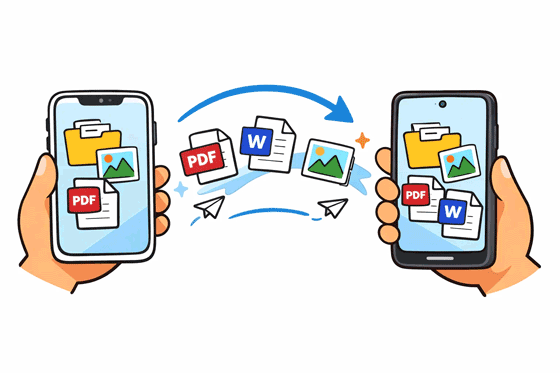
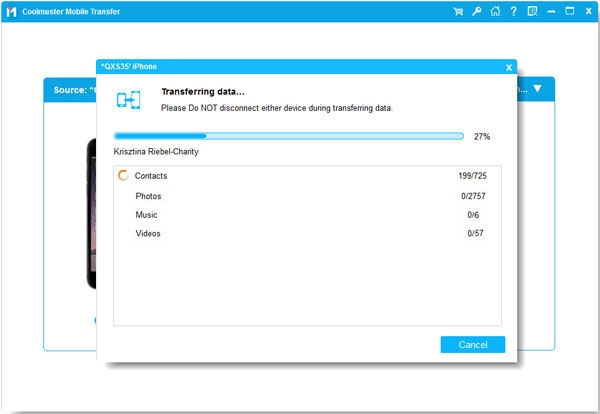
The easiest way to transfer documents, such as PDFs and EPUBs, from iPhone to Samsung is by using Samsung Data Transfer, a desktop app for direct data migration between mobile devices. You can check the data types, and it can copy your files from iOS to Android via USB.
- Directly copy documents (PDF and EPUB) from iPhone to Samsung without data loss.
- Transfer photos, videos, music, contacts, and text messages as well.
- The data transmission from Android to Android, Android to iOS, and iOS to iOS is also available.
- The transferred files will not overwrite your current data on your Samsung device.
- Support most Android and iOS devices, including iPhone 17 Pro Max/17 Pro/17/16/15/14/13/12/11/X, Samsung Galaxy S26 Ultra/S26/S25/S24/S23/S22/S21/S20, OnePlus, Google, Vivo, realme, Honor, Motorola, TCL, Tecno, etc.
Download Samsung Data Transfer.


Step 1: Use USB cables to connect both your iPhone and Samsung phone to your computer. Then install the Samsung Data Transfer software on your computer, and open it.
Step 2: Enable the USB debugging mode on Samsung, and choose "Trust" on your iPhone. Once connected, ensure your iPhone is the "Source" device. If not, click "Flip".
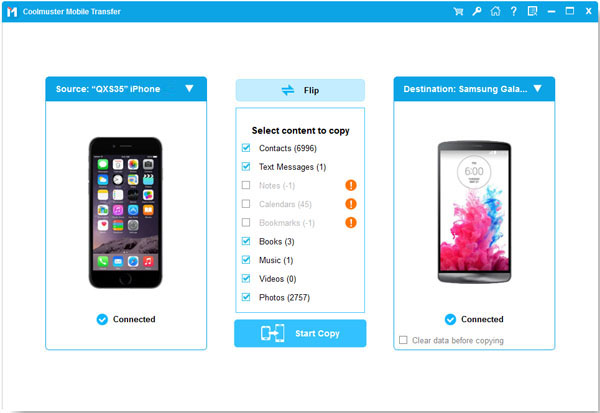
Step 3: Select the "Books" option and other data types you want, and click "Start Copy" to transfer your documents from the iPhone to the Samsung Galaxy device.
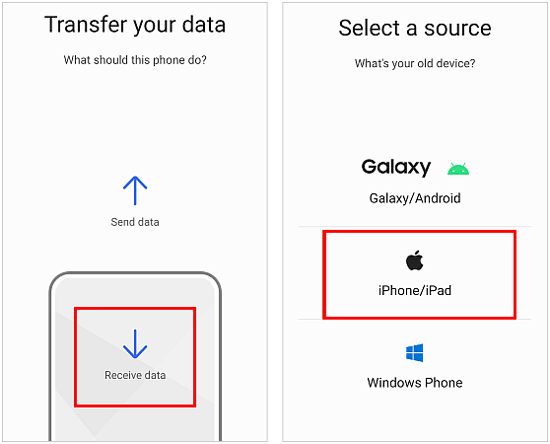
If you prefer to transfer documents wirelessly, Smart Switch Mobile is an excellent option. Samsung's Smart Switch app is available on both iOS and Android, making it easy to transfer files between the two platforms. By the way, this app also supports wired transfer.
Step 1: Download and install the Smart Switch app on both your iPhone and Samsung device. In general, it's pre-installed on Samsung, and you can search for it on the Settings app.
Step 2: Open the app on both mobile devices. On Samsung, choose "Receive data" > "iPhone/iPad" > "Wireless". Then there is a QR code on the Samsung phone.
Step 3: Choose "Wireless" on your iPhone, and scan the QR code on the Samsung device. Click "Join" on the popup.
Step 4: Choose the file types that you want to transfer on Samsung, and click "Transfer" at the bottom. Tap "Keep screen on" and wait for the process to complete.
For a cloud-based option, Google Drive can help you transfer documents and files from iPhone to Samsung. This method is ideal if you already use Google Drive for backup or want to access your documents from multiple devices.
Step 1: On your iPhone, download the Google Drive app. Open the app, log in to your Google Account, and upload the documents you wish to transfer.
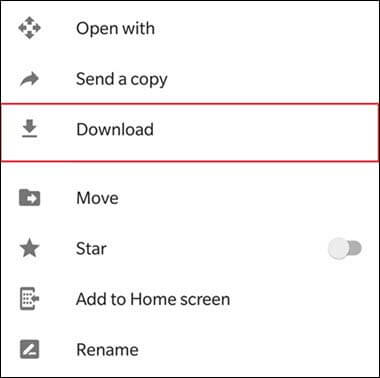
Step 2: Once your documents are uploaded, open Google Drive on your Samsung phone and download the files you need.
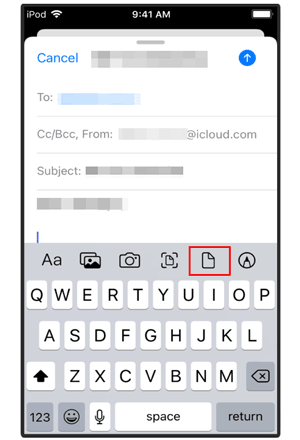
Sending documents via email is one of the simplest ways to transfer files between devices. This way is available on most devices, which requires a stable internet connection. Although this method might be slower for large files, it's incredibly straightforward and doesn't require any third-party apps or software.
Step 1: On your iPhone, open your email app (e.g., Mail or Gmail) and create a new email.
Step 2: Attach the documents you want to transfer and send the email to yourself.
Step 3: On your Samsung phone, open the email and download the attached files. Then you can access the documents on your Samsung Galaxy device.
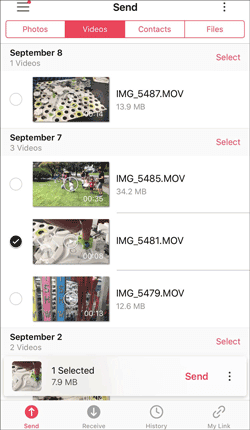
Send Anywhere is a third-party tool that doesn't require a cloud account or a physical cable. It uses a 6-digit key to pair devices. It is a great option for quickly sending documents without needing to connect both devices to a computer.
Step 1: On iPhone, open Send Anywhere, tap "Send", and select your documents. A 6-digit code will appear.
Step 2: Open the app on Samsung, tap "Receive", and enter the code.
Step 3: The transfer happens over Wi-Fi, making it significantly faster than Bluetooth.
Q1: Can I send documents from my iPhone to a Samsung phone via Bluetooth?
Technically, Bluetooth allows file transfers, but this method is not ideal for transferring documents from iPhone to Samsung. iPhones do not support Bluetooth file transfer with non-Apple devices, which means it's not a reliable way to send documents to a Samsung phone.
Q2: Can I use AirDrop and Quick Share to send files between iPhone and Samsung?
Not directly. AirDrop is exclusive to Apple, and Quick Share is exclusive to Samsung/Android. They do not talk to each other natively. At present, you can share files with Quick Share between iPhones and the Google Pixel phones running Android 16.
Q3: When does Quick Share support transferring files between iPhone and Samsung phones?
As of early 2026, native file sharing between iPhone and Samsung via Quick Share is currently in a "rollout" phase. This feature launched first on the Google Pixel 10. While there have been leaks showing it working on Samsung's One UI 8.5 and the new Galaxy S26 (launched in February 2026), it has not yet been pushed as a standard update to the Galaxy S25 in all regions.
It's not difficult to transfer documents from an iPhone to a Samsung device after you learn about these methods. If you want to transfer your files during the setup, Samsung Smart Switch will be suitable. But if you want to transfer your documents directly after the setup, try Samsung Data Transfer. Choose the method that fits your current setup, and you'll have your documents ready to use on your new Galaxy in no time.
Related Articles
How to Transfer Contacts from iPhone to Samsung [All-round Guide]
How to Transfer Music from iPhone to Samsung | Freely Select 5 Smart Methods
[6 Ultimate Ways] How to AirDrop from iPhone to Android?
Effortless Samsung File Transfer to PC - 6 Wired and Wireless Ways

Sophie Green, Chief Editor of Samsung-messages-backup website, has been focusing on the realm of Android Recovery, Android Transfer (Backup), Android Device Tips, Phone Clean, and Phone Transfer technologies. Recognized contributions on leading platforms attest to her esteemed expertise and reliability.
Copyright © samsung-messages-backup.com All Rights Reserved.



