Accessing phone messages on a PC is not the same as transferring a file, since you cannot find the data in the Files app or File Manager. So, to solve how to view iPhone messages on a PC, you will need some specified methods, which allow you to view and export your iPhone messages without trouble.
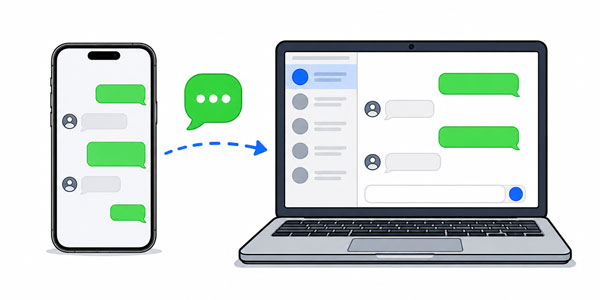
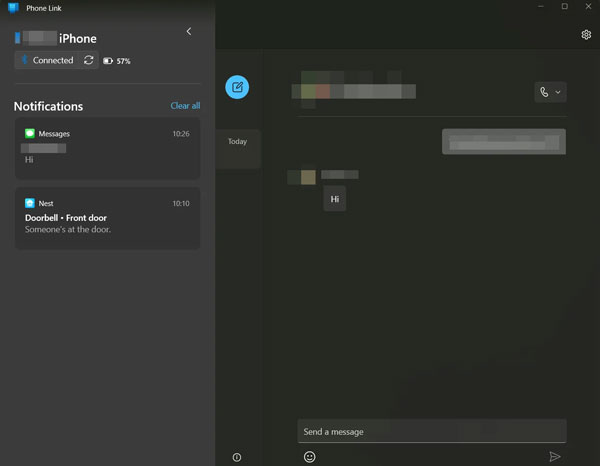
Microsoft's Phone Link app is the most integrated way to connect an iPhone to Windows 11. It uses Bluetooth to sync notifications and messages directly to your desktop. However, you can only see messages received after the pairing process; it does not sync your past message history.
Step 1: Open the Phone Link app on your Windows 11 PC and select "iPhone". Then go to the Settings app on your iPhone and enable "Bluetooth".
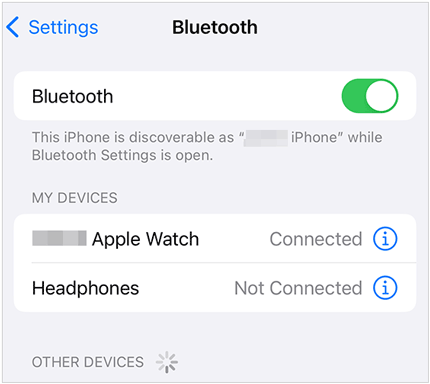
Step 2: Tap the "i" icon next to your PC's name, and enable "Show Notifications" and "Sync Contacts".
Step 3: Follow the on-screen instructions on the computer to pair your devices via Bluetooth. Once done, click the "Messages" tab to view the messages that you received after connecting on the Windows PC.
Tips: If an Android phone cannot receive the messages sent from an iPhone, fix it with this guide.
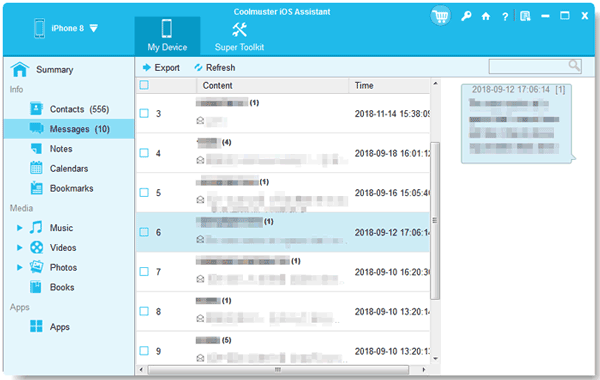
For users who need to access their entire message history, including attachments, a dedicated tool like iPhone Data Manager is a more robust option. You can view all your iPhone text messages on your Windows PC, and export the messages as an HTML, CSV, or TXT file, which are all accessible. Please note that it is not a live chat app, so you cannot send or reply through it on your computer.
- Load and display all your iPhone text messages on a Windows PC or Mac.
- Transfer your messages from an iPhone to a computer for backup.
- Organize your iOS messages in conversations.
- Enables you to access various iPhone data like photos, contacts, notes, etc., on your PC.
- Back up your iPhone data to your computer with simple clicks.
- Restore the backup data from a PC to an iOS device without iTunes.
- Support Windows 11/10/8/7 and Mac OS X 10.10 or later.


Step 1: Install the iPhone data management software on your PC and connect your iPhone via a USB cable. Then make your iPhone trust your computer if prompted.
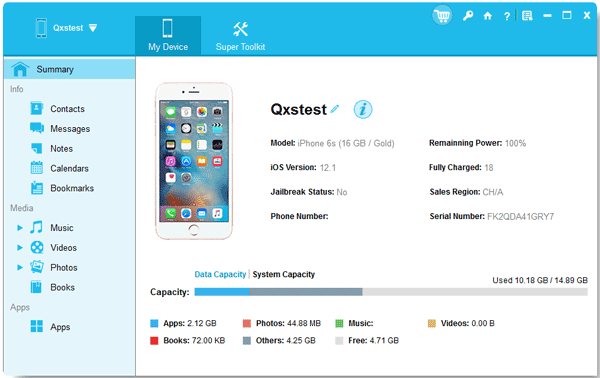
Step 2: After connecting, choose the "Messages" category to load your iPhone messages. Then you can view the messages on the interface. By the way, you can also export them to your PC if needed.
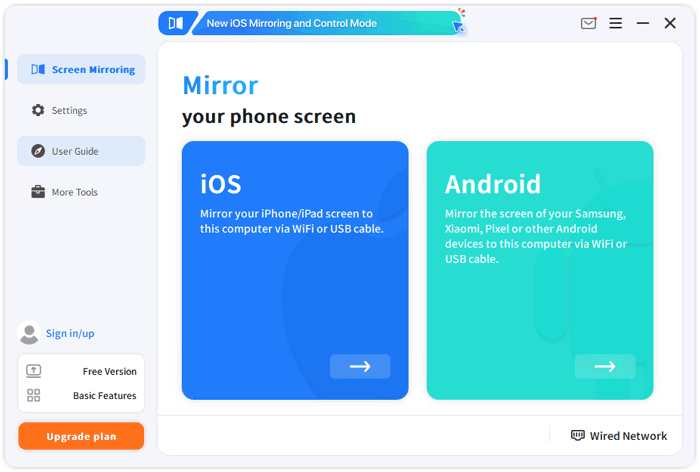
If you are on Windows 10 or need to see exactly what is on your screen, Phone Screen Mirror is a viable workaround. It can mirror your iPhone's screen to a PC, so you can directly view your message content on your computer's screen. However, you cannot manage or export your iOS messages.
Step 1: Download the screen mirroring app on your PC, and ensure both your devices are connected to the same Wi-Fi network.
Step 2: Click "iOS" on the interface, and choose the "WiFi" option. On your iPhone, swipe down from the top-right corner (or up from the bottom on older models) to open the Control Center.
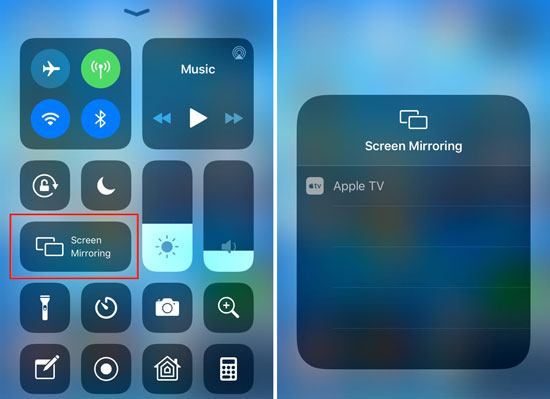
Step 3: Tap the "Screen Mirroring" icon. Next, select "MirrorTo [Your PC Name]" from the list. Your iPhone screen should appear on your PC instantly.
To view your iPhone messages on a Windows PC using AirDroid Cast, you essentially use the software to mirror your iPhone screen and then enable "Control" features to interact with the Messages app directly from your computer. By the way, depending on your Wi-Fi strength, there may be a noticeable delay between the phone and the PC.
Step 1: Download the AirDroid Cast client on your PC. Then install AirDroid Cast from the App Store on your iPhone.
Step 2: Open AirDroid Cast on your PC to see the 9-digit Cast Code or QR Code. Next, open AirDroid Cast on your iPhone and enter the code or scan the QR code.
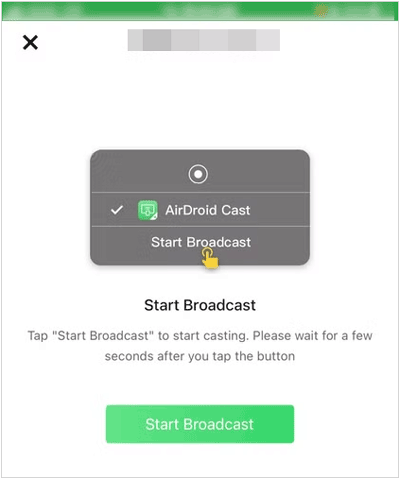
Step 3: On your iPhone, tap "Start Casting", select "AirDroid Cast" from the list, and tap "Start Broadcast".
Step 4: On your PC, allow the connection request. Your iPhone screen should now be visible on your Windows monitor. Then navigate to the iPhone messages and view them.
Q1: Why is there no iMessage app compatible with Windows PCs?
Apple keeps iMessage exclusive to its hardware (iPhone, iPad, Mac) as a "moat" to encourage users to stay within the Apple ecosystem. By keeping the encryption and protocol proprietary, they maintain high security and user retention.
Q2: Can I view my iPhone messages on a PC without the phone?
Generally, no. Because iMessage is end-to-end encrypted and stored locally or in iCloud, you need the device to "handshake" with the PC. The only exception is if you have a Mac or if you have previously backed up your phone to a cloud service that allows data extraction.
Q3: Can I get a transcript of text messages from my iPhone?
Yes. Using the tool mentioned in Part 2 (iPhone Data Managers), you can export entire conversations into a PDF or HTML file. This creates a readable, searchable transcript that includes timestamps and contact info.
While Windows does not have a native iMessage app, Phone Link offers a convenient way for Windows 11 users to handle basic daily texting. For those needing deep archives or screen access, iPhone Data Manager will be more suitable. This software allows you to access and transfer your messages on your Windows or Mac computer. It also supports other iOS data like contacts, videos, music, photos, books, etc.
Related Articles
How to Transfer Contacts from Android to iPhone [Smooth Transition]
Guide: How to Transfer Files from iPhone to PC Easily [Solved]
Compare iPhones in Several Aspects: iPhone 17 Series Lineup Products
Fix Android Not Receiving Texts from iPhone with 14 Solutions

Charlotte Smith, an accomplished editor in the dynamic landscape of mobile technology, has distinguished herself with her abundant experience and skills for iPhone, OnePlus, Sony, Vivo, Motorola, ZTE, Huawei, etc. Help readers and users solve the problems in iPhone Transfer and Mobile Data Management. Her proficiency extends beyond mere functionality, delving into the nuances of each brand with precision and clarity.
Copyright © samsung-messages-backup.com All Rights Reserved.



