When you bought a MacBook, you might want to sync messages from your iPhone to Mac to ensure you never miss a beat in your conversations. But how can you do that with ease? This guide will give you 4 convenient solutions, so you can sync your iPhone messages to your Mac without any trouble.
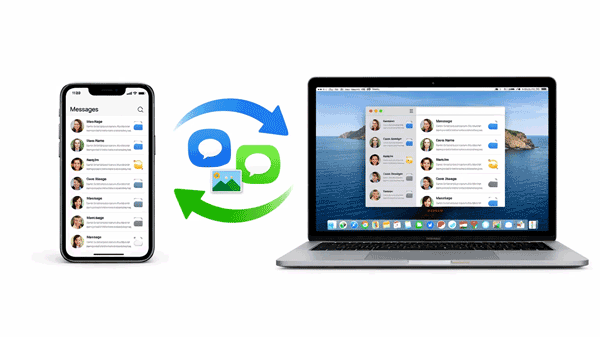
The foundation of Apple's messaging is the iMessage service. To ensure your Mac is receiving the same messages as your iPhone, you must ensure both devices are signed into the same Apple Account.
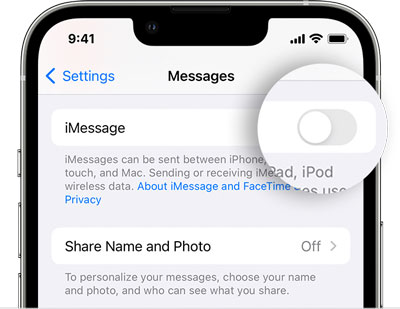
Step 1: On your iPhone, go to Settings > "Messages" and ensure "iMessage" is toggled "ON". Tap "Send & Receive" to confirm your phone number and email are selected.
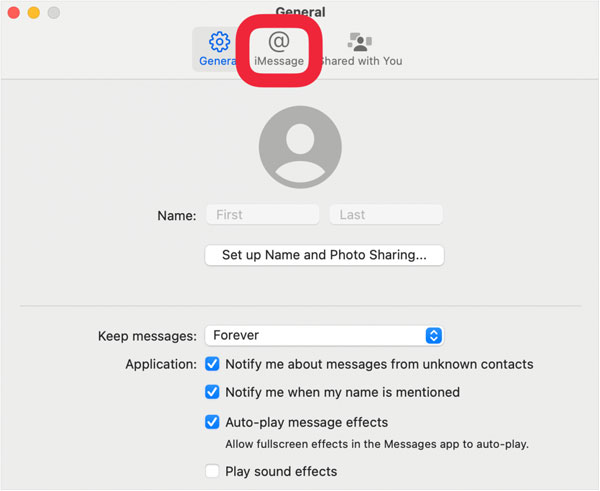
Step 2: On your Mac, open the Messages app. In the menu bar, go to "Settings" (or Preferences) > "iMessage".
Step 3: Ensure your Apple Account is signed in and check the boxes for the phone number and email addresses you want to use.
If you prefer using iCloud to sync messages, you can easily do so with these steps. iCloud keeps all your messages up-to-date across your Apple devices. Once iCloud syncing is enabled on both devices, all your iMessages will automatically be synced between your iPhone and Mac, even if you delete or add new conversations.
Step 1: Go to Settings on your iPhone, and click "[Your Name]" > "iCloud" > "Show All". Toggle "Messages" to "ON".
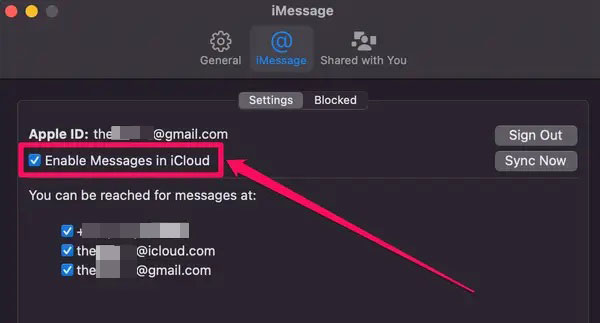
Step 2: On your Mac, please launch the Messages app, and click "Settings" > "iMessage", and check the box for "Enable Messages in iCloud".
Step 3: Click "Sync Now" to immediately pull your history from the cloud to your Mac's desktop app.
Another method of getting iPhone Messages on MacBook is Text Message Forwarding, which allows you to forward SMS and MMS messages from your iPhone to your Mac. This method works only for SMS and MMS messages, but it's a great option if you want to include standard text messages in the sync process.
Step 1: On your iPhone, open the Settings app, and tap on "Messages". Then scroll down and click "Text Message Forwarding".
Step 2: You will see a list of your Apple devices. Toggle the switch to "ON" for your Mac.
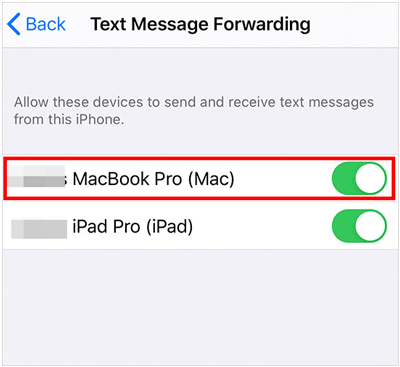
Note: Your iPhone must be powered on and connected to Wi-Fi or a cellular network for this relay to work.
If you prefer a more hands-on approach, you can use the comprehensive software - iPhone Data Manager - to manage and sync your iPhone to Mac, such as syncing iPhone messages. This tool provides a detailed way of managing your iPhone's messages, contacts, and more, with full access to back up and restore your iOS data.
- Load and list your iPhone messages on the interface.
- Support preview and selection of messages before transferring them.
- Export and save your iPhone messages to Mac as an HTML, TXT, or CSV file.
- Back up iPhone data to a computer at once, and restore backups to iPhone without data loss.
- Selectively transfer your contacts, videos, notes, bookmarks, photos, etc.
- Compatible with iOS 5.0 and later.
Download iPhone Data Manager.


Step 1: Install the software on your Mac, and connect your iPhone to your Mac with USB. Then click "Trust" on the iOS device.
Step 2: Once connected, you will see your iPhone device's information on the interface. To transfer your messages, click the "Messages" option.
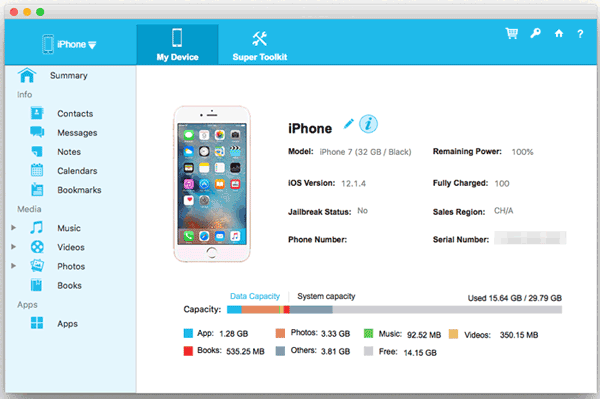
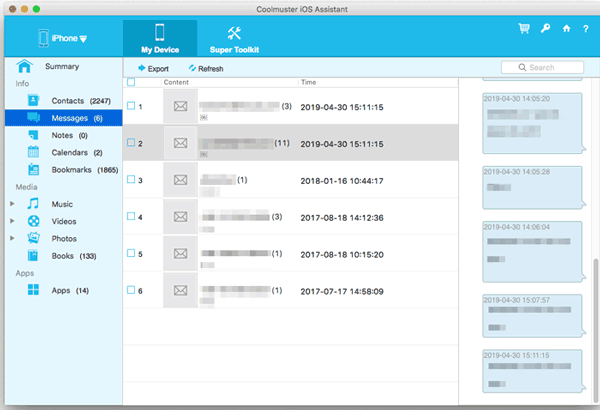
Step 3: Check the messages you want to export, and click "Export". Then select a file format and a location to save your messages to your Mac device.
Q1: Why are my messages not syncing between my iPhone and Mac?
If your messages aren't syncing, here are a few troubleshooting steps:
Q2: If I have synced messages from iPhone to Mac, would the messages be deleted on Mac when I had deleted them on my iPhone?
This depends on your settings. If you have Messages in iCloud enabled (Part 2), deleting a message on your iPhone will delete it on your Mac. If you are only using standard iMessage delivery without iCloud syncing, the messages usually remain on the other device even after being deleted on one.
Q3: Why won't my messages sync with iCloud?
If your messages are not syncing with iCloud, it could be due to:
Syncing your iPhone messages to Mac ensures you never miss an important conversation, whether you're at work, at home, or on the go. You can use iMessage or iCloud to sync all your messages wirelessly, but if you want to transfer specific messages, and want to manage and access your iPhone data on your computer, iPhone Data Manager will be a better tool.
By following the steps outlined above, you'll be able to easily set up syncing and troubleshoot any issues that arise. Stay connected, no matter which Apple device you're using.
Related Articles
How to Transfer Files from iPad to PC in 7 Hassle-Free Ways
How to Send iPhone Photos to Android Without Losing Quality (5 Ways)
How to Transfer eSIM from iPhone to Android (Stepwise Guide)
How to Get iPhone Text Messages on Windows 10 or 11 with 4 Methods (Solved)

Charlotte Smith, an accomplished editor in the dynamic landscape of mobile technology, has distinguished herself with her abundant experience and skills for iPhone, OnePlus, Sony, Vivo, Motorola, ZTE, Huawei, etc. Help readers and users solve the problems in iPhone Transfer and Mobile Data Management. Her proficiency extends beyond mere functionality, delving into the nuances of each brand with precision and clarity.
Copyright © samsung-messages-backup.com All Rights Reserved.



