"Why is moving files between Windows and iPad so difficult? Why can't it be a direct folder that you can fill with your files like Android, letting users responsible to allow it or not?"
- From Reddit
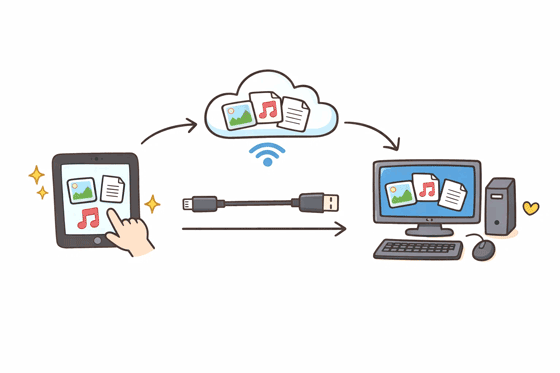
If you use an iPad and a Windows PC at the same time and intend to transfer files from the iPad to the PC, this post will give you the correct answers. Here, you can get 7 feasible methods to transfer your files between both devices without any hurdles.
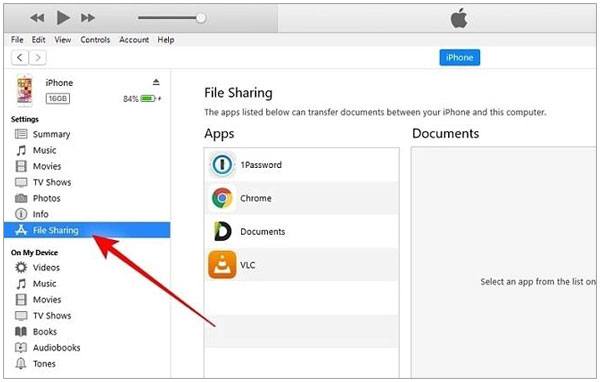
Although Apple has gradually replaced iTunes with Finder on macOS, iTunes remains a standard solution for Windows users. While many users find it a bit rigid, it remains a reliable way to sync specific app data and media.
Step 1: Install the latest version of iTunes on your Windows PC, and then connect your iPad to the PC using a USB cable.
Step 2: Unlock your iPad and tap "Trust This Computer" if prompted. Then launch iTunes.
Step 3: Click the device icon when it appears, and select "File Sharing" from the left sidebar.
Step 4: Choose an app that supports file sharing, and opt for the files you want to transfer. Finally, click "Save" and choose a destination folder on your PC.
Tips: Besides using Finder, how can you back up your iPhone to Mac? Open it to get solutions.
If you find iTunes cumbersome or slow, several alternatives offer more flexibility and simplicity.
See more: Alternatives to iTunes for Android devices are also available.
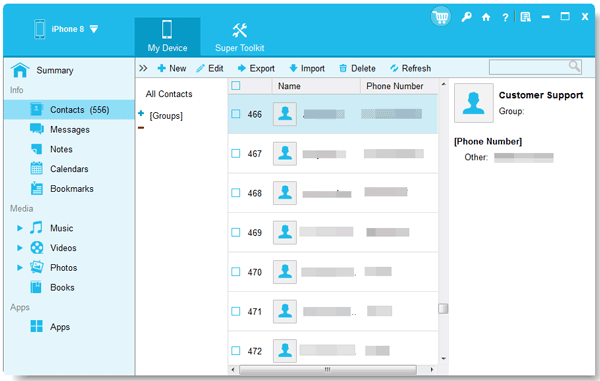
With iPhone Data Manager, you can access your iOS files like photos, videos, contacts, messages, notes, etc., on your PC directly, since it allows you to preview and select files before transferring them. It also supports one-click backup and restore for iOS data on a computer without iCloud.
Step 1: Download, install, and launch iPhone Data Manager on your PC.


Step 2: Connect your iPad to the computer with USB, and choose "Trust" on the iOS device. Then the connection will be completed.
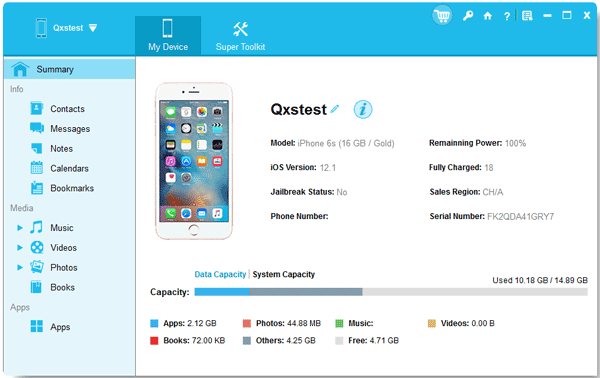
Step 3: Select the data category (Photos, Videos, Music, Contacts, etc.). Then choose the files you want to transfer, and click "Export" to save the files to your PC.
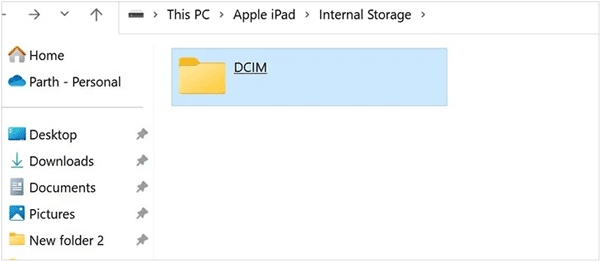
For transferring photos and videos stored in the Camera Roll on your iPad, Windows File Explorer provides a direct solution.
Step 1: Connect your iPad to the PC using a USB cable, unlock your iPad, and tap "Trust".
Step 2: Open File Explorer on your PC, and locate your iPad under "This PC".
Step 3: Navigate to the "DCIM". Now, copy and paste your photos and videos from your iPad to your PC.
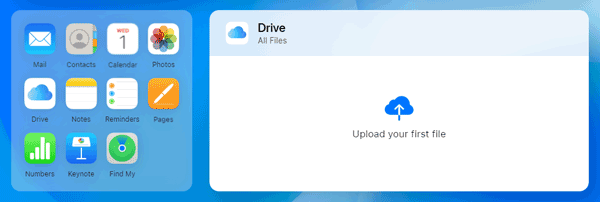
iCloud provides a wireless transfer method, especially useful when USB access is unavailable. You can sync your files from your iPad to your iCloud account, and then download the files to your Windows PC.
Step 1: On your iPad, go to Settings > "[Your Name]" > "iCloud".
Step 2: Enable the file categories you want to sync (e.g., Photos, iCloud Drive).
Step 3: On your PC, visit iCloud.com or install iCloud for Windows. Sign in with your Apple ID.
Step 4: Download files directly to your PC.
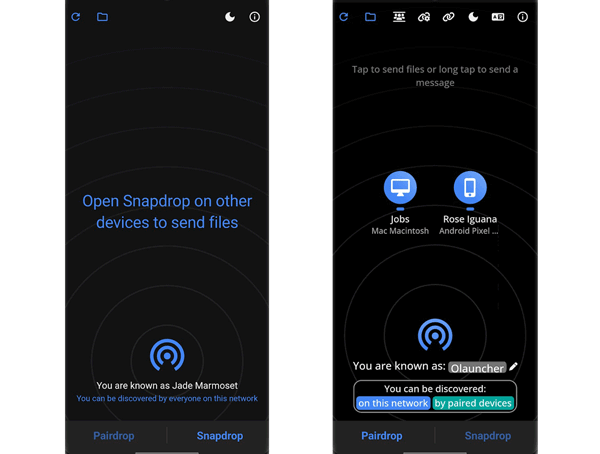
Think of Snapdrop as "AirDrop for Windows". It is a web-based tool that allows for quick file transfers between devices on the same Wi-Fi network.
Step 1: Open Snapdrop.net on both your iPad and your PC browser.
Step 2: Your iPad should appear on your PC screen.
Step 3: Tap the icon to select and send files instantly without installing any apps.
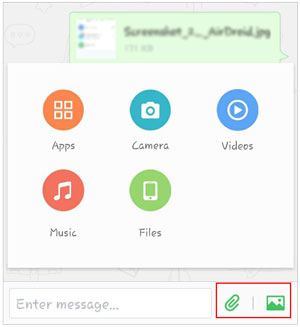
AirDroid is a powerful suite for wireless management. By installing the app on your iPad and using the web version or desktop client on your PC, you can manage files, view notifications, and move documents across platforms over the air. It's particularly useful for users who frequently switch between different operating systems.
Step 1: Download and install AirDroid on your iPad on your PC.
Step 2: Open the AirDroid app on your iPad, and choose your PC device. Then click the paperclip icon to select your files from your iPad.
Step 3: Access web.airdroid.com on your PC browser, log in to your AirDroid account, and you will receive the files sent from your iPad.
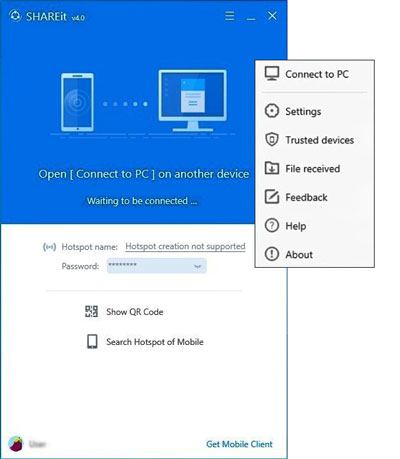
SHAREit is a cross-platform sharing app that uses a localized hotspot to transfer data. It is significantly faster than Bluetooth and works well for large files like movies or large photo albums. Both devices must have the app installed to establish a connection.
Step 1: Install SHAREit on both your iPad and PC.
Step 2: Connect both devices to the same Wi-Fi network, and open the app on your PC. Then click "Show QR Code".
Step 3: Then use the SHAREit app on your iPad to scan the QR code via "Connect PC/MAC".
Step 4: Select files on the iPad to transfer, and you will get the files on your computer.
Q1: Can I transfer files from iPad to PC via Bluetooth?
Technically, no. While you can pair an iPad and a PC via Bluetooth for things like internet tethering, Apple does not support file transfer (OBEX) via Bluetooth to non-Apple devices. It is better to use Wi-Fi-based tools like Snapdrop or SHAREit.
Q2: Can I transfer files from iPad to PC with a flash drive?
Yes. Modern iPads (especially those with USB-C ports, like the iPad Pro, Air, and the iPhone 17 series logic) support external storage. You can plug a compatible flash drive into your iPad, move files to it using the Files app, and then plug that drive into your PC.
Q3: Why doesn't my PC recognize my iPad after connecting via a USB cable?
This is usually caused by one of three things:
Moving data from your iPad to a PC is no longer the restricted process it once was. If you want a selective file transfer method, you can use iPhone Data Manager. This program can list different data by category. Then you can select specific items easily. Furthermore, the transferred files will not overwrite your existing ones. Simply put, choose the method that fits your file size and connection speed, and your data will be safely on your PC in no time.
Related Articles
How to Transfer Files from iPad to Android Phone [7 Hassle-free Methods]
How to Transfer Videos from iPhone to iPad | 6 Functional Methods You Can Get
How to Transfer Music from iPad to New iPad with Ease? | 6 Viable Ways
How to Unlink iPad and iPhone Text Messages | Easily Stop Sharing Messages

Charlotte Smith, an accomplished editor in the dynamic landscape of mobile technology, has distinguished herself with her abundant experience and skills for iPhone, OnePlus, Sony, Vivo, Motorola, ZTE, Huawei, etc. Help readers and users solve the problems in iPhone Transfer and Mobile Data Management. Her proficiency extends beyond mere functionality, delving into the nuances of each brand with precision and clarity.
Copyright © samsung-messages-backup.com All Rights Reserved.



