Updated to the latest Google Pixel model? Cool! However, some people found that they forgot to transfer their data from the old Pixel phone when completing the setup. If you also need to transfer data from Pixel to Pixel after setup without resetting your device, read through this guide to get effective solutions.
One of the easiest and most efficient ways to transfer data between Pixel devices is by using a dedicated data migration program - Samsung Data Transfer. This software allows users to move data such as contacts, messages, photos, apps, and more from one Pixel phone to another, even after both phones have been set up.
- Move data from one Pixel phone to another after setup without losing any data.
- Transfer photos, videos, music, apps, contacts, SMS, and more between Android devices.
- The transferred data will not replace your existing data on your destination device.
- USB and Wi-Fi transfer modes are available for Android to Android data migration.
- Support the transfer from iOS to Android, iOS to iOS, and Android to iOS as well.
- Compatible with Android 6.0 or later and iOS 5.0 or upper, including Android 16 and iOS 26.
Download this Pixel data transfer software.


Step 1: Download and install this data transfer program on your computer. Then open it and connect both Pixel phones to the computer with USB.
Step 2: Turn on the USB debugging mode on both Pixel phones. Then the program will recognize your devices. Now, ensure your new Pixel phone is the "Destination" device, or click "Flip".
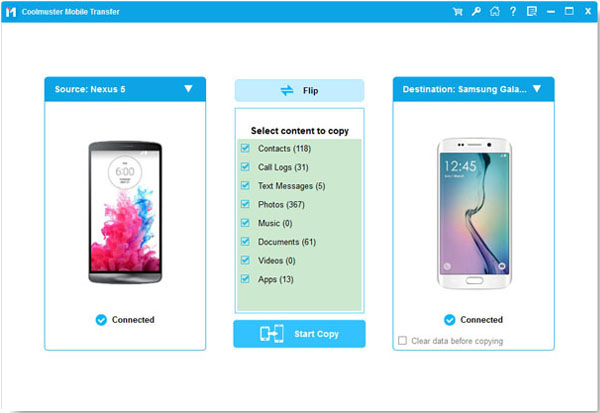
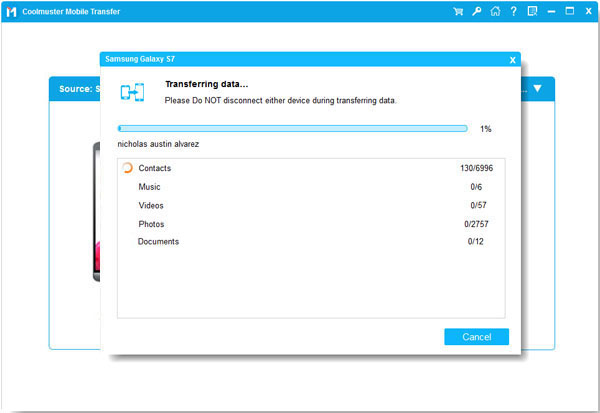
Step 3: Select the data types you want to transfer, and click "Start Copy" to start the process. Then you will receive the data on your destination Pixel phone.
Google Drive is a powerful and widely used cloud service, and it offers a simple way to sync data between Pixel devices. If you've already set up your new phone and want to restore your files, photos, and other data, try Google Drive.
Step 1: Install the Google Drive app on both Google Pixel phones. Then log in to your Google Account.
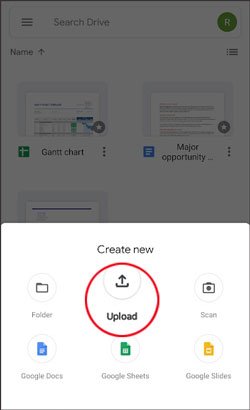
Step 2: On your source device, click "+" > "Upload" to select your files. Then upload them to Google Drive.
Step 3: Ensure the network is stable. Then open the app on your new Pixel phone. You will see your uploaded files. Now, download them to this device if you want.
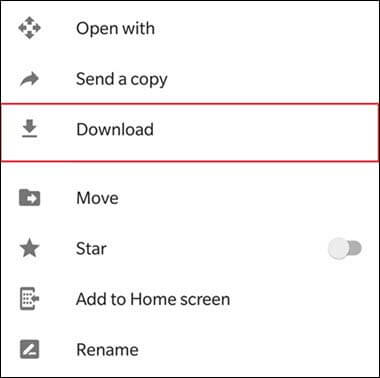
AirDroid Personal is another powerful tool for transferring files wirelessly between devices. It works well if you're transferring media files like photos, videos, music, and documents.
Step 1: Download and install AirDroid on both your old and new Pixel phones from the Google Play Store.
Step 2: Open AirDroid on both phones and sign in with the same AirDroid account. Ensure both devices are connected to the same Wi-Fi network.
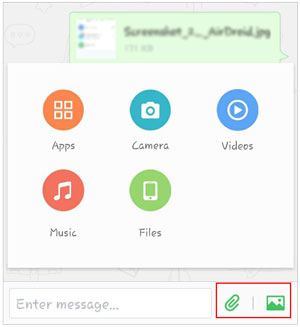
Step 3: Opt for the "Transfer" tab, and choose your Pixel phone. Then select the files you want to transfer on the old Pixel and send them to the new Pixel using AirDroid's file transfer feature.
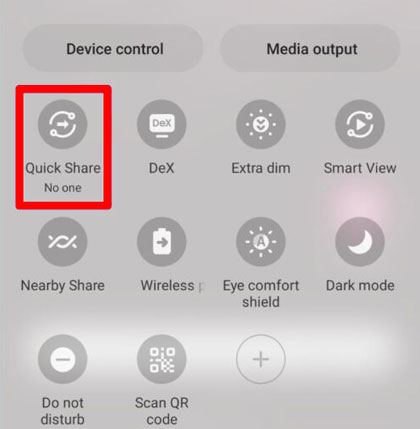
Quick Share is an exclusive feature available on newer Android devices, including the Pixel series. This feature uses Bluetooth and Wi-Fi to transfer data quickly and efficiently. With it, you can send your data between Pixel devices even after the setup.
Step 1: On both Pixel phones, go to Settings > "Connected devices" and enable the "Quick Share" feature.
Step 2: Open the file or app you want to share on the old Pixel. Tap the "Share" button and select "Quick Share" from the list of options.
Step 3: On your new Pixel, accept the transfer request. The data will be transferred instantly via Bluetooth or Wi-Fi.
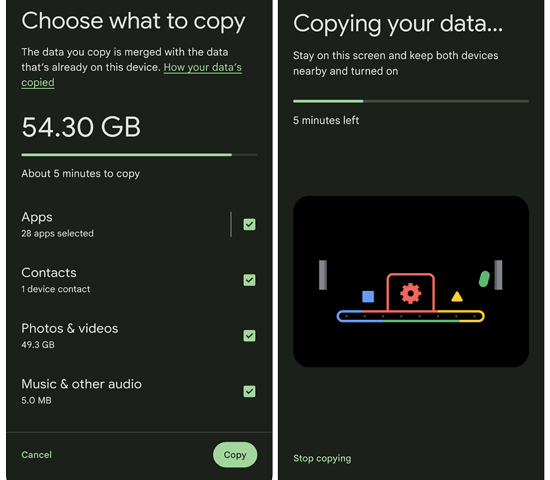
Android Switch is a feature available on most Android devices that allows you to transfer data between phones, even after setup. However, it can transfer data after setup for the Google Pixel 9 series or newer.
Step 1: Install the Android Switch app on both your old and new Pixel phones from the Google Play Store.
Step 2: Open the app on both phones, connect them via Wi-Fi or USB, and follow the on-screen instructions.
Step 3: Choose which data you want to transfer, including contacts, messages, photos, and apps. Once the data selection is complete, start the transfer. The app will notify you once the process is finished.
Q1: Can I restore Google backup data to my Pixel phone after setup?
The answer depends on which Pixel model you have, as Google recently changed this process for newer devices. For the Pixel 9 series and newer, you can restore your backup at any time without resetting. Google introduced a new "Android Switch" tool for the Pixel 9 series (and later) that allows you to restore data even after you have finished the initial setup.
Q2: Will my Wi-Fi settings, app preferences, and customizations transfer?
Yes, Wi-Fi settings (like networks and passwords) can transfer if you're using Google backup. App settings (like layout, background settings, etc.) may transfer depending on the app itself. However, some apps may require you to reconfigure preferences.
Q3: What if my data transfer gets interrupted?
If your data transfer is interrupted, most of the time, you can just start the process again. If it was interrupted during cloud restoration (Google backup), your device should attempt to pick up where it left off once it reconnects to the internet.
See? Even though you want to transfer your data from one Pixel phone to another after setup, you still have effective methods. No worry about your data migration. If you want to transfer a lot of data at once, try the one-stop data transfer software - Samsung Data Transfer. It can seamlessly copy your videos, music, apps, photos, call logs, documents, etc.
Related Articles
How to Transfer Photos from Pixel to Computer Without Effort [5 Methods]
Back Up and Restore Google Pixel: 3 Ways Make It Easier
How to Transfer Contacts from iPhone to Pixel? (Step-by-step Tutorial)
How to Transfer from Samsung to Pixel in Top 7 Ways? (Full Guide)

Sophie Green, Chief Editor of Samsung-messages-backup website, has been focusing on the realm of Android Recovery, Android Transfer (Backup), Android Device Tips, Phone Clean, and Phone Transfer technologies. Recognized contributions on leading platforms attest to her esteemed expertise and reliability.
Copyright © samsung-messages-backup.com All Rights Reserved.



