|
TL;DR: If Samsung Smart Switch is stuck at 99%, failing to connect, or unavailable on your Galaxy device, the most reliable alternative is to use Samsung Data Transfer on a computer. It provides a 1-click USB transfer pipeline for contacts, text messages, call logs, photos, videos, documents, and music without requiring Wi-Fi or overwriting existing target data. For wireless transfers without third-party software, Samsung Quick Share or Google Account Backup offer seamless cloud and peer-to-peer file migration. |
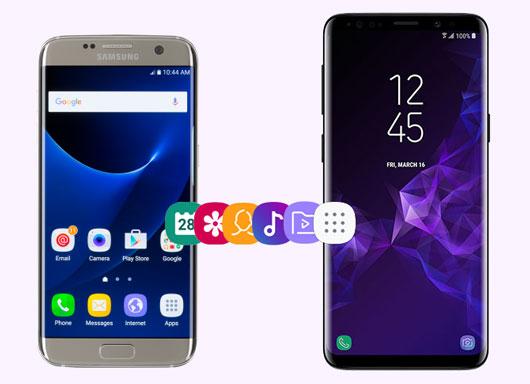
While Samsung Smart Switch is the official migration tool built into One UI, thousands of Galaxy users encounter persistent failure points during phone setup or manual migration. Understanding these constraints helps in choosing the right transfer alternative to Samsung Smart Switch:
When you need a 100% offline, stable, and high-speed transfer between two Samsung phones, professional desktop software bypasses all Wi-Fi and app crashing issues. Samsung Data Transfer is a specialized phone-to-phone migration utility engineered for Android and iOS devices.
Step 1. Download and Install: Install and launch Samsung Data Transfer on your Windows PC or Mac.


Step 2. Connect Both Samsung Devices: Connect both your source and target Samsung Galaxy phones to the computer using USB data cables. Enable USB Debugging on both devices by following the quick on-screen instructions.
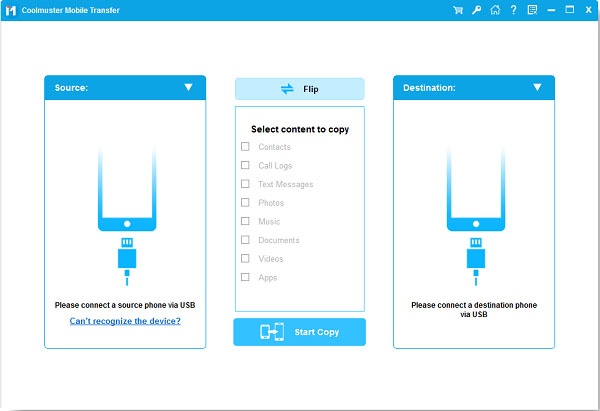
Step 3. Verify Device Positions: Ensure the old phone is recognized as the "Source" on the left and the new phone is set as the "Destination" on the right. If they are reversed, click the Flip button.
Step 4. Select File Categories: Check the boxes next to the content types you wish to migrate (e.g., Contacts, SMS, Call Logs, Photos, Videos, Audio, Documents).
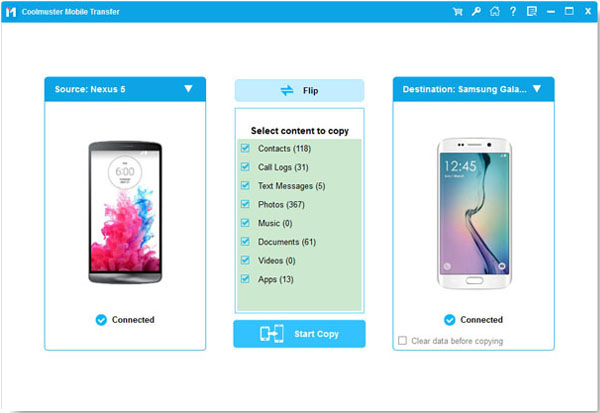
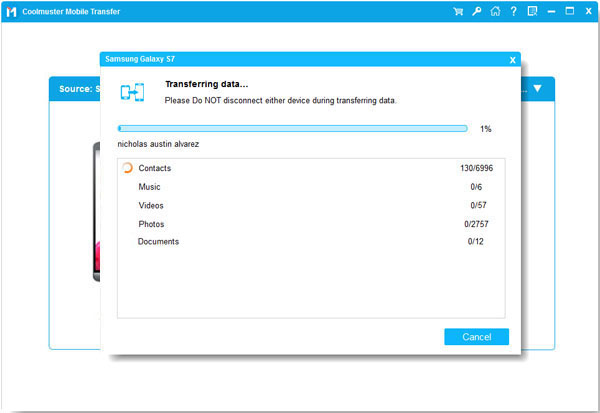
Step 5. Execute 1-Click Transfer: Click the Start Copy button. Keep both phones connected until the progress bar reaches 100%.
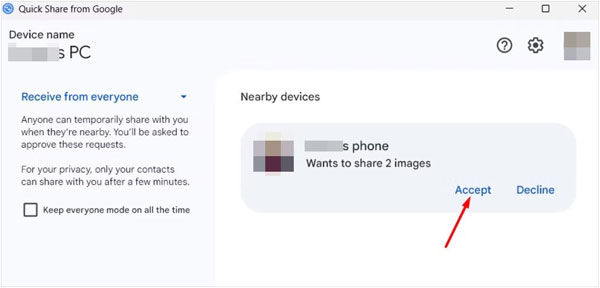
For users who prefer a native wireless transfer without installing desktop software or relying on Smart Switch, Samsung Quick Share (integrated with Google's Nearby Share framework) is the built-in peer-to-peer sharing protocol for Galaxy devices.
Note: Quick Share is ideal for ad-hoc media and document transfers, but it cannot transfer system settings, text message databases, or call history logs.
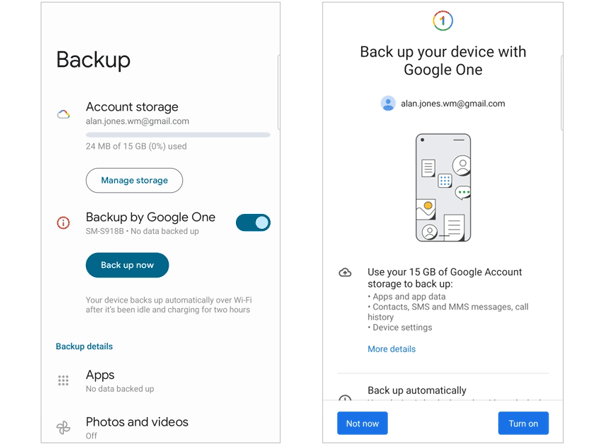
Every Android device features native integration with Google Cloud. You can back up your old Samsung phone to your Google account and restore essential phone data on the new Samsung phone during setup or cloud sync.
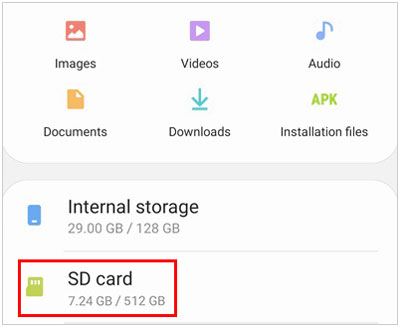
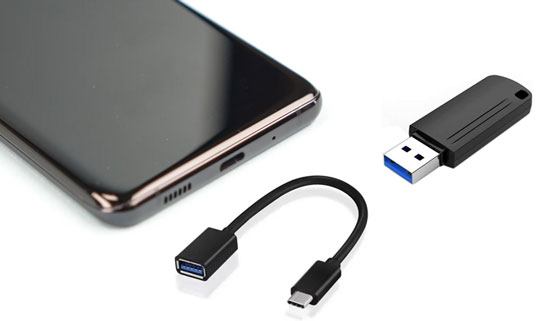
If you have an external storage medium like a MicroSD card or a USB Type-C OTG flash drive, you can physically clone or copy your files offline without network bandwidth constraints.
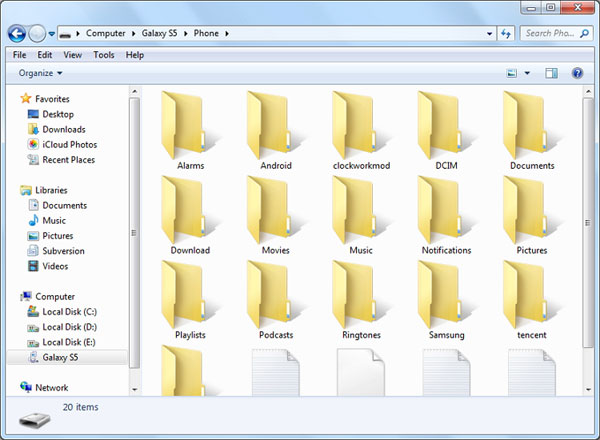
For users who only need to transfer media files (DCIM photos, movies, downloads, PDF documents) and want full control over folder structures, a simple Windows PC or Mac drag-and-drop transfer via MTP (Media Transfer Protocol) works without third-party mobile apps.
To help you choose the best non-Smart Switch method, the table below compares performance, supported data types, and operational requirements across all 5 solutions:
| Method | Transfer Speed | Supported Data Types | Wi-Fi / Internet Needed? | Selective Transfer? | Data Overwrite Risk? |
|---|---|---|---|---|---|
| Samsung Data Transfer | High (USB 3.0/3.1 Speed) | Contacts, SMS, Call Logs, Photos, Videos, Audio, Documents, Apps | No (100% Offline) | Yes | No |
| Quick Share | Medium to High (Wi-Fi Direct) | Photos, Videos, Documents, Audio Files (No App/SMS Data) | No (Requires Bluetooth/Wi-Fi Direct) | Yes | No |
| Google Backup | Depends on Internet Speed | Contacts, Call Logs, App List, Photos (Google Photos), Settings | Yes (Wi-Fi/Cellular Data) | Limited | Low |
| SD Card / USB OTG | High (Local Storage Speed) | Photos, Videos, Music, Documents, Backed-up Contacts (.vcf) | No | Yes | No |
| PC Drag & Drop (MTP) | High (USB Physical Cable) | Media Files, Downloads, PDF/Documents only | No | Yes | No |
When migrating data without Smart Switch, you might run into hardware or software glitches. Use these direct technical fixes to resolve them:
Answer: Yes. You can use desktop migration utilities like Samsung Data Transfer, native wireless features like Samsung Quick Share, Google Account Cloud Sync, or physical hardware like SD cards and computer USB MTP transfers.
Answer: Native file sharing tools like Quick Share or Bluetooth cannot transfer system databases like SMS or call logs. To move Android call logs and text messages without Smart Switch, use Samsung Data Transfer over a USB computer connection, or restore them via Google Account Backup.
Answer: Yes. While Smart Switch cloud restore usually requires factory resetting the target phone to run initial setup again, using Samsung Data Transfer or Quick Share allows you to move files and content to an already active Samsung phone without erasing existing data.
Answer: Smart Switch usually freezes at 99% due to corrupt app cache files, low storage space on the recipient phone, Wi-Fi connectivity drops, or trying to transfer large WhatsApp databases simultaneously with system apps. Excluding app data or switching to a wired software tool like Samsung Data Transfer resolves this.
Answer: Yes. In addition to Samsung-to-Samsung migration, Samsung Data Transfer supports cross-system transfers between iOS and Android. You can easily back up iPhone photos, contacts, and media directly to a Samsung phone or computer.
Moving your photos, messages, contacts, and media to a new Galaxy phone does not have to depend solely on Samsung Smart Switch. If you encounter app freezing, slow wireless speeds, or screen responsiveness issues, alternative migration methods offer greater control and speed.
For a complete, fast, and fail-safe transfer experience without internet restrictions or data overwriting, Samsung Data Transfer provides the most reliable 1-click desktop pipeline to move all your mobile content safely between Samsung devices.
Related Articles
How to Transfer Photos from Android to Flash Drive with 4 Practical Ways?
7 Ways to Transfer Files from Android to PC Wirelessly [Full Guide]
How to Back Up Android to Mac with Ease? 6 Ideal Answers
OPPO WhatsApp Backup and Restore: Ultimate Guide for ColorOS

Sophie Green, Chief Editor of Samsung-messages-backup website, has been focusing on the realm of Android Recovery, Android Transfer (Backup), Android Device Tips, Phone Clean, and Phone Transfer technologies. Recognized contributions on leading platforms attest to her esteemed expertise and reliability.
Copyright © samsung-messages-backup.com All Rights Reserved.