Switching to a new Huawei device is an exciting upgrade, but the thought of losing your curated list of business contacts, family numbers, and friends can be daunting. Fortunately, whether you are moving to a brand-new flagship running HarmonyOS or sticking with an older EMUI model, here is your comprehensive guide to helping you transfer contacts from Huawei to Huawei.
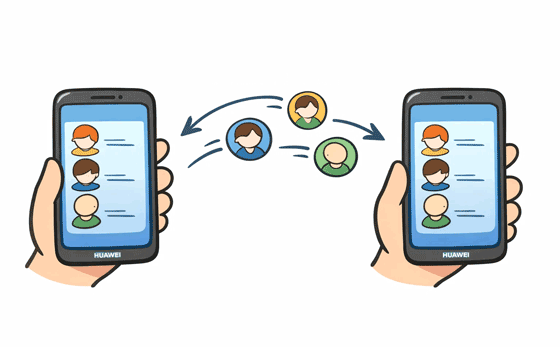
Phone Clone is Huawei's official migration tool. It is the most efficient way to move not just contacts, but messages, photos, apps, etc. However, you need to complete the data transfer during the setup on your new Huawei phone or tablet.
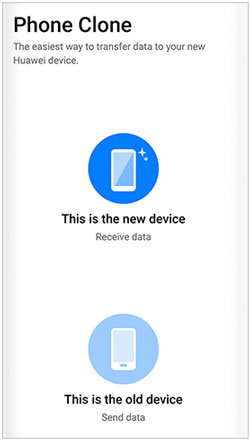
Step 1: Open the Huawei Phone Clone app on both the old and new phones.
Step 2: On the new phone, select "This is the new device" and choose "Huawei" as the old phone type. A QR code will appear.
Step 3: On the old phone, select "This is the old device" and scan the QR code on the new device.
Step 4: Once connected, select "Contacts" from the list of data types. Tap "Transfer" and wait for the process to complete.
Tips: When you encounter the Phone Clone not working problem, you may hope to find the most suitable Phone Clone troubleshooting.
If you prefer transferring your contacts after setup, you can use this direct data transfer software - Samsung Data Transfer. This tool supports most Android and iOS devices, including Huawei. It can copy various data types between Huawei mobile devices, including your contacts, documents, apps, videos, text messages, photos, and more, without overwriting data on the receiver.
- Copy contacts from Huawei to Huawei without data loss.
- Allow you to select data types before starting the process.
- Move data from iPhone to Huawei, Android to Huawei, and vice versa.
- Compatible with Android 6.0 or later, and iOS 5.0 or higher.
- USB and Wi-Fi connection methods are supported.
Download the data transfer software on your computer.


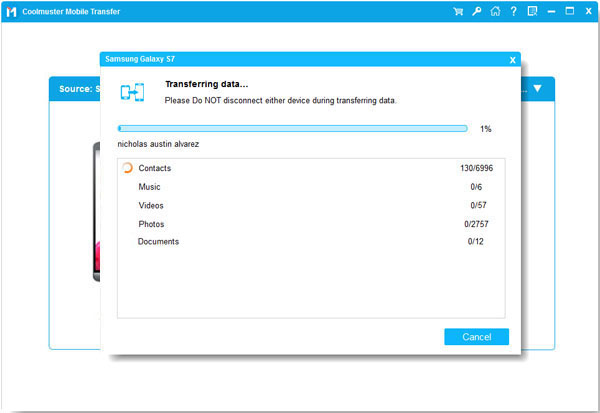
Step 1: Download and install the data transfer program on a computer. Then launch it and connect both your Huawei mobile phones to the computer with USB cables. If you want a wireless transfer, please connect your devices to the same internet network.
Step 2: Follow the instructions on the interface to enable the USB debugging feature on both smartphones. Then the software will recognize the Huawei devices quickly.
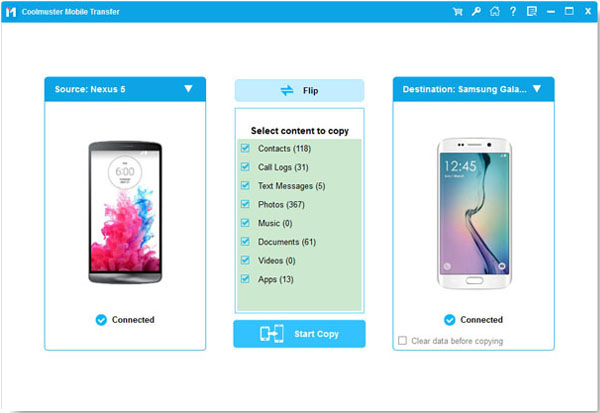
Step 3: Once connected, ensure your new Huawei phone is the "Destination" device, or click "Flip". Then select the "Contacts" category, and click "Start Copy". You will get the contacts on your new Huawei phone.
Using a SIM card is a classic "old school" method. It's perfect if you have a small number of contacts and don't want to use apps.
Step 1: On the old Huawei phone, go to Contacts > "Settings" > "Import/Export contacts".
Step 2: Select "Export to SIM card". Then your contacts will be saved on your SIM card. Now, move the SIM card to your new Huawei phone.
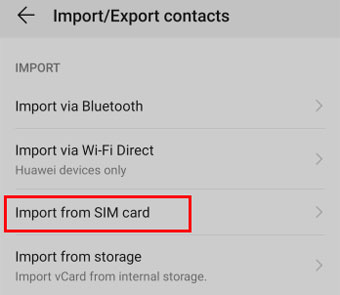
Step 3: On the new phone, open the Contacts app > "Settings", and click "Import/Export contacts" > "Import from SIM card".
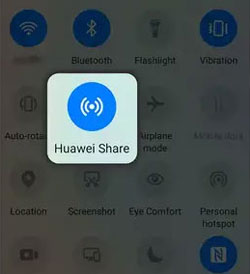
Huawei Share is incredibly fast for peer-to-peer transfers between devices in close proximity, which is similar to AirDrop, so you don't need a network, just enable Bluetooth and Wi-Fi on both Huawei devices, and put the devices in close proximity.
Step 1: Enable Huawei Share in the notification panel on both devices. Then open "Contacts" on the old phone.
Step 2: Long-press a contact (or select all) and tap "Share". Then select "Huawei Share" and tap the icon of your new Huawei phone.
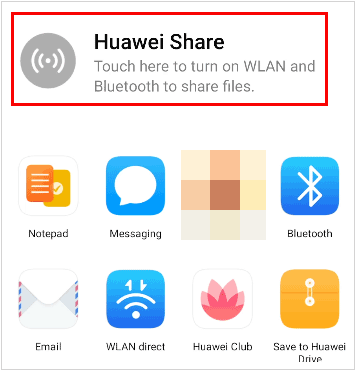
Step 3: Accept the contact on the new Huawei device.
If you prefer a wireless, "set it and forget it" approach, Huawei Cloud is your best bet. As long as you turn on the Contacts option to sync the data to Huawei Cloud, you can easily get the contacts on another Huawei device when logging in to the same account.
Step 1: On both phones, sign in with the same Huawei ID on the Settings app.
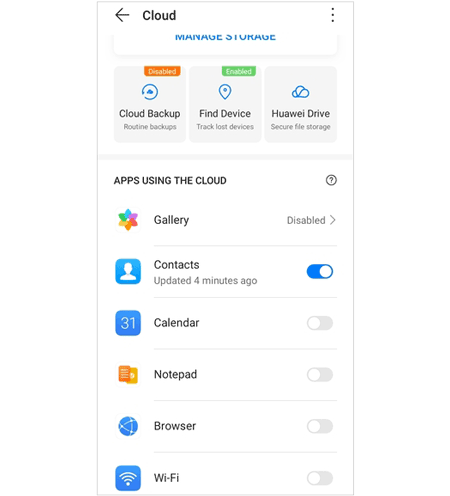
Step 2: Click your Huawei account and choose "Cloud". Then toggle the "Contacts" switch to "ON".
Step 3: Repeat the step on your new Huawei phone. Then your contacts will automatically sync to the new device.
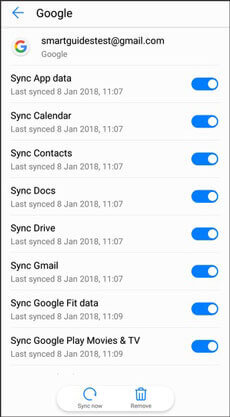
For older Huawei devices that still carry Google Mobile Services (GMS), you can use Google Sync to transfer your contacts between your Huawei devices.
Step 1: On the source Huawei phone, launch the Settings app and click "Users & accounts" > "Google".
Step 2: Enable "Sync Contacts". Then add the same account to your destination Huawei phone.
Step 3: Turn on the "Sync Contacts" icon. Your contacts will appear on the device.
Q1: Can I share my entire contact list on a Huawei phone with Huawei Share?
Yes. While Huawei Share is often used for single files, you can "Select All" in your Contacts app and share the generated vCard (.vcf) file via Huawei Share to the new device in one go.
Q2: Can I send all my contacts on my Huawei phone with email at once?
Yes. By using the "Export" to "Storage" option, your phone creates a .vcf file. You can attach this file to an email, send it to yourself, and open the attachment on the new Huawei phone to import the entire list.
Q3: Can I sync my contacts to my Google Account if the device runs HarmonyOS?
Directly? No. HarmonyOS does not come with Google Play Services. However, you can still access your Google contacts by logging into your Google Account via the Huawei Browser and exporting them, or by using a third-party app to bridge the data. Google Sync may not be available unless Google Mobile Services are installed.
If you want a straightforward way to transfer contacts from Huawei to Huawei, the methods provided above can be helpful. Phone Clone offers the most seamless experience, while Samsung Data Transfer can transfer contacts directly after setup, Huawei Share and Cloud syncing provide flexible approaches as well.
By choosing the method that matches your device capabilities and preferences, you can ensure a smooth transition and keep your essential contacts intact.
Related Articles
[5 Methods] How to Transfer Files from Huawei to PC/Computer?
How to Transfer Data from Huawei to Samsung | Updated Methods and Steps
How to Transfer Photos from iPhone to Huawei in 5 Effective Ways?
[Newest Guide] How to Move Apps to SD Card from Huawei Device?

Sophie Green, Chief Editor of Samsung-messages-backup website, has been focusing on the realm of Android Recovery, Android Transfer (Backup), Android Device Tips, Phone Clean, and Phone Transfer technologies. Recognized contributions on leading platforms attest to her esteemed expertise and reliability.
Copyright © samsung-messages-backup.com All Rights Reserved.



