|
TL;DR: Transferring data from an iPhone to an iPad is highly flexible, depending on whether you are setting up a new device or updating an existing one:
|
The process to transfer data from iPhone to iPad might seem complicated at first, but Apple's ecosystem, along with some excellent third-party tools, makes it incredibly smooth. Whether you have a brand-new iPad fresh out of the box or simply need to share specific files between devices later on, there is a method tailored to your needs.
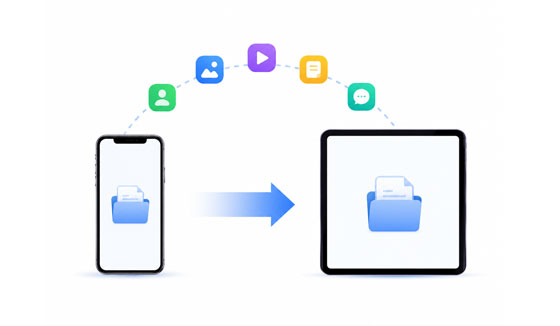
If your iPad is brand new or has just been factory reset, Apple's built-in Quick Start is the easiest way to clone your settings, preferences, and data. Please note that this method requires both devices to use Bluetooth and Wi-Fi, and it will overwrite any existing data on the destination iPad.
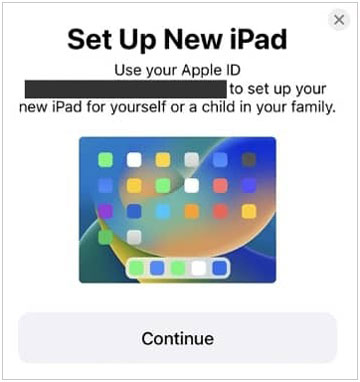
Step 1: Turn on your new iPad and place it close to your iPhone. A screen will appear on your iPhone asking if you want to use your Apple ID to set up your new iPad. Tap "Continue".
Step 2: An animation will appear on your iPad screen. Hold your iPhone over the iPad to scan the animation using the viewfinder.
Step 3: Enter your iPhone's passcode on your iPad when prompted, and follow the on-screen instructions to set up Face ID or Touch ID.
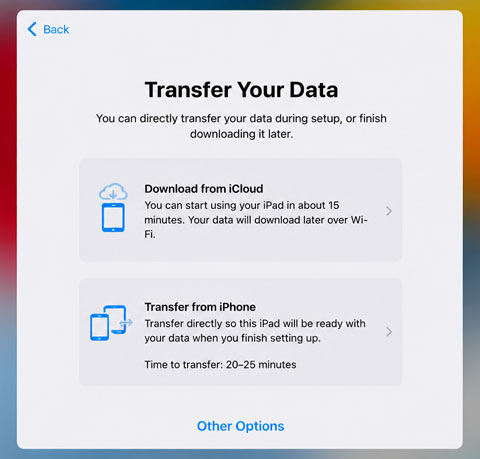
Step 4: Select "Transfer from iPhone" and keep both devices near each other and connected to Wi-Fi until the process is complete.
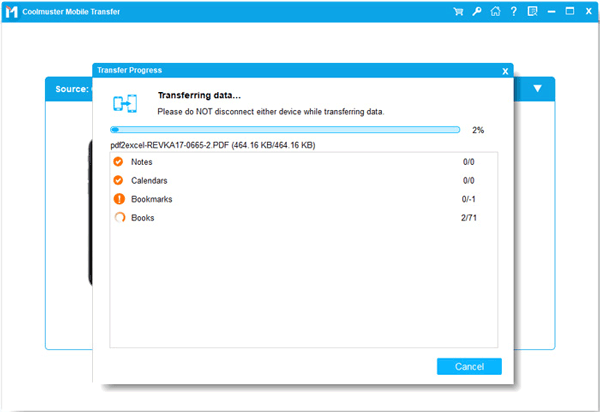
If you have already set up your iPad and don't want to reset it, using a dedicated desktop tool like Samsung Data Transfer is a fantastic alternative. It allows you to copy data without wiping your destination device. With it, you can directly transfer your contacts, notes, calendars, bookmarks, and books to your iPad.
- Transfer various data types from an iPhone to an iPad without resetting any devices.
- Support a stable USB connection to transfer data between iOS devices.
- Preserve the original quality of all transferred files, ensuring nothing is lost or compressed during the process.
- Also transfer data across systems from iOS to Android and vice versa.
- Move most file types between Android devices, including media files, apps, call logs, messages, etc.
- Fully compatible with the latest iOS versions and all iPhone and iPad models, such as iOS 27 and iPadOS 27, iPhone 17/16, iPad Air, iPad Pro, iPad mini, etc.
Download this data transfer software.


Step 1: Download and install the iOS data transfer software on your computer. Then launch the program and connect both your iPhone and iPad to the computer with USB cables.
Step 2: Tap "Trust" on both devices, and the program will recognize them immediately. Then check if your iPad is the "Destination" device. If they are reversed, click the "Flip" button.
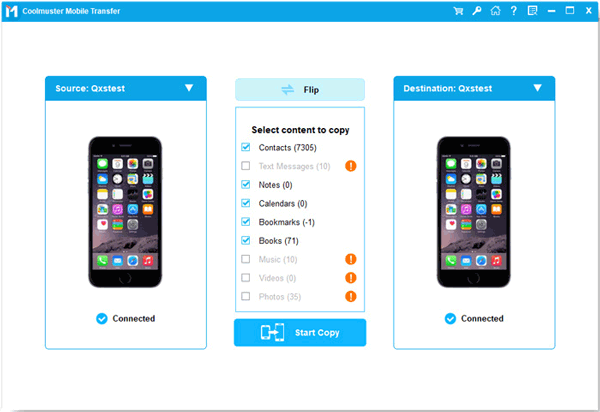
Step 3: Check the boxes next to the data types you want to move. Then click "Start Copy" and wait for the software to copy your files safely.
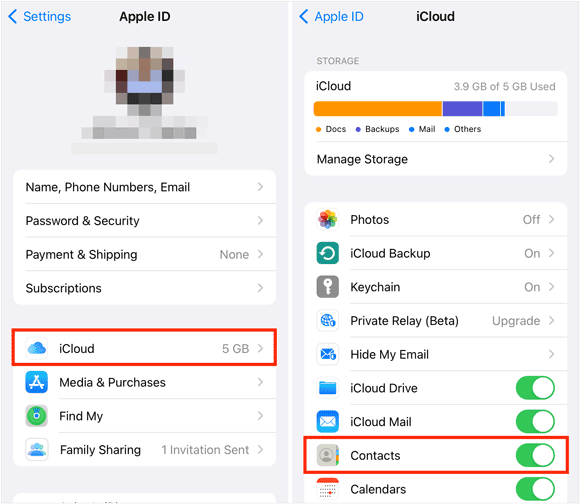
For a wireless, hands-off approach that keeps your devices continuously synced, Apple's iCloud is the gold standard. You can either restore a full backup or sync specific data types.
Step 1: If both devices are already set up, simply log in to the same Apple ID on both devices. Go to Settings > "[Your Name]" > "iCloud".
Step 2: Toggle on the switches for the apps you want to sync, such as Contacts, Calendars, Photos, etc.
Step 3: Make sure the Wi-Fi network is stable, and the data will appear on your iPad soon.
When you don't need to transfer an entire device's worth of data, but just want to send a few photos, a document, or a website link, AirDrop is the fastest wireless option.
Step 1: On both your iPhone and iPad, swipe down from the top-right corner to open "Control Center".
Step 2: Long-press the wireless settings block (top left) and turn on Wi-Fi, Bluetooth, and AirDrop (set to Everyone for 10 Minutes or Contacts Only).
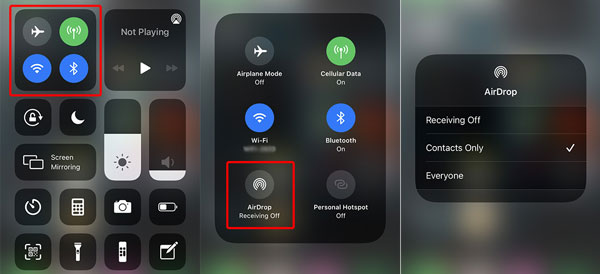
Step 3: On your iPhone, open the app containing the file you want to send. Select the file(s) and tap the "Share" icon.
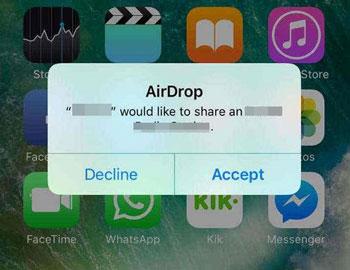
Step 4: Select "AirDrop" and tap your iPad's name. A pop-up will appear on your iPad. Tap "Accept" to receive the file.
If you prefer open-source software, or if you frequently transfer files across different ecosystems (like moving files to Windows or Android later on), LocalSend is an exceptional, privacy-focused tool that works entirely over your local Wi-Fi network.
Step 1: Download and open the LocalSend app on both your iPhone and iPad from the App Store, and make sure both devices are connected to the same Wi-Fi network.
Step 2: On your iPhone, tap the "Send" tab and select the files, media, or text you want to transfer.
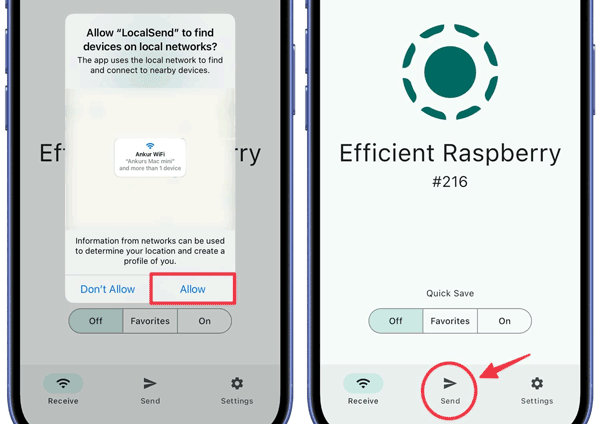
Step 3: On your iPad, open the "Receive" tab (the app will assign a temporary, friendly alias to your iPad).
Step 4: On your iPhone, look under the "Nearby Devices" list and tap your iPad's alias. At last, accept the transfer request on your iPad to complete the download. You will get the files on your iPad.
Q1: Can I send specific items from my iPhone to my iPad?
Yes. If you only want to send individual items rather than your entire phone history, your best options are AirDrop (for native Apple ecosystem sharing) or LocalSend (for quick, local file transfers). Alternatively, you can selectively toggle specific data categories (like Contacts or Notes) in your iCloud settings to sync only what you need.
Q2: Why is my iPad not syncing with my iPhone anymore?
This is usually caused by one of three common issues:
Q3: Why are messages appearing on my iPhone but not my iPad?
To get your text messages (both iMessages and traditional SMS) to sync perfectly, you need to enable "Text Message Forwarding".
Whether you prefer the seamless, automated nature of Apple's Quick Start and iCloud, the targeted precision of AirDrop and LocalSend, or the efficient transfer of Samsung Data Transfer after the setup without resetting your device, getting your files from your iPhone to your iPad is quick and secure.
Evaluate whether you are configuring a new device or updating an existing one, pick the method that matches your needs, and enjoy your synchronized Apple experience.
Related Articles
How to Transfer Videos from iPhone to iPad | 6 Functional Methods You Can Get
How to Transfer iBooks from iPhone to iPad with 5 Hassle-free Methods
How to Transfer Contacts from iPhone to Computer Without iTunes (5 Ways)
Transfer Documents from iPhone to Samsung in 5 Ways (No Hurdles)

Sophie Green, Chief Editor of Samsung-messages-backup website, has been focusing on the realm of Android Recovery, Android Transfer (Backup), Android Device Tips, Phone Clean, and Phone Transfer technologies. Recognized contributions on leading platforms attest to her esteemed expertise and reliability.
Copyright © samsung-messages-backup.com All Rights Reserved.



