"I'm trying to transfer files from my pc to my tablet, both movies and documents. When I try to move all the documents at once (about 9 files, max 50 pages in total), it loads about halfway through and then stops without transferring any of the files to my tablet. It only works when I transfer the files one by one and try it multiple times. Who can give me some advice?
- A Post from Reddit
Traditional USB transfer may not be efficient enough, and sometimes, errors easily occurs during the process. Today, we are going to talk about how to transfer files from PC to tablet Android with 5 proven methods. Even though the manual USB transfer failed, you can use these methods to move your movies, documents, and other files without data loss.
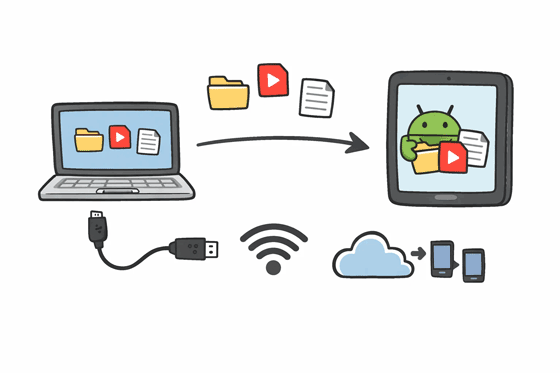
For users who want a structured, iTunes-like experience for Android, Samsung Messages Backup offers a robust desktop interface to manage Android tablet data. You can use it to transfer your files from your PC to your Android tablet and vice versa, including videos, photos, music, documents, etc.
- Allow you to preview and selectively transfer files from a computer to an Android tablet.
- Not only support media files but also transfer contacts, call logs, text messages, and apps.
- Enable you to directly manage your Android data on your PC, like editing contacts, sorting photos, sending messages, etc.
- Back up all Android data to your PC in 1 click, and restore data to an Android device without data loss.
- Install Android apps from a PC to an Android tablet, and uninstall apps from Android on the computer.
- Work for Android 6.0 and upper, including the latest version.
Download the Android data management software.


Step 1: Install the transfer software on your PC after downloading it. Then connect your Android tablet to the computer with USB. By the way, if you want to transfer files wirelessly, please click "Connect via Wi-Fi".
Step 2: Choose "File transfer/Android Auto" on Android, and then your PC will recognize your mobile device successfully.
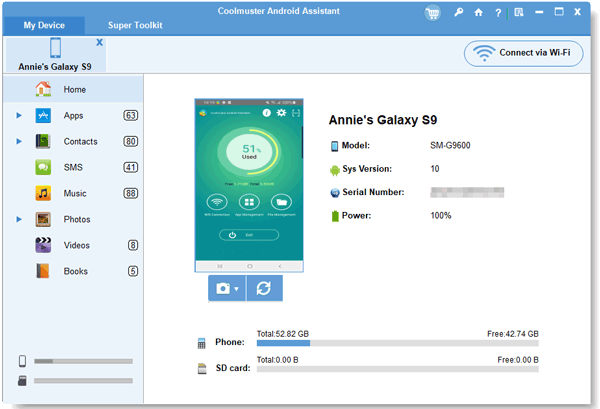
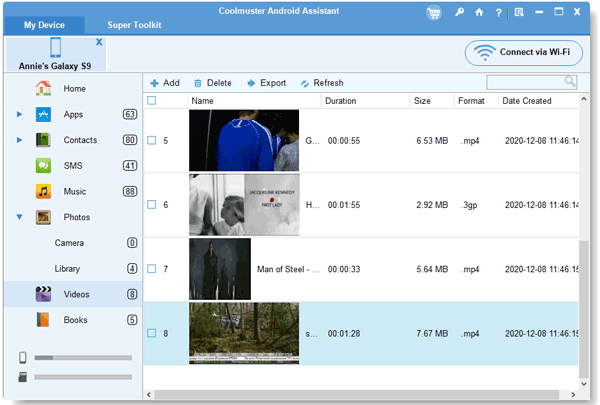
Step 3: Choose a file type, and click "Add" or "Import" to transfer your files from the PC to the Android tablet. Besides, to transfer data from the tablet to the PC, you can select the data and click "Export".
Cloud storage services like Google Drive offer a wireless and flexible solution. You can utilize Google Drive to sync your files between your computer and tablet.
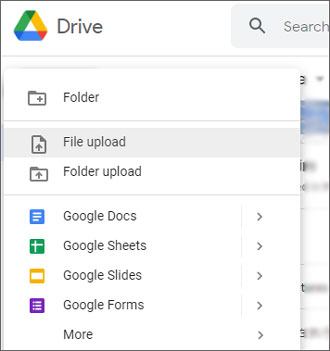
Step 1: Open drive.google.com in a browser on a PC, and log in to your Google Account. Drag and drop your files into the window, or click "New" > "File upload".
Step 2: Wait for the upload to complete. Then go to the Google Drive app on your tablet. Ensure you have signed in with the same account.
Step 3: You will see the uploaded files. Select and download them to your tablet.
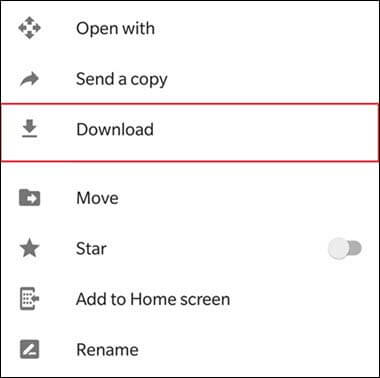
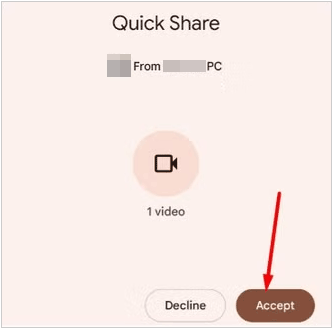
Formerly known as Nearby Share, Quick Share is Google's answer to AirDrop and is now available to Windows. You can send files between your Windows PC and Android tablet via Quick Share, which doesn't require an Internet connection.
Step 1: Install the "Quick Share for Windows" app on your PC. Ensure Bluetooth and Wi-Fi are turned on for both devices.
Step 2: Set your tablet's Quick Share visibility to "Everyone" or "Your Devices" in the Quick Settings toggle.
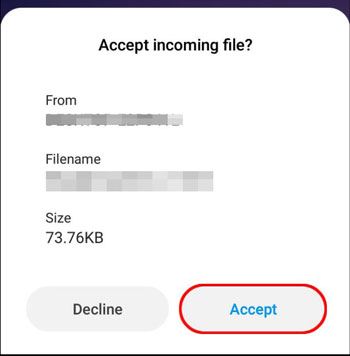
Step 3: On your PC, drag a file into the Quick Share app or right-click a file and select Send with Quick Share. Select your tablet from the list of found devices to begin the wireless transfer. Then click "Accept" on your tablet.
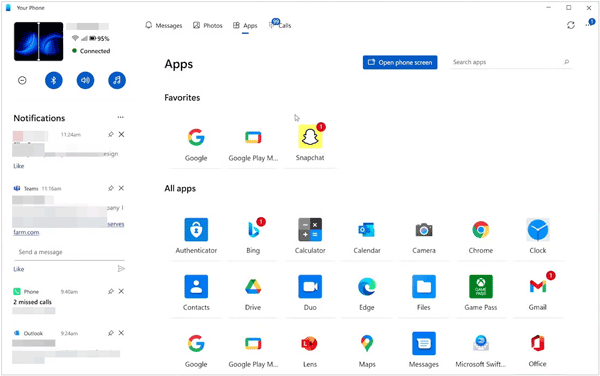
Microsoft's Phone Link (and the Link to Windows app on Android) is designed for seamless integration, allowing you to drag and drop files directly between windows.
Step 1: Open the Phone Link app on Windows and follow the prompts to pair your tablet using a QR code.
Step 2: Go to the "Apps" or "Phone Screen" section in the desktop app to view your tablet's interface.
Step 3: Simply drag a file from your Windows File Explorer and drop it onto the tablet screen window. The file will typically be saved in the Downloads folder of your tablet.
While slower than other methods, Bluetooth is a reliable "no-internet" fallback for small documents or photos. If you want to share several small files between your PC and Android tablet, you can use Bluetooth.
Step 1: Go to Settings > "Bluetooth" on both devices and pair them.
Step 2: On your PC, right-click the "Bluetooth" icon in the system tray and select "Send a File".
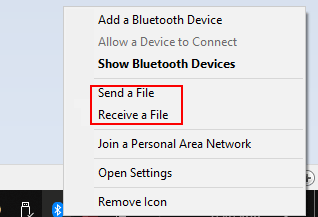
Step 3: Select your tablet from the list. On the tablet, a prompt will appear; tap "Accept" to receive the incoming file.
Q1: Why doesn't my computer recognize my tablet?
This is usually caused by a faulty USB cable or the wrong USB mode. When you plug the tablet in, swipe down the notification shade and ensure the USB settings are set to "File Transfer / MTP" instead of "No data transfer" or "Charging only".
Q2: Why is my Android tablet not allowing file transfer?
Check if your tablet is locked; most devices block data access until the screen is unlocked with a PIN or fingerprint. Additionally, ensure you have granted the necessary "Storage" permissions if you are using third-party management software.
Q3: Why does the file transfer suspend halfway when I transfer multiple files from my PC to my Android tablet?
Transfer interruptions often occur due to:
There are many ways to transfer files from a PC to an Android tablet, each with its own strengths. For speed and reliability, Samsung Messages Backup is ideal. This tool provide both connection methods: USB and Wi-Fi, and can transfer media files and basic data like contacts, etc. Also, cloud services like Google Drive or wireless options like Quick Share work well.
Choose the method that best fits your needs, and you'll be able to move files seamlessly between your devices.
Related Articles
How to Transfer Photos from Samsung Phone to Tablet? - 3 Easy Ways
How to sync phone to tablet? 5 Amazing Tips and Tricks Treat You
Free Up Storage on Samsung Tablet and Phone [Maximize Storage Space]
How to Transfer Data from Old Tablet to New Tablet without Effort (Everything)

Sophie Green, Chief Editor of Samsung-messages-backup website, has been focusing on the realm of Android Recovery, Android Transfer (Backup), Android Device Tips, Phone Clean, and Phone Transfer technologies. Recognized contributions on leading platforms attest to her esteemed expertise and reliability.
Copyright © samsung-messages-backup.com All Rights Reserved.



